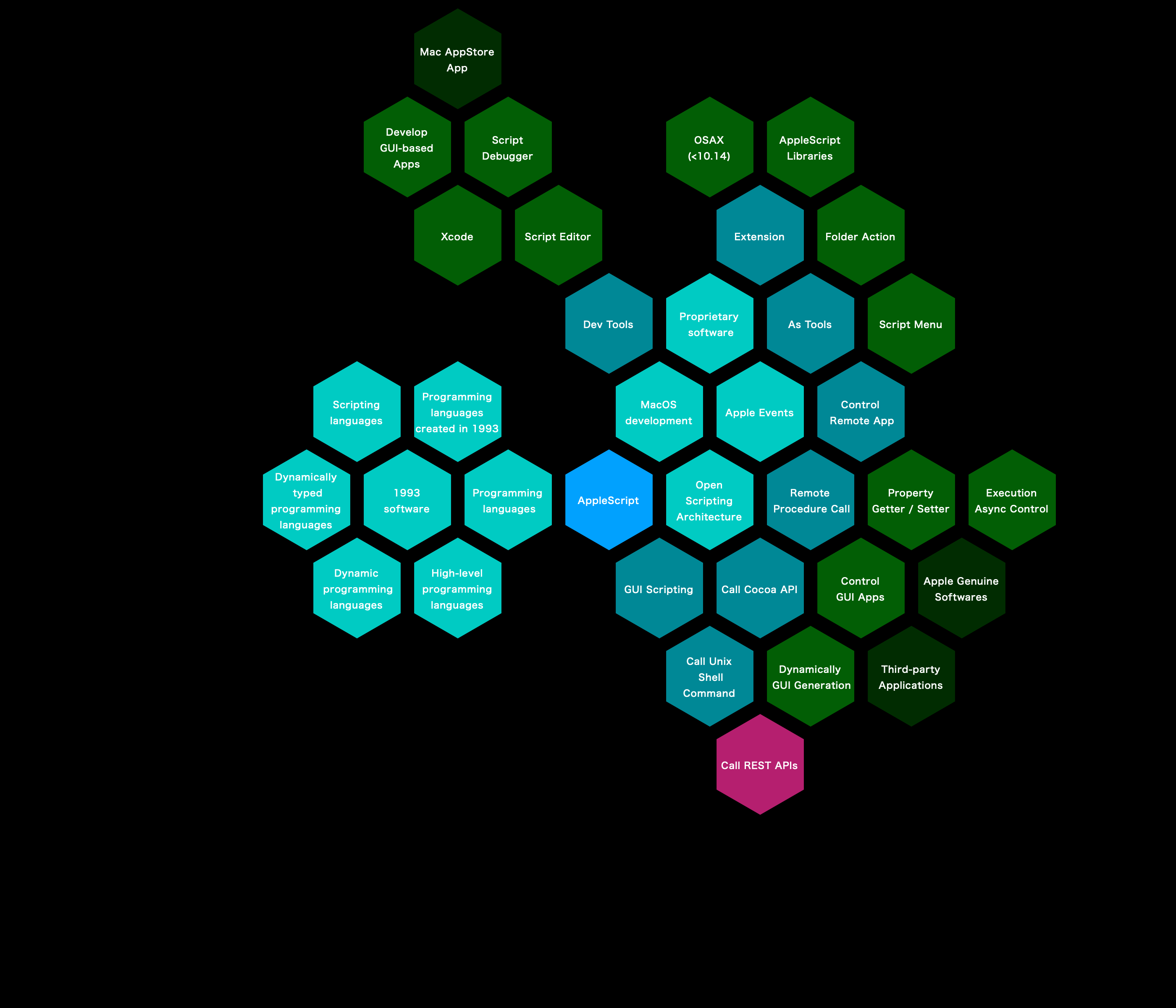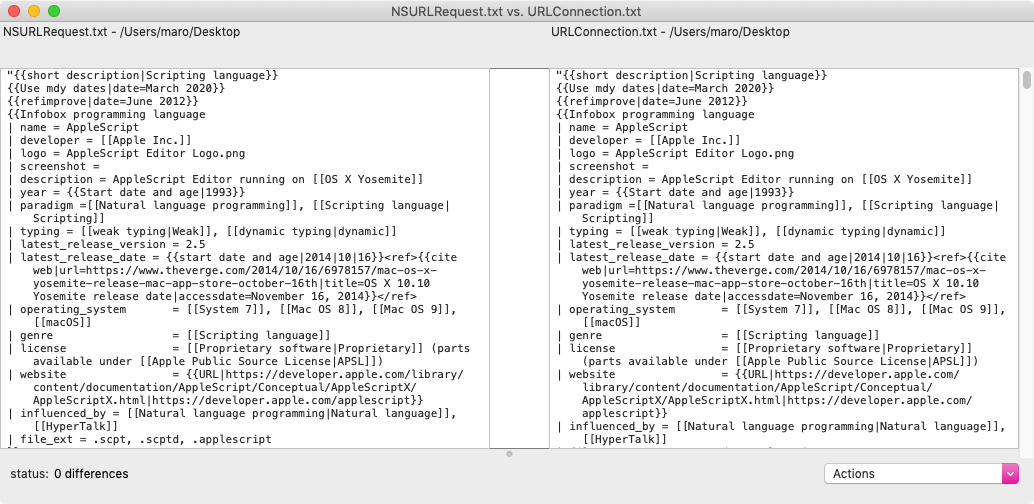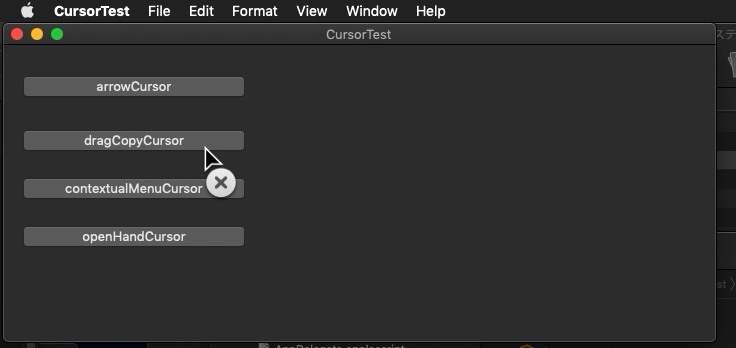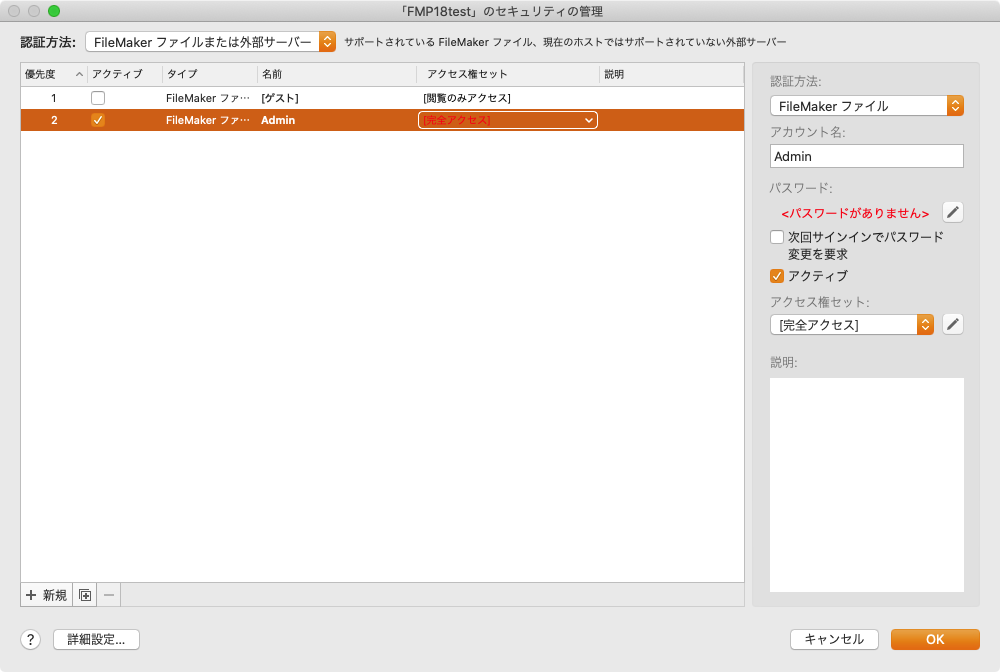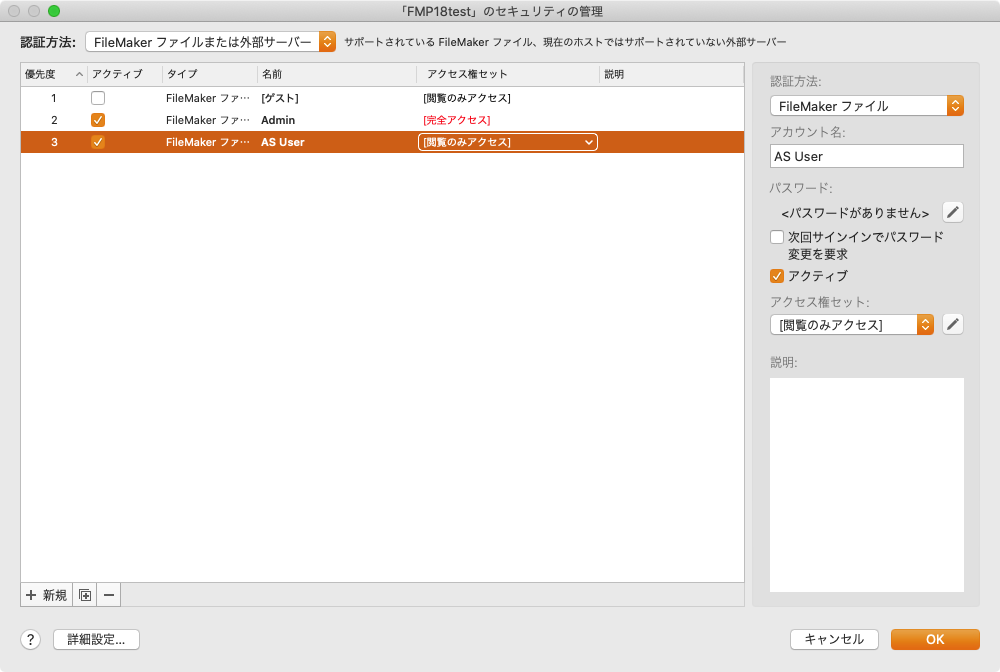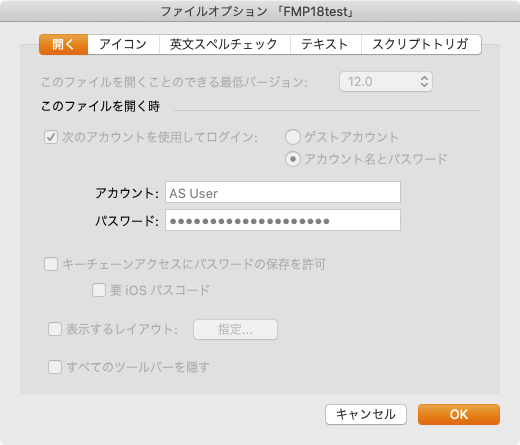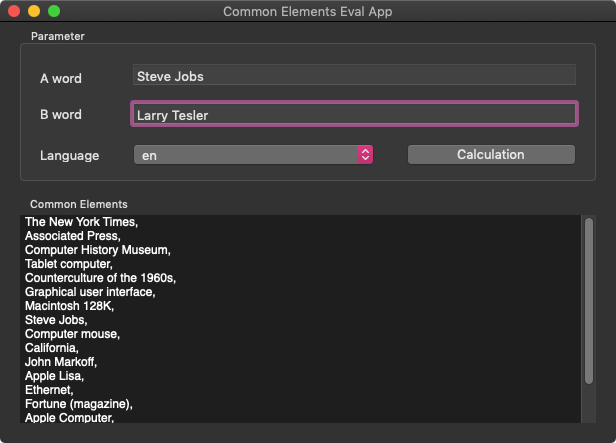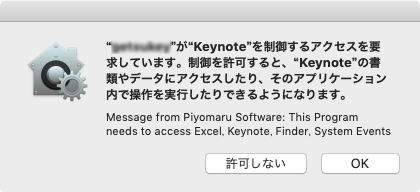

ライブラリのインストール方法やらスクリプトエディタの使い方やらがわかっていないとcommon elements Libを実際に使って試すことができないので、実際に機能を評価できるよう最低限のGUIをつけてみました。
–> Download GUI App Executable(Zip archive, 57KB)
macOS 10.13,10.14, 10.15上で動作します。実行にはインターネット接続を必要とします。
ライブラリのインストール方法やらスクリプトエディタの使い方やらがわかっていないとcommon elements Libを実際に使って試すことができないので、実際に機能を評価できるよう最低限のGUIをつけてみました。
–> Download GUI App Executable(Zip archive, 57KB)
macOS 10.13,10.14, 10.15上で動作します。実行にはインターネット接続を必要とします。
WikipediaのREST APIを呼び出して、2つの単語の共通項を計算する「common elements Lib」を作って実際にいろいろ評価していますが、ロシア語を指定したときに結果が得られないという現象に直面していました。
ロシア語を記述するキリル文字のエンコーディング指定がよくなかったのか、Wikipediaのロシア語サーバーの問題なのか、どこに問題点があるのかよくわかっていませんでした(そういう問題のあぶり出しのためにリリースしてみた事情があります)。
とりあえず人名をGoogle翻訳でロシア語+キリル文字に翻訳してロシア語Wikipediaに突っ込んでみても結果が得られず首をひねっていましたが、ロシア語の人名表記が、
First name Family name
ではなく、
Family name, First name
のフォーマットであることに気づきました。この語順で人名を突っ込んでみたところ、無事結果が得られることを確認しました。
| AppleScript名:sample_russian |
| — – Created by: Takaaki Naganoya – Created on: 2020/03/03 — – Copyright © 2020 Piyomaru Software, All Rights Reserved — use comLib : script "common elements Lib" –"Family Name, First Name" in Russian Language –"George Lucas" and "Steven Spielberg" set cRes to list up common elements with {"Лукас, Джордж", "Спилберг, Стивен"} with language "ru" –> {"Награда имени Ирвинга Тальберга", "Индиана Джонс", "Кинофантастика", "Золотой глобус", "Монтажёр", "Industrial Light & Magic", "Форд, Харрисон", "DreamWorks", "Премия «Сатурн» за лучший сценарий", "Сиквел", "Продюсер", "Кинорежиссёр", "Калифорния", "Сценарист", "Премия «Сатурн» за лучшую режиссуру", "Оскар (кинопремия)"} –"Larry Tesler" and "Steve Jobs" set dRes to list up common elements with {"Теслер, Ларри ", "Джобс, Стив"} with language "ru" –> {"Apple Computer", "Xerox PARC", "Smalltalk", "Стэнфордский университет"} |
ウクライナ語の人名は、
First name Family name
となっているので、そのように書けば結果が得られます。登録記事数がそれほど多くないので、かなり検索語句を選ぶ印象ではあります。
| AppleScript名:sample_Ukrainian |
| –Українська (Ukrainian) use comLib : script "common elements Lib" –"Bill Gates" and "Steve Jobs" set dRes to list up common elements with {"Білл Гейтс", "Стів Джобс"} with language "uk" –> {"США", "IBM", "Долар США", "Майкрософт", "Головний виконавчий директор", "Стенфордський університет", "Персональний комп’ютер"} |
Safariでオープン中のウィンドウ/Tabのうち、指定URLではじまるもの(この場合にはGoogle翻訳)をオープン中のものだけをクローズする掃除用のAppleScriptです。
TabのIDを取得して、1から処理するとナンバリングがおかしくなるので、後ろから処理しているあたりが「ワザ」とでもいうべきものでしょうか。
| AppleScript名:指定文字列ではじまるURLをオープン中のTabをクローズ |
| — – Created by: Takaaki Naganoya – Created on: 2020/03/01 — – Copyright © 2020 Piyomaru Software, All Rights Reserved — set targURL to "https://translate.google.co.jp" –Google翻訳 closeSafariTabsBeginsWithAURL(targURL) of me on closeSafariTabsBeginsWithAURL(targURL) tell application "Safari" set wCount to (every window whose visible is true) repeat with w in wCount set aWin to contents of w tell aWin set tabCount to count every tab repeat with t from tabCount to 1 by -1 tell tab t set aURL to URL of it if aURL begins with targURL then close end if end tell end repeat end tell end repeat end tell end closeSafariTabsBeginsWithAURL |
現在作成中のアプリケーションの副産物として生まれた「common elements Lib」AppleScript Libraryです。2つの単語の共通要素を計算して返します。
# v1.1にアップデートしました(ダウンロード先URLはかわらず)。ページ下部のテンプレート部分の余計なリンクを拾わないように改善したため、テンプレート部分のリンクが多い項目に対して大きな効果を発揮します
アーカイブをダウンロードして展開し、~/Library/Script Librariesフォルダに「common elements Lib.scptd」を入れるとAppleScriptから呼び出せるようになります。
macOS 10.10以降で動作するはずですが、開発は10.14上で、動作確認は10.13/10.14/10/15上でのみ行なっています。
この、2つのキーワードの共通要素を求める処理は「マッキー演算」と呼んでおり、男性アイドルグループ「SMAP」と、男性シンガーソングライター「槇原敬之」(マッキー)氏の共通要素を演算で求めることを目的として企画されました。「SMAP」はWikipedia上でも最大級の要素数を持つ項目であり、1,400項目以上のリンク要素を擁しています。
Wikipedia REST APIの仕様ではリンク要素を500項目までしか一度に取得できません。SMAPを処理するためには、複数ページにまたがるリンク取得の処理をこなすことが必要であり、「マッキー演算」は言葉のバカっぽさとは裏腹に、それなりの技術力が要求される、そこそこむずかしい処理なのです。
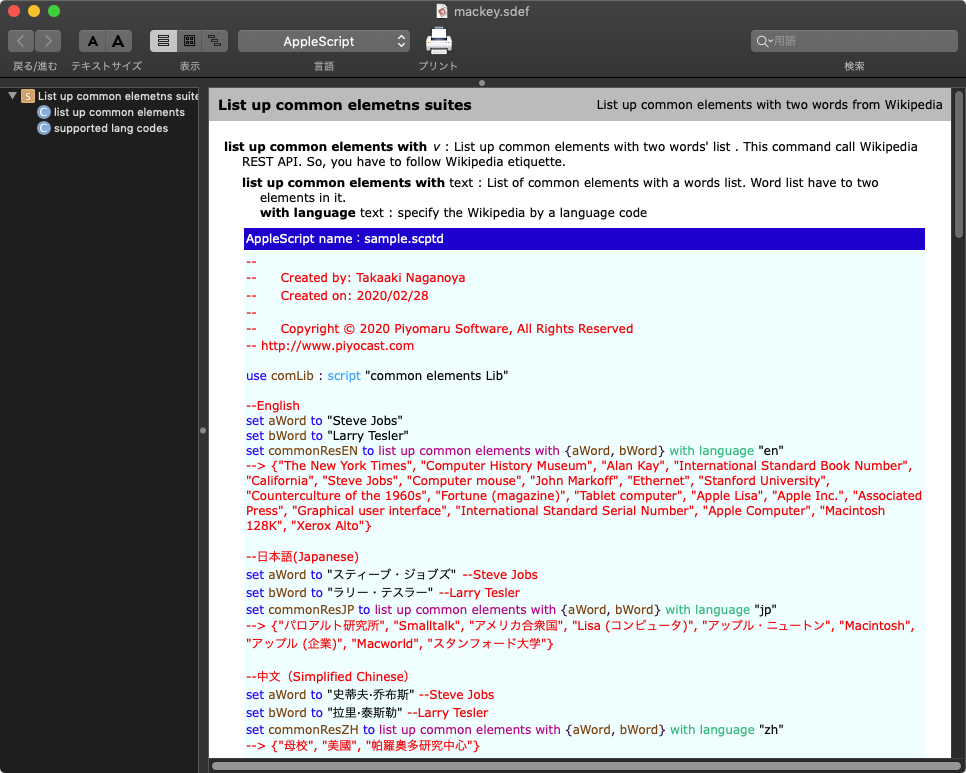
本ライブラリを用いて、WikipeidaにREST API経由で検索司令を出すわけですが、英語のスペルの単語を受け付けるWikipediaもあれば、日本語やアラビア語Wikipediaなどのようにその言語向けの書き換えを行ったデータで検索するものもあり、割とまちまちであることがわかりました。そのあたりは、sdefに書いておいたサンプルScriptを見ていただくのがよいでしょう。
本ライブラリでは、演算対象とする単語はWikipediaに掲載されているものに限られています。実際に、日本語環境で「スティーブ・ジョブズ」と「ラリー・テスラー」の共通項目を計算すると、
--> {"パロアルト研究所", "Smalltalk", "アメリカ合衆国", "Lisa (コンピュータ)", "アップル・ニュートン", "Macintosh", "アップル (企業)", "Macworld", "スタンフォード大学"}
「スティーブ・ジョブズ」と「ロス・ペロー」の共通項目を計算すると、
--> {"NeXT", "アル・ゴア", "統合典拠ファイル", "実業家", "IBM", "ゼネラルモーターズ", "SNAC", "アメリカ合衆国", "国際標準名称識別子", "孫正義", "ソフトバンク", "国立国会図書館", "フランス国立図書館", "アメリカ議会図書館管理番号", "CiNii", "バーチャル国際典拠ファイル"}
のような結果を返してきます。
冒頭で述べた「SMAP」と「槇原敬之」の共通項目を計算すると、
--> {"スポーツニッポン", "ABO式血液型", "テレビ朝日", "東京都", "社長", "エフエム東京", "ミュージックステーション", "J-POP", "第42回NHK紅白歌合戦", "大阪城ホール", "日本", "We are SMAP!", "ミリオンセラー", "小倉博和", "インターネットアーカイブ", "日本武道館", "ニッポン放送", "リクルートホールディングス", "日刊スポーツ", "第58回NHK紅白歌合戦", "フジテレビジョン", "世界に一つだけの花"}
のようになります。
おおよその主要言語に対応していますが、ロシア語をはじめとするキリル文字の言語を指定すると、なぜか結果が返ってきません。これが、キリル文字のエンコーディングに関する(こちら側の実装がまずい)問題なのか、サーバー側がREST APIをサポートしていないのか(Wikipediaサーバー側の問題)はわかりません。
→ ロシア語のクエリーも処理できることを確認しました
ここでは、だいたいの「いい感じのキーワード」を例として出していますが「George Lucas」と「Steven Spielberg」などの近い単語を指定すると結果が400個以上返ってきます。
→ v1.1における改良により、400個以上のリンクを66個まで減少させました(不要なフッター部分のリンクを拾わないようにした)
膨大な項目から必要な要素を選択するInterfaceをみつくろってテストをしてはいるのですが、iOS上でよさそうに見えてもMac上で動かすといまひとつだったり、なかなか合うものが見つかりません(超多項目選択UI)。
こうした計算結果をもっと減らす方法や、これらの多項目の計算結果からGUI上で項目選択する方法などが自分たちでは見つからなかったので、ライブラリとして公開して広く意見やアイデアを募ろうと考えました。多言語のWikipediaへの問い合わせを行ったり、問題点を洗い出すことも目的の1つです。前述のとおり、ロシア語系のWikipediaに対するアクセスに問題がある点については調査が必要です。
余談ですが、Steve JobsとLarry Teslerの関連項目演算を行おうとしても、Larry Teslerの項目がなかったり、Xerox PARCへのリンクがないために演算結果にこれが含まれない言語のWikipediaがいくつか見られました。コンピュータ史上重要な偉人への敬意をこめ、ぜひ追記していただきたいと考えるものです(という話を日本語で書いても意味がない?)。
| AppleScript name:sample.scptd |
| — – Created by: Takaaki Naganoya – Created on: 2020/02/28 — – Copyright © 2020 Piyomaru Software, All Rights Reserved — http://www.piyocast.com use comLib : script "common elements Lib" –English set aWord to "Steve Jobs" set bWord to "Larry Tesler" set commonResEN to list up common elements with {aWord, bWord} with language "en" –> {"The New York Times", "Computer History Museum", "Alan Kay", "International Standard Book Number", "California", "Steve Jobs", "Computer mouse", "John Markoff", "Ethernet", "Stanford University", "Counterculture of the 1960s", "Fortune (magazine)", "Tablet computer", "Apple Lisa", "Apple Inc.", "Associated Press", "Graphical user interface", "International Standard Serial Number", "Apple Computer", "Macintosh 128K", "Xerox Alto"} –日本語(Japanese) set aWord to "スティーブ・ジョブズ" –Steve Jobs set bWord to "ラリー・テスラー" –Larry Tesler set commonResJP to list up common elements with {aWord, bWord} with language "jp" –> {"パロアルト研究所", "Smalltalk", "アメリカ合衆国", "Lisa (コンピュータ)", "アップル・ニュートン", "Macintosh", "アップル (企業)", "Macworld", "スタンフォード大学"} –中文(Simplified Chinese) set aWord to "史蒂夫·乔布斯" –Steve Jobs set bWord to "拉里·泰斯勒" –Larry Tesler set commonResZH to list up common elements with {aWord, bWord} with language "zh" –> {"母校", "美國", "帕羅奧多研究中心"} —한국어(Korean) set aWord to "스티브 잡스" –Steve Jobs set bWord to "빌 게이츠" –Bill Gates set commonResKO to list up common elements with {aWord, bWord} with language "ko" —> {"가상 국제 전거 파일", "위키인용집", "게마인자메 노름다타이", "네덜란드 왕립도서관", "국제 표준 도서 번호", "IBM", "SNAC", "CiNii", "개인용 컴퓨터", "BIBSYS", "영어", "국제 표준 명칭 식별자", "오스트레일리아 국립도서관", "LIBRIS", "체코 국립도서관", "미국", "스페인 국립도서관", "뮤직브레인즈", "프랑스 국립도서관", "이스라엘 국립도서관", "일본 국립국회도서관", "미국 의회도서관 제어 번호", "전거 통제", "국립중앙도서관", "WorldCat Identities", "실리콘 밸리의 신화", "프랑스 대학도서관 종합목록", "위키미디어 공용"} –svenska set aWord to "Steve Jobs" set bWord to "Ross Perot" set commonResSV to list up common elements with {aWord, bWord} with language "sv" –> {"USA", "IBM", "Forbes", "Entreprenör", "Libris (bibliotekskatalog)"} –Deutsch set aWord to "Steve Jobs" set bWord to "Larry Tesler" set commonResDE to list up common elements with {aWord, bWord} with language "de" –> {"Objektorientierte Programmierung", "Apple", "Apple Macintosh", "Xerox PARC", "Virtual International Authority File", "The New York Times", "Kalifornien", "Apple Lisa"} –français set aWord to "Steve Jobs" set bWord to "Larry Tesler" set commonResFR to list up common elements with {aWord, bWord} with language "fr" –> {"The New York Times", "Palo Alto Research Center", "Informaticien", "Californie", "Apple", "États-Unis", "Autorité (sciences de l’information)"} –Nederlands set aWord to "Steve Jobs" set bWord to "Larry Tesler" set commonResNL to list up common elements with {aWord, bWord} with language "nl" –> {"Verenigde Staten (hoofdbetekenis)", "Palo Alto Research Center", "Apple Macintosh", "Xerox", "Apple Inc.", "Apple Lisa", "Apple Newton"} –italiano set aWord to "Steve Jobs" set bWord to "Larry Tesler" set commonResIT to list up common elements with {aWord, bWord} with language "it" –>{"Apple", "Stati Uniti d’America", "Xerox Palo Alto Research Center", "Informatico"} –español set aWord to "Steve Jobs" set bWord to "Ross Perot" set commonResES to list up common elements with {aWord, bWord} with language "es" –> {"Emprendedor", "Library of Congress Control Number", "Wikidata", "IBM", "Enciclopedia Británica", "Wikimedia Commons", "Empresario", "CiNii", "National Diet Library", "Estados Unidos", "National Library of the Czech Republic", "Virtual International Authority File", "Bibliothèque nationale de France", "International Standard Name Identifier", "Integrated Authority File", "Système universitaire de documentation", "ISBN"} –polski set aWord to "Steve Jobs" set bWord to "Larry Tesler" set commonResPL to list up common elements with {aWord, bWord} with language "pl" –> {"Apple Inc.", "Virtual International Authority File", "Xerox PARC"} –Tiếng Việt set aWord to "Steve Jobs" set bWord to "Larry Tesler" set commonResVI to list up common elements with {aWord, bWord} with language "vi" –> {"Hoa Kỳ", "Apple Lisa", "California", "Apple Inc."} –Arabic set aWord to "ستيف جوبز" set bWord to "روس بيرو" set commonResAR to list up common elements with {aWord, bWord} with language "ar" –> {"مكتبة البرلمان الوطني", "رقم الضبط في مكتبة الكونغرس", "رائد أعمال", "المكتبة الوطنية لجمهورية التشيك", "ملف استنادي متكامل", "ملف استنادي دولي افتراضي", "المكتبة الوطنية الفرنسية", "سايني", "ديل", "آي بي إم", "لغة إنجليزية", "ضبط استنادي", "حزب سياسي", "مهنة", "مدرسة أم", "واي باك مشين", "الولايات المتحدة", "المحدد المعياري الدولي للأسماء", "دولار أمريكي"} –português set aWord to "Steve Jobs" set bWord to "Larry Tesler" set commonResPT to list up common elements with {aWord, bWord} with language "pt" –> {"Macintosh", "Alan Kay", "Apple Newton", "Povo dos Estados Unidos", "Língua inglesa", "Estados Unidos", "Ciência da computação", "Apple", "Califórnia", "Base Virtual Internacional de Autoridade"} –Català set aWord to "Steve Jobs" set bWord to "Larry Tesler" set commonResCA to list up common elements with {aWord, bWord} with language "ca" –> {"Control d’autoritats", "Virtual International Authority File", "Apple Macintosh", "Apple Inc", "Interfície gràfica d’usuari"} –Bahasa Indonesia set aWord to "Steve Jobs" set bWord to "Larry Tesler" set commonResNO to list up common elements with {aWord, bWord} with language "id" –> {"California", "Biografi", "Amerika Serikat"} –magyar set aWord to "Steve Jobs" set bWord to "Larry Tesler" set commonResHU to list up common elements with {aWord, bWord} with language "hu" –> {"Amerikai Egyesült Államok", "Informatikus", "Wikimédia Commons", "Stanford Egyetem", "Nemzetközi Virtuális Katalógustár"} –euskara set aWord to "Steve Jobs" set bWord to "Larry Tesler" set commonResEU to list up common elements with {aWord, bWord} with language "eu" –> {"Xerox", "Informatikari", "Ingeles", "Apple Inc.", "Ameriketako Estatu Batuak", "Wikidata", "Smalltalk", "Virtual International Authority File", "Stanford Unibertsitatea", "Wikimedia Commons"} –Türkçe set aWord to "Steve Jobs" set bWord to "Larry Tesler" set commonResTR to list up common elements with {aWord, bWord} with language "tr" –> {"The New York Times", "Apple", "Amerika Birleşik Devletleri", "Kaliforniya"} |
| AppleScript name:sample2 |
| — – Created by: Takaaki Naganoya – Created on: 2020/02/28 — – Copyright © 2020 Piyomaru Software, All Rights Reserved — http://www.piyocast.com use comLib : script "common elements Lib" set sList to supported lang codes –> {"en", "ceb", "sv", "de", "fr", "nl", "ru", "it", "es", "pl", "war", "vi", "jp", "zh", "ar", "pt", "uk", "fa", "ca", "sr", "no", "id", "ko", "fi", "hu", "sh", "cs", "ro", "eu", "tr", "ms", "eo", "hy", "bg", "he", "da", "ce", "zh-min-nan", "sk", "kk", "min", "hr", "et", "lt", "be", "el", "azb", "sl", "gl", "az", "simple", "ur", "nn", "hi", "th", "ka", "uz", "la", "ta", "vo", "arz", "cy", "mk", "tg", "lv", "ast", "mg", "tt", "af", "oc", "bs", "bn", "ky", "sq", "zh-yue", "tl", "new", "te", "be-tarask", "br", "ml", "pms", "nds", "su", "ht", "lb", "jv", "sco", "mr", "sw", "pnb", "ga", "szl", "ba", "is", "my", "fy", "cv", "lmo", "an", "ne", "pa", "yo", "bar", "io", "gu", "wuu", "als", "ku", "scn", "kn", "ckb", "bpy", "ia", "qu", "mn", "bat-smg", "vec", "wa", "si", "or", "cdo", "gd", "yi", "am", "nap", "ilo", "bug", "xmf", "mai", "hsb", "map-bms", "fo", "diq", "mzn", "sd", "li", "eml", "sah", "nv", "os", "sa", "ps", "ace", "mrj", "frr", "zh-classical", "mhr"} –"ru", "uk", "sh", "bg" seems not to work… "ms" or later codes seems not to work (depends on Wikipedia Server spec)…. |
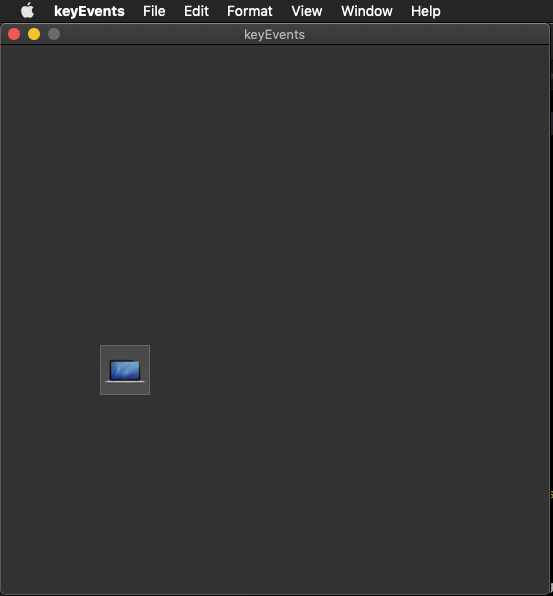
Xcode上で作成するAppleScript Cocoa Applicationで、キースキャンを試してみました。
ふだん作っているものだと、各種パラメータをGUI上で設定する程度のもので、キースキャンを行う必要などこれっぽっちもないのですが、いま作っているアプリケーションでキースキャンが必要になってしまったので、昔作ったものを引っ張り出してきました。
AppleScriptのプログラムでキースキャンを行うといえば、AppleScript Appletの起動時に何らかのModifier Keys(ShiftとかOptionとかCommandとかControlとか)が押されていることを検出して動作を変更するといった処理が一般的です。ループ処理中でも、これらのキー入力を定期的に監視することはよく行なっています(処理中に停止したいという要求はあるので)。
–> Download Xcode Project Archive
本プログラムでは、Modifier Keysにかぎらずキーボード入力全般を受け付けています。ただし、キースキャン可能なのは本プログラムが最前面にある場合のみです。
掲載しているコードからではわかりませんが、キー入力の受け付けをNSWindowで行なっています。FirstResponderまわりを一切いじくらずにほぼプログラミングなしでキー受け付けを行おうとした結果NSWindowで行うことになったというわけで、これがベストとも思いません。
とりあえず「こうすればできた」というレベルをおさえておいて、そこから自分の好きな方向に機能を変更していけばよいと思います。
| AppleScript名:AppDelegate.applescript |
| — — AppDelegate.applescript — keyEvents — — Created by Takaaki Naganoya on 2014/05/09. — Copyright (c) 2014年 Takaaki Naganoya. All rights reserved. — script AppDelegate property parent : class "NSObject" — IBOutlets property theWindow : missing value property aButton : missing value property xMax : 500 property yMax : 500 property aStep : 50 on applicationWillFinishLaunching:aNotification — end applicationWillFinishLaunching: on applicationShouldTerminate:sender return current application’s NSTerminateNow end applicationShouldTerminate: on buttonMove:(aCode as integer) set curFrame to aButton’s frame() copy curFrame to {{x, y}, {xWidth, yHeight}} if aCode = 123 then –Left if x > 0 then set x to x – aStep end if else if aCode = 124 then –Right if x < xMax then set x to x + aStep end if else if aCode = 126 then –Up if y < yMax then set y to y + aStep end if else if aCode = 125 then –Down if y > 10 then set y to y – aStep end if else if aCode = 125 then end if set newRect to {{x, y}, {xWidth, yHeight}} aButton’s setFrame:newRect aButton’s setNeedsDisplay() end buttonMove: end script |
| AppleScript名:keyEventWin.applescript |
| script keyEvWin property parent : class "NSWindow" property aButton : missing value on canBecomeKeyWindow:sender return true end canBecomeKeyWindow: on canBecomeMainWindow:sender return true end canBecomeMainWindow: on keyDown:theEvent set aCode to (theEvent’s keyCode) as integer if aCode = 123 then –左 current application’s NSApp’s delegate()’s performSelector:"buttonMove:" withObject:(aCode) else if aCode = 124 then –右 current application’s NSApp’s delegate()’s performSelector:"buttonMove:" withObject:(aCode) else if aCode = 126 then –上 current application’s NSApp’s delegate()’s performSelector:"buttonMove:" withObject:(aCode) else if aCode = 125 then –下 current application’s NSApp’s delegate()’s performSelector:"buttonMove:" withObject:(aCode) end if end keyDown: end script |
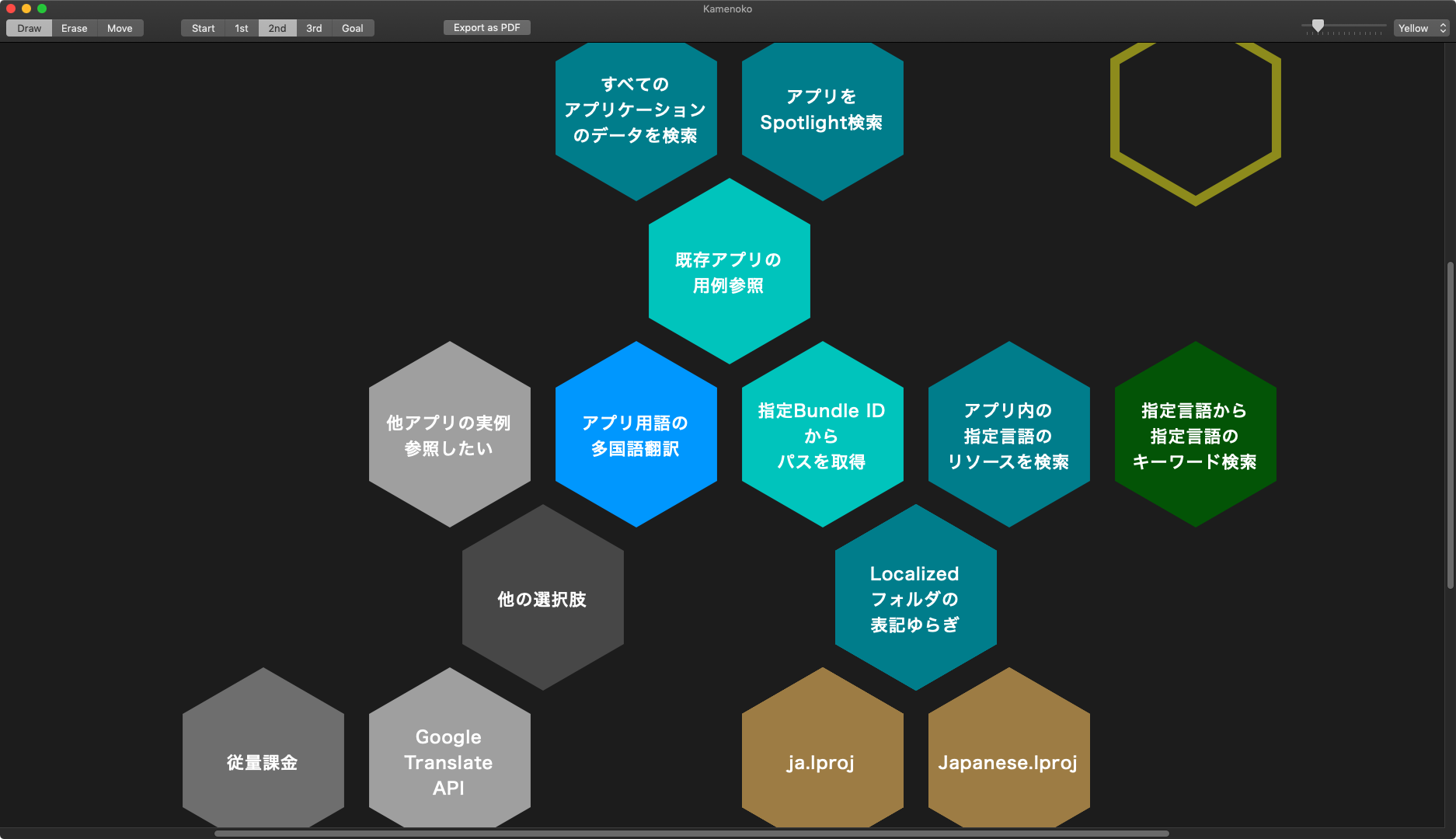
/Applicationsフォルダ以下のすべてのアプリケーションのバンドル中のstringsファイル中を走査して、指定の言語における指定キーワード(”Quit”など)の指定言語におけるローカライズした文字列を取得するAppleScriptです。
自分でアプリケーションのローカライズを行う際に、既存のmacOS用のアプリケーションのバンドル内にあるstringsファイルを参考にするためのツールです。
もともとは、Shane StanleyがLate Night Softwareのフォーラムに投稿したプログラムですが、自分もいろいろ試していたように、アプリケーション側のローカライズのされ方(言語別のフォルダ名の名称指定)に「ゆらぎ」があるため、そのあたりは総当たりでテストしているようです。
オリジナルではデータが存在しない場合にはエラーにしていましたが、このようにすべてのアプリケーションに対してループで処理を行うような場合にはエラーで止まっては困るので、そのあたりを書き換えています。
/Applicationsフォルダ以下のSpotlight検索によるアプリケーションの取得についてはMetadata Libを用いています。自分の開発環境で1キーワード(x バンドル内のすべてのstringsファイル x すべてのアプリケーション)の問い合わせに3.6〜5秒程度かかっています。HDDの環境ではこれより大幅に長くかかるはずなので、ちょっと考えたくありません。
また、Stringsファイルで供給されるローカライズ情報については探すことができますが、OS側が強制的に供給するWindowメニューなどの内容については本Scriptで調査することはできません。ねんのため。
| AppleScript名:指定Bundle IDのstringsファイル中における指定タイトルの指定言語のローカライズ版を求める.scptd |
| — – Created by: Takaaki Naganoya – Created on: 2020/02/24 — – Copyright © 2020 Piyomaru Software, All Rights Reserved — use AppleScript version "2.5" — El Capitan (10.11) or later use framework "Foundation" use framework "AppKit" use scripting additions use mdLib : script "Metadata Lib" version "2.0.0" –https://macosxautomation.com/applescript/apps/Script_Libs.html property NSWorkspace : a reference to current application’s NSWorkspace set targStr to "Performance" set origLang to "en" –From set targLang to "hu" –To set tList to {} set origPath to POSIX path of (path to applications folder) set aResList to mdLib’s searchFolders:{origPath} searchString:("kMDItemContentType == %@") searchArgs:{"com.apple.application-bundle"} repeat with i in aResList set aTitleRes to getAppGUITitleWithCurrentLocale(i, targStr, origLang, targLang) of me if aTitleRes is not equal to missing value and aTitleRes is not in tList then set the end of tList to aTitleRes end if end repeat return tList –> {"Előadás", "Teljesítmény"} –指定Bundle IDのstringsファイル中における指定タイトルの現在実行中のロケールのローカライズ版を求める on getAppGUITitleWithCurrentLocale(aPath, aTargetTitle, origLang, targLang) return my localizedStringFor:aTargetTitle inBundle:aPath destLang:targLang sourceLang:origLang end getAppGUITitleWithCurrentLocale –Bundle IDからアプリケーションのPathを返す on retAppAbusolutePathFromBundleID(aBundleID) set appPath to NSWorkspace’s sharedWorkspace()’s absolutePathForAppBundleWithIdentifier:aBundleID if appPath = missing value then return false return appPath as string end retAppAbusolutePathFromBundleID –Original By Shane Stanley@Late Night Software –Modified By Takaaki Naganoya –https://forum.latenightsw.com/t/localizing-gui-scripts/2246 on localizedStringFor:baseString inBundle:aPOSIX destLang:destLangCode sourceLang:sourceLangCode set anURL to current application’s |NSURL|’s fileURLWithPath:aPOSIX set theBundle to current application’s NSBundle’s bundleWithURL:anURL if theBundle = missing value then return missing value set sourceLangString to current application’s NSString’s stringWithString:sourceLangCode set destLangString to current application’s NSString’s stringWithString:destLangCode — get source strings values set theURLs to theBundle’s URLsForResourcesWithExtension:"strings" subdirectory:"" localization:sourceLangString if theURLs = missing value then return missing value if theURLs’s |count|() < 2 and (sourceLangString’s containsString:"_") as boolean then — try stripping off country-specific part set sourceLangString to sourceLangString’s substringToIndex:2 set theURLs to theBundle’s URLsForResourcesWithExtension:"strings" subdirectory:"" localization:sourceLangString end if if theURLs’s |count|() < 2 then — try long name for localization set sourceLangString to (current application’s NSLocale’s localeWithLocaleIdentifier:"en")’s localizedStringForLocaleIdentifier:sourceLangString set theURLs to theBundle’s URLsForResourcesWithExtension:"strings" subdirectory:"" localization:sourceLangString end if if theURLs’s |count|() < 2 then return missing value –error "No " & sourceLangCode & " localization found" repeat with sourceURL in theURLs — skip unlocalized file if not (sourceURL’s URLByDeletingLastPathComponent()’s lastPathComponent()’s isEqualToString:"Resources") as boolean then set theData to (current application’s NSData’s alloc()’s initWithContentsOfURL:sourceURL) if theData is missing value then return — error "No " & sourceLangCode & " localization found" set sourceDict to (current application’s NSPropertyListSerialization’s propertyListWithData:theData options:0 format:0 |error|:(missing value)) if sourceDict = missing value then return missing value set theKey to (sourceDict’s allKeysForObject:baseString)’s firstObject() if theKey is not missing value then set stringsFileName to sourceURL’s lastPathComponent()’s stringByDeletingPathExtension() set localURL to (theBundle’s URLForResource:stringsFileName withExtension:"strings" subdirectory:"" localization:destLangString) if localURL is missing value and (destLangString’s containsString:"_") as boolean then — try stripping off country-specific part set destLangString to (destLangString’s substringToIndex:2) set localURL to (theBundle’s URLForResource:stringsFileName withExtension:"strings" subdirectory:"" localization:destLangString) end if if localURL is missing value then — try long name for localization set destLangString to ((current application’s NSLocale’s localeWithLocaleIdentifier:"en")’s localizedStringForLocaleIdentifier:destLangString) set localURL to (theBundle’s URLForResource:stringsFileName withExtension:"strings" subdirectory:"" localization:destLangString) end if if localURL is missing value then return missing value — "No " & destLangCode & " localization found" set theData to (current application’s NSData’s alloc()’s initWithContentsOfURL:localURL) if theData is missing value then missing value — "No " & destLangCode & " localization found" set destDict to (current application’s NSPropertyListSerialization’s propertyListWithData:theData options:0 format:0 |error|:(missing value)) set destValue to (destDict’s objectForKey:theKey) –if destValue is not missing value then return {destValue as text, stringsFileName as text} if destValue is not missing value then return destValue as text return missing value end if end if end repeat return missing value end localizedStringFor:inBundle:destLang:sourceLang: |
If you can think of something that a language would normally have applescript does not have it
— mc²than (@parrotgeek1) February 23, 2020
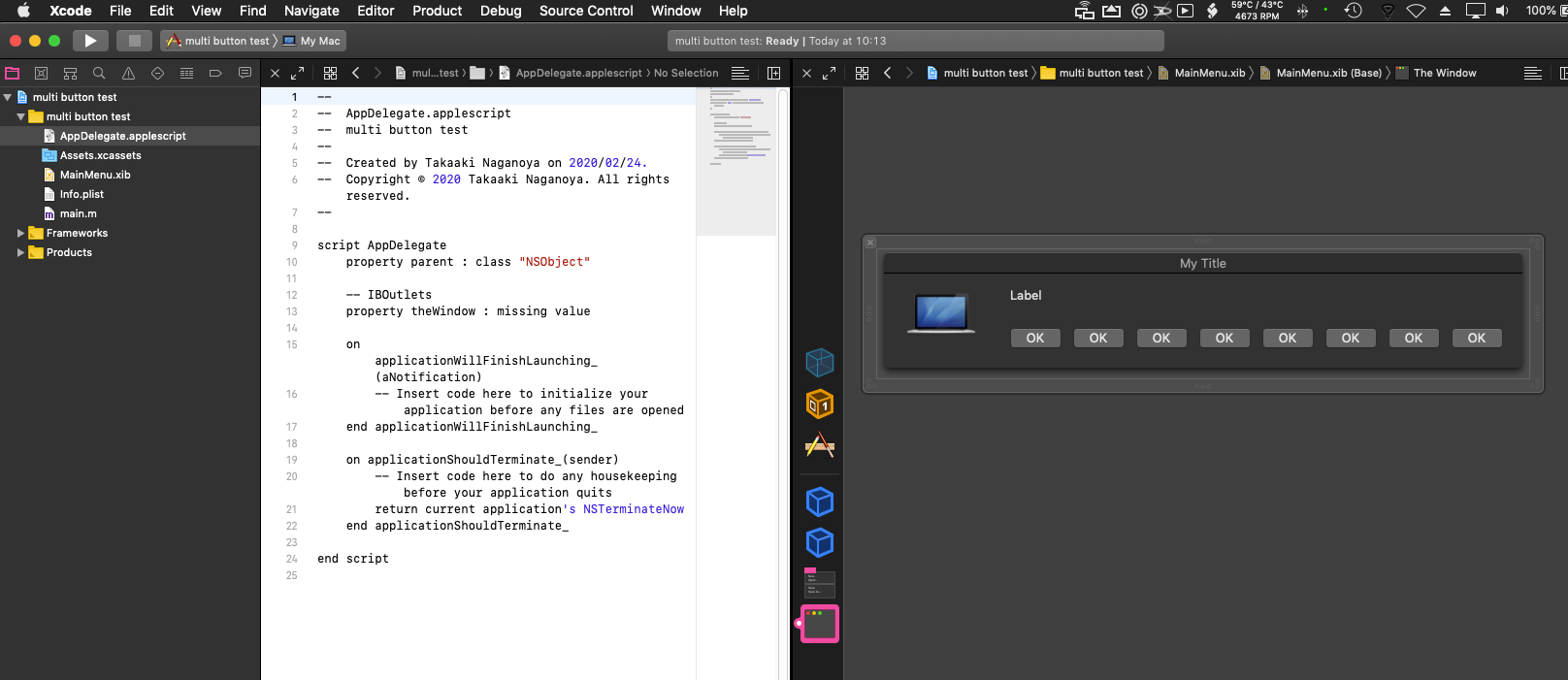
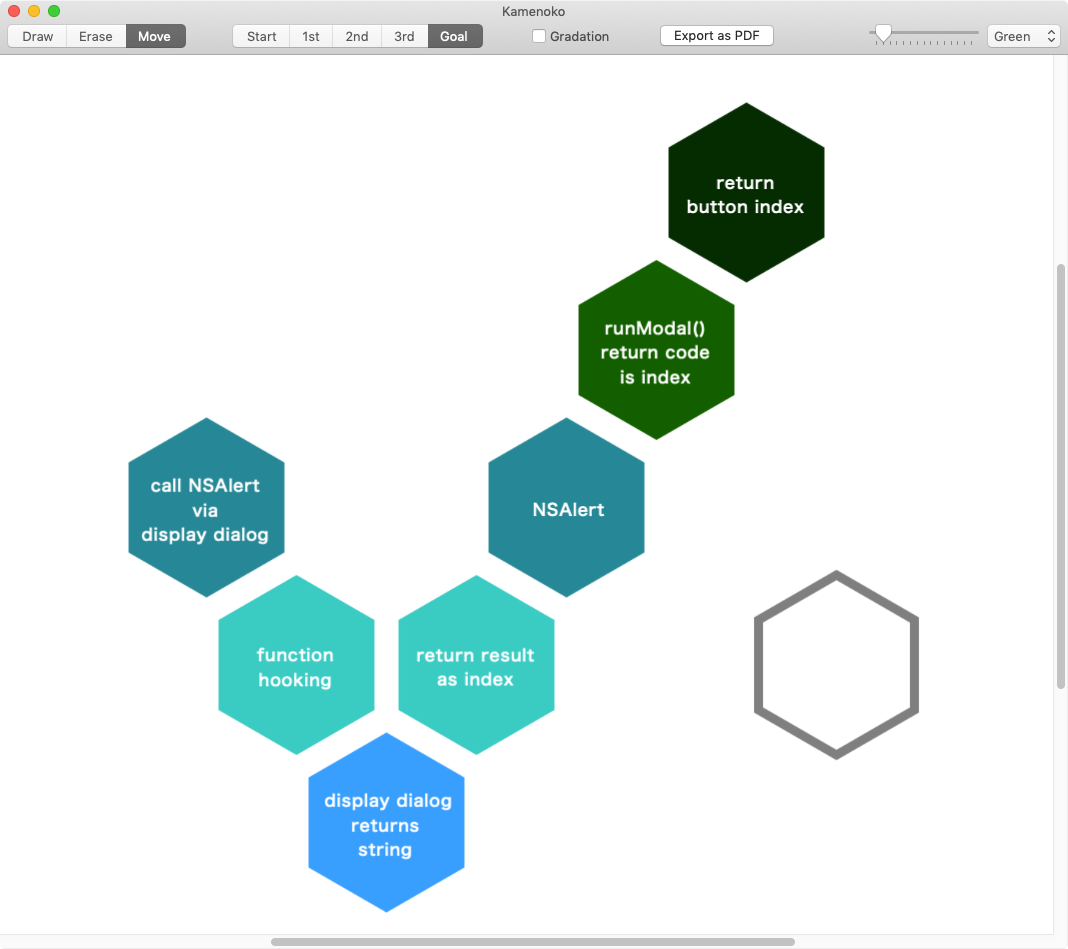
できると思うんだけどなー、と思って30分ぐらいでできました。全部同じtitleのボタンを複数作って、押されたボタンを左側から1はじまりでIDで返すAppleScriptです。
できたところで誰が褒めてくれるわけでもありませんが、できるものをできないというのは、、、、。
そもそも、同じtitleのボタンを複数出すのはGUI的にナンセンスな上に、Xcode上でAppleScriptアプリケーション作れば普通に作れるわけで、、、、
| AppleScript名:display dialogで押されたボタンをIDで返す(1はじまり).scptd |
| — – Created by: Takaaki Naganoya – Created on: 2020/02/23 — – Copyright © 2020 Piyomaru Software, All Rights Reserved — use AppleScript version "2.4" — Yosemite (10.10) or later use framework "Foundation" use framework "AppKit" use scripting additions property NSAlert : a reference to current application’s NSAlert property NSRunningApplication : a reference to current application’s NSRunningApplication property theResult : 0 property returnCode : 0 property theDataSource : {} display dialog "TEST" buttons {"OK", "OK", "OK", "OK", "OK", "OK", "OK"} on display dialog aString as string buttons buttonList as list set paramObj to {myMessage:aString, myButtonList:buttonList} –my dispAlert:paramObj –for debug my performSelectorOnMainThread:"dispAlert:" withObject:(paramObj) waitUntilDone:true return {button returned:my theResult} end display dialog on dispAlert:paramObj set aMainMes to (myMessage of paramObj) as string set bList to (myButtonList of paramObj) as list set bLen to length of bList — set up alert set theAlert to NSAlert’s alloc()’s init() tell theAlert its setMessageText:aMainMes repeat with i in bList (its addButtonWithTitle:i) end repeat end tell — show alert in modal loop NSRunningApplication’s currentApplication()’s activateWithOptions:0 my performSelectorOnMainThread:"doModal:" withObject:(theAlert) waitUntilDone:true set aBID to bLen – ((my returnCode) – 1000 + 1) + 1 set my theResult to aBID end dispAlert: on doModal:aParam set (my returnCode) to aParam’s runModal() end doModal: |
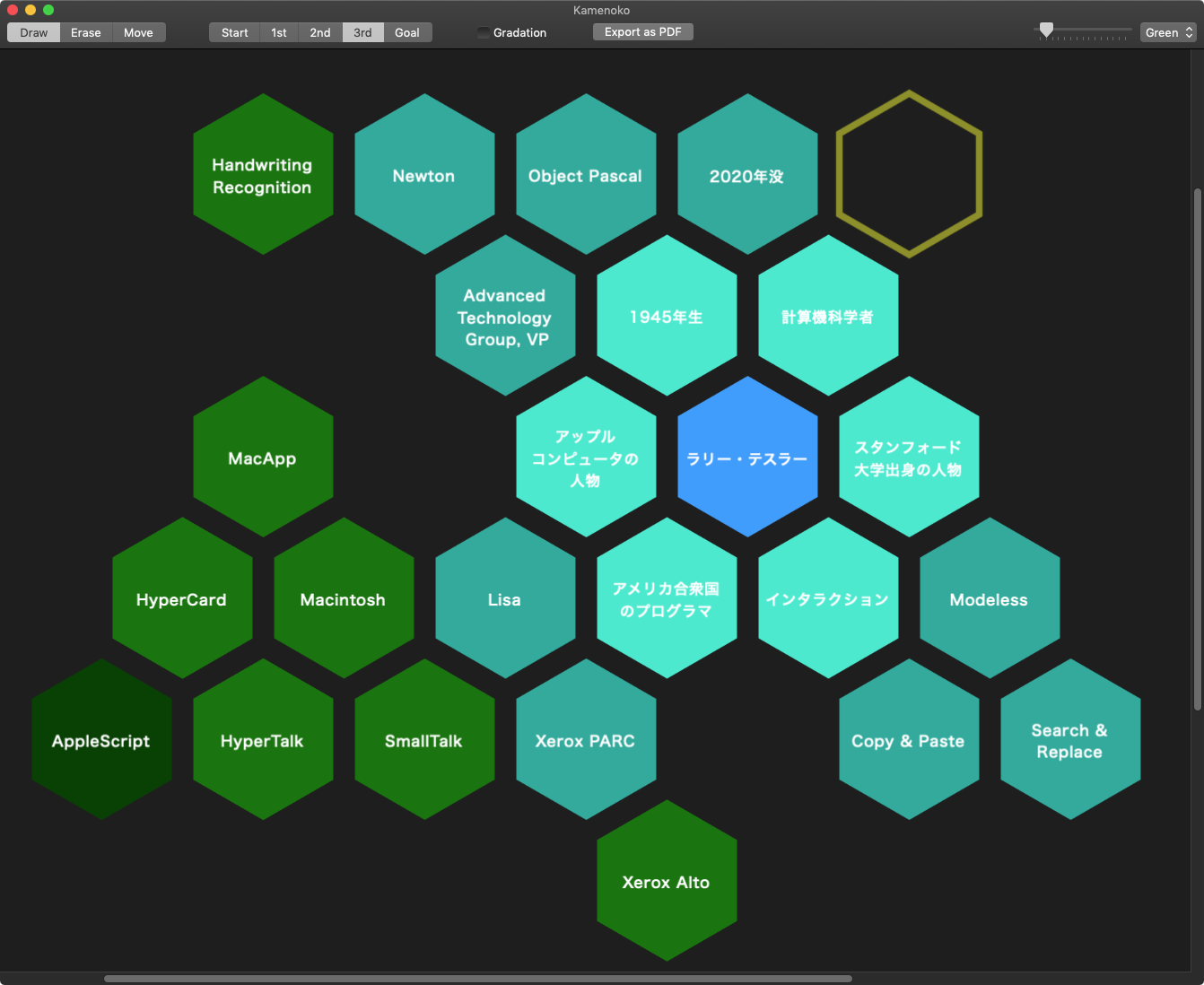
コンピュータのインタラクション・デザインを研究・実践してきたコンピュータ科学者のラリー・テスラー氏が亡くなりました。Xerox PARCやAppleをはじめ、名だたるIT企業を勤めてきました。
1980年にテスラーはPARCからAppleに移り、1989年、ATG(Apple Technology Group)でMac OSのユーザー向けスクリプティング言語を開発する「Family Farm」プロジェクトを開始。これがのちのAppleScriptになりました。
コピー&ペーストをはじめ、彼の活躍や着想なしに現在のパーソナルコンピュータの姿はありえなかったことでしょう。
彼の冥福をお祈りいたします。
■AppleScript登場前の歴史(書籍「AppleScript 10大最新技術」より引用)
| 時期 | 内容 |
|---|---|
| 1989年 | ATG(Apple Technology Group)で、Mac OSのユーザー向けスクリプティング言語を開発する「Family Farm」プロジェクトが始まる。ラリー・テスラーがリーダー。メンバーはMike Farr、Mitchell Gass、Mike Gough、Jed Harris、Al Hoffman、Ruben Kleiman、Edmund Lai、Frank Ludolph |
| 1990年 | HyperCard 2.0が出荷される |
| 1990年中盤 | Family Farmプロジェクトの最初のスピンオフプロジェクトとして、スクリプト言語の基盤となるAppleEventの開発が始まる |
| 1991年4月 | ウィリアム・クック、Appleで働きはじめる。AppleEvent Managerの最終β段階 |
| 1991年夏 | 発売予定のSystem 7にAppleEvent Managerを一緒に出荷すべく計画される |
| 1991年中旬 | LispやSmallTalkなどの既存の言語のランタイム上にAppleScriptシステムを構築することが検討される |
| 1992年 | AppleScript対応のHyperCard 2.2がリリース |
| 1992年2月 | ウィリアム・クック、Kurt PiersolからAppleScriptに関するアイデアを聞く。AppleScriptのα版がリリースされる。Dave Winer(SOAPとかBlogの仕組みを開発した人)がUserland Frontierの初期バージョンをリリース |
| 1993年4月 | AppleScript 1.0Developer's Toolkitをリリース |
| 1993年1月 | AppleScript 1.1の次バージョンにさらなる機能追加を行うことをAppleが決定 |
| 1993年9月 | AppleScript 1.1がリリース。はじめてのエンドユーザー向けのリリース。AppleScriptのオリジナル開発グループが解体される。ウィリアム・クックがAppleを辞める(1993年内の時期不明) |
| 1994年 | FaceSpanがリリースされる |
| 1997年 | ScriptableなFinderがリリースされる |
| 1997年7月 | System 8と一緒にAppleScript 1.1.2がリリースされる |
Bundle IDで指定したアプリケーションを隠すAppleScriptです。
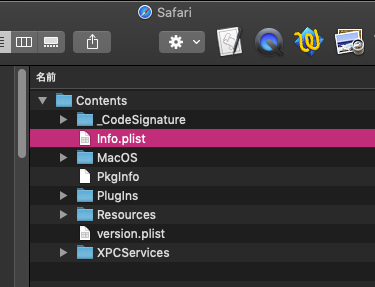
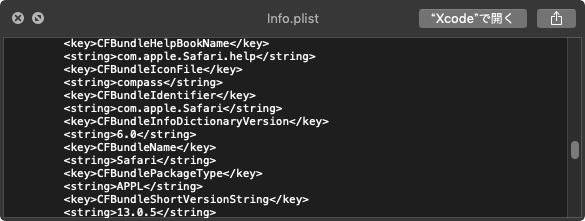
macOS上のアプリケーションは一意に判別できるID「Bundle ID」を持っています。このBundle IDは各アプリケーションのバンドル内のInfo.plistに書かれています。
アプリケーションの名称については、ローカライズ名称を指定できるので、英語環境、フランス語環境、日本語環境で異なるアプリケーション名がFinder上で見えるようにできるので、名称ではなくBundle IDで区別するのが一般的です。
言語環境ごとに名称が変わる代表的なアプリケーションには、「リマインダー」(本当の名称はReminders)、「メモ」(本当の名称はNotes)、「写真」(本当の名称はPhotos)などがあります。
各アプリケーションのアプリケーションメニューに「隠す」というメニュー項目があり、これを実行することで隠すことができます。AppleScriptからこれに該当する操作は、System Eventsに対して指定のアプリケーションプロセスの可視属性をfalseに設定するというものです。
野蛮かつ強引にメニューを操作するという方法(GUI Scripting)も使えますが、速度や信頼性の面でおすすめしません。
| AppleScript名:指定アプリケーションプロセスを隠す(System Events) |
| — – Created by: Takaaki Naganoya – Created on: 2020/02/16 — – Copyright © 2020 Piyomaru Software, All Rights Reserved — set pRes to hideAProcessByBUndleID("com.apple.Safari") of me –指定プロセスを隠す on hideAProcessByBUndleID(aBundleID) tell application "System Events" set targProcList to every process whose bundle identifier is aBundleID if targProcList = {} then return false set targProc to first item of targProcList tell targProc set visible to false end tell end tell return true end hideAProcessByBUndleID |
macOS 10.10以降では通常のAppleScriptでCocoaの機能が使えるようになったため、こうしたOS側の機能を用いてもよいでしょう。
むしろ、macOS 10.14以降では各種アプリケーションへの初回命令時にはセキュリティ・ダイアログが表示されて止まるため、Cocoaの機能を利用できたほうがメリットが大きいといえるぐらいです。
| AppleScript名:指定アプリケーションプロセスを隠す(Cocoa) |
| — – Created by: Takaaki Naganoya – Created on: 2020/02/16 — – Copyright © 2020 Piyomaru Software, All Rights Reserved — use AppleScript version "2.4" use scripting additions use framework "Foundation" use framework "AppKit" set pRes to hideAProcessByBUndleID("com.apple.Safari") of me –指定プロセスを隠す on hideAProcessByBUndleID(aBundleID) set appArray to current application’s NSRunningApplication’s runningApplicationsWithBundleIdentifier:aBundleID if appArray’s |count|() > 0 then set appItem to appArray’s objectAtIndex:0 set aRes to (appItem’s hide()) as boolean return aRes else return false end if end hideAProcessByBUndleID |
指定色で塗りつぶしたNSImageを用意し、そこにNSBezierPathでclearColorで塗りつぶし(=切り抜き)を行うAppleScriptです。
2005/8/18にCocoa-dev mailing list に対してStefan Schüßler氏が投稿した内容をもとにしています。いろいろ探して回りましたが、ヒットしたのはこの情報だけでした。彼に感謝を。
Re: [NSColor clearColor] and NSBezierPath: not compatible? NSBezierPath uses the NSCompositeSourceOver operation, therefore clearColor does not do anything. You could change the graphics state in order to clear the path: NSGraphicsContext *context; context = [NSGraphicsContext currentContext]; [context saveGraphicsState]; [context setCompositingOperation:NSCompositeClear]; [yourBezierPath fill]; [context restoreGraphicsState]; Hope this helps. Stefan
| AppleScript名:指定のNSImageにNSBezierPathでclearColor塗りつぶし.scptd |
| — Created 2020-02-14 by Takaaki Naganoya — 2020 Piyomaru Software use AppleScript version "2.4" use scripting additions use framework "Foundation" use framework "AppKit" use framework "CoreImage" property NSColor : a reference to current application’s NSColor property NSImage : a reference to current application’s NSImage property NSZeroRect : a reference to current application’s NSZeroRect property NSBezierPath : a reference to current application’s NSBezierPath property NSCompositeCopy : a reference to current application’s NSCompositeCopy property NSGraphicsContext : a reference to current application’s NSGraphicsContext property NSBitmapImageRep : a reference to current application’s NSBitmapImageRep property NSCalibratedRGBColorSpace : a reference to current application’s NSCalibratedRGBColorSpace set {rCol, gCol, bCol} to choose color set aNSImage to makeColoredNSImage({rCol, gCol, bCol}, 400, 400) of me set aPath to generateCircle(200, 100, 100) of me set bImage to my fillImage:aNSImage withTransparentPathFilling:aPath set aFile to POSIX path of (choose file name) set sRes to my saveNSImageAtPathAsPNG(bImage, aFile) on fillImage:aSourceImg withTransparentPathFilling:aPath set aSize to aSourceImg’s |size|() set aWidth to (aSize’s width) set aHeight to (aSize’s height) set aRep to NSBitmapImageRep’s alloc()’s initWithBitmapDataPlanes:(missing value) pixelsWide:aWidth pixelsHigh:aHeight bitsPerSample:8 samplesPerPixel:4 hasAlpha:true isPlanar:false colorSpaceName:(NSCalibratedRGBColorSpace) bytesPerRow:0 bitsPerPixel:0 NSGraphicsContext’s saveGraphicsState() NSGraphicsContext’s setCurrentContext:(NSGraphicsContext’s graphicsContextWithBitmapImageRep:aRep) aSourceImg’s drawInRect:(current application’s NSMakeRect(0, 0, aWidth, aHeight)) fromRect:(NSZeroRect) operation:(NSCompositeCopy) fraction:(1.0) NSGraphicsContext’s currentContext()’s setCompositingOperation:(current application’s NSCompositeClear) aPath’s fill() NSGraphicsContext’s restoreGraphicsState() set newImg to NSImage’s alloc()’s initWithSize:(aSize) newImg’s addRepresentation:aRep return newImg end fillImage:withTransparentPathFilling: on generateCircle(theRadius, x, y) set aRect to current application’s NSMakeRect(x, y, theRadius, theRadius) set aCirCle to NSBezierPath’s bezierPath() aCirCle’s appendBezierPathWithOvalInRect:aRect return aCirCle end generateCircle on makeColoredNSImage(colList, aWidth, aHeight) copy colList to {rCol, gCol, bCol} set aColor to makeNSColorFromRGBA65535val(rCol, gCol, bCol, 1.0) of me set aColoredImage to fillColorWithImage(aColor, aWidth, aHeight) of me return aColoredImage end makeColoredNSImage on fillColorWithImage(aColor, aWidth, aHeight) set colordImage to makeNSImageWithFilledWithColor(aWidth, aHeight, aColor, aWidth, aHeight) of me colordImage’s lockFocus() colordImage’s drawAtPoint:{0, 0} fromRect:(current application’s NSZeroRect) operation:(current application’s NSCompositeDestinationIn) fraction:1.0 colordImage’s unlockFocus() return colordImage end fillColorWithImage on makeNSImageWithFilledWithColor(aWidth, aHeight, fillColor) set anImage to NSImage’s alloc()’s initWithSize:(current application’s NSMakeSize(aWidth, aHeight)) anImage’s lockFocus() — set theRect to {{x:0, y:0}, {height:aHeight, width:aWidth}} set theNSBezierPath to NSBezierPath’s bezierPath theNSBezierPath’s appendBezierPathWithRect:theRect — fillColor’s |set|() theNSBezierPath’s fill() — anImage’s unlockFocus() — return anImage end makeNSImageWithFilledWithColor on makeNSColorFromRGBA65535val(redValue as integer, greenValue as integer, blueValue as integer, alphaValue as integer) set aRedCocoa to (redValue / 65535) as real set aGreenCocoa to (greenValue / 65535) as real set aBlueCocoa to (blueValue / 65535) as real set aAlphaCocoa to 1.0 as real set aColor to NSColor’s colorWithCalibratedRed:aRedCocoa green:aGreenCocoa blue:aBlueCocoa alpha:aAlphaCocoa return aColor end makeNSColorFromRGBA65535val on saveNSImageAtPathAsPNG(anImage, outPath) set imageRep to anImage’s TIFFRepresentation() set aRawimg to current application’s NSBitmapImageRep’s imageRepWithData:imageRep set pathString to current application’s NSString’s stringWithString:outPath set newPath to pathString’s stringByExpandingTildeInPath() set myNewImageData to (aRawimg’s representationUsingType:(current application’s NSPNGFileType) |properties|:(missing value)) set aRes to (myNewImageData’s writeToFile:newPath atomically:true) as boolean return aRes end saveNSImageAtPathAsPNG |
Xcode上で作成するCocoa AppleScript Applicationにおいて、CoreAnimationを利用するサンプルProjectです。
–> Download Xcode Project Test with Xcode 11.3.1 + macOS 10.14.6
ひととおり(このぐらい)CoreAnimationでGUI部品をアニメーションするテストを行なっていました。あまり使いすぎるのは下品に見えるとの判断から、実際のアプリケーションでは最低限の地味な利用にとどめていました。
–> Watch Demo (2) This Project
Mac App Storeで販売している100% AppleScriptで記述したアプリケーション「Double PDF 2.0」においても、コマンド実行後にメニューを更新する際、更新したメニューを点滅表示するぐらいの「節度あるお付き合い」にとどめていました。
それが、ここ最近組んでいるアプリケーションではド派手に利用する必要があるようで、再度こうした試作品を引っ張り出してテストしだしています。
| AppleScript名:AppDelegate.applescript |
| — — AppDelegate.applescript — GUI Animation — — Created by Takaaki Naganoya on 2017/02/13. — Copyright 2017 Takaaki Naganoya. All rights reserved. — — http://liu044100.blogspot.jp/2013/07/cabasicanimation.html script AppDelegate property parent : class "NSObject" — IBOutlets property theWindow : missing value property aPopup : missing value property gui1 : missing value property gui2 : missing value property gui3 : missing value property gui4 : missing value property gui5 : missing value property gui6 : missing value property gui7 : missing value property gui8 : missing value property gui9 : missing value property guiA : missing value property guiB : missing value property guiC : missing value on applicationWillFinishLaunching:aNotification — Insert code here to initialize your application before any files are opened end applicationWillFinishLaunching: on applicationShouldTerminate:sender return current application’s NSTerminateNow end applicationShouldTerminate: on clicked:sender set aInd to aPopup’s indexOfSelectedItem() set guiList to {gui1, gui2, gui3, gui4, gui5, gui6, gui7, gui8, gui9, guiA, guiB, guiC} repeat with i in guiList if aInd = 0 then (my blinkObject:i) else if aInd = 1 then (my scaleObject:i) else if aInd = 2 then (my rotateObject:i forAxis:"x") else if aInd = 3 then (my rotateObject:i forAxis:"y") else if aInd = 4 then (my rotateObject:i forAxis:"z") else if aInd = 5 then (my moveObject:i) else if aInd = 6 then –my mixtureAnimeObject:i end if delay 0.1 end repeat end clicked: on blinkObject:aObject set animation to current application’s CABasicAnimation’s animationWithKeyPath:"opacity" animation’s setDuration:0.1 animation’s setAutoreverses:true animation’s setRepeatCount:4 animation’s setFromValue:(current application’s NSNumber’s numberWithFloat:1.0) animation’s setToValue:(current application’s NSNumber’s numberWithFloat:0.0) aObject’s layer()’s addAnimation:animation forKey:"blink" end blinkObject: on scaleObject:aObject set animation to current application’s CABasicAnimation’s animationWithKeyPath:"transform.scale" animation’s setDuration:0.1 animation’s setAutoreverses:true animation’s setRepeatCount:2 animation’s setFromValue:(current application’s NSNumber’s numberWithFloat:1.0) animation’s setToValue:(current application’s NSNumber’s numberWithFloat:2.0) aObject’s layer()’s addAnimation:animation forKey:"scale-layer" end scaleObject: on rotateObject:aObject forAxis:anAxis set animation to current application’s CABasicAnimation’s animationWithKeyPath:("transform.rotation." & anAxis) animation’s setDuration:2.0 –animation’s setAutoreverses:false animation’s setRepeatCount:1 animation’s setFromValue:(current application’s NSNumber’s numberWithFloat:0.0) animation’s setToValue:(current application’s NSNumber’s numberWithFloat:4.0 * 3.1415926) aObject’s layer()’s addAnimation:animation forKey:"rotate-layer" end rotateObject:forAxis: on moveObject:aObject set aFrame to aObject’s frame() copy aFrame to {{fx1, fy1}, {fx2, fy2}} set animation to current application’s CABasicAnimation’s animationWithKeyPath:"position" animation’s setDuration:0.4 animation’s setAutoreverses:false animation’s setRepeatCount:1 animation’s setFromValue:(current application’s NSValue’s valueWithCGRect:(aObject’s frame())) animation’s setToValue:(current application’s NSValue’s valueWithCGRect:(current application’s CGRectMake(100, 100, fx2, fy2))) aObject’s layer()’s addAnimation:animation forKey:"move-layer" end moveObject: –Not Work Yet….. (* on mixtureAnimeObject:aObject set animation1 to current application’s CABasicAnimation’s animationWithKeyPath:"transform.translation.x" animation1’s setToValue:(current application’s NSNumber’s numberWithFloat:80.0) animation1’s setDuration:3.0 set animation2 to current application’s CABasicAnimation’s animationWithKeyPath:"transform.rotation.z" animation2’s setFromValue:(current application’s NSNumber’s numberWithFloat:0.0) animation2’s setToValue:(current application’s NSNumber’s numberWithFloat:4.0 * 3.1415926) animation2’s setDuration:3.0 set aGroup to current application’s CAAnimationGroup’s animation() aGroup’s setDuration:3.0 aGroup’s setRepeatCount:1.0 aGroup’s setAnimations:(current application’s NSArray’s arrayWithObjects:{animation1, animation2, missing value}) aObject’s layer()’s addAnimation:aGroup forKey:"move-rotate-layer" end mixtureAnimeObject: *) end script |
作成した画像(NSImage)に円を塗るAppleScriptです。
最近、6角形の図形ばかり塗りつぶしていましたが、「円に変えるとどうなんだろう?」と考えて、本ルーチンを試作してみました。
ためしに、6角形ではなく円で塗りつぶしてみたものの、そんなにイケていない感じがします。
| AppleScript名:画像に円を塗る.scptd |
| — – Created by: Takaaki Naganoya – Created on: 2020/02/11 — – Copyright © 2020 Piyomaru Software, All Rights Reserved — use AppleScript version "2.4" — Yosemite (10.10) or later use framework "Foundation" use framework "AppKit" use scripting additions property aRadius : 40 set aFile to POSIX path of (choose file name) if aFile does not end with ".png" then set aFile to aFile & ".png" end if set aColor to current application’s NSColor’s redColor() set aImage to current application’s NSImage’s alloc()’s initWithSize:{300, 300} repeat with y from 0 to 300 by aRadius + 4 repeat with x from 0 to 300 by aRadius + 4 my drawCircleOnNSIMage(aImage, aRadius, x, y, aColor) end repeat end repeat set sRes to my saveNSImageAtPathAsPNG(aImage, aFile) # MARK: Call By Reference on drawCircleOnNSIMage(aImage, aRadius, aXpos, aYpos, aColor) set aBezier to generateCircle(aRadius, aXpos, aYpos) of me (aImage)’s lockFocus() aColor’s |set|() aBezier’s fill() –ぬりつぶし (aImage)’s unlockFocus() end drawCircleOnNSIMage # MARK: circleのBezier曲線を作成して返す on generateCircle(theRadius, x, y) set aRect to current application’s NSMakeRect(x, y, theRadius, theRadius) set aCirCle to current application’s NSBezierPath’s bezierPath() aCirCle’s appendBezierPathWithOvalInRect:aRect return aCirCle end generateCircle # NSImageを指定パスにPNG形式で保存 on saveNSImageAtPathAsPNG(anImage, outPath) set imageRep to anImage’s TIFFRepresentation() set aRawimg to current application’s NSBitmapImageRep’s imageRepWithData:imageRep set pathString to current application’s NSString’s stringWithString:outPath set newPath to pathString’s stringByExpandingTildeInPath() set myNewImageData to (aRawimg’s representationUsingType:(current application’s NSPNGFileType) |properties|:(missing value)) set aRes to (myNewImageData’s writeToFile:newPath atomically:true) as boolean return aRes –成功ならtrue、失敗ならfalseが返る end saveNSImageAtPathAsPNG |
指定画像の指定エリア(矩形)を透明色で塗りつぶすAppleScriptです。透明色で塗りつぶす=矩形で切り抜いたようなかっこうになります。
画像(NSImage)を指定色で塗りつぶすという処理はよく見かけるものですが、clearColor()(透明色)で塗りつぶすという処理を行うとどうなるかといえば…………何も起こりません。
透明色でNSImageを塗りつぶすという処理は、たいへんに「ありそう」な処理ですが、なかなか見つからない。
さんざん探し回ったのですが、自分には見つけられませんでした。ちょうどEdama2さんに相談してみたところ、こういう処理を探し出してもらえました(ありがとうございますー)。ただ、見つけてきた処理そのままでは思い通りの結果にならなかったので、修正が必要であったとのこと。
透明塗りつぶし(切り抜き)の指定座標はCocoaの座標系をそのまま利用しているので、左下が原点です。
NSBezierPathで切り抜き(透明色で塗りつぶし)できるといいのになーという感じではあります。
| AppleScript名:画像の指定エリアを透明色塗りつぶし(矩形切り抜き) |
| — Created 2017-11-19 by Takaaki Naganoya — Modified 2018-02-14 by Takaaki Naganoya — Modified 2020-02-03 by Edama2 & Takaaki Naganoya use AppleScript version "2.5" use scripting additions use framework "Foundation" use framework "AppKit" property NSUUID : a reference to current application’s NSUUID property NSColor : a reference to current application’s NSColor property NSString : a reference to current application’s NSString property NSImage : a reference to current application’s NSImage property NSScreen : a reference to current application’s NSScreen property NSBezierPath : a reference to current application’s NSBezierPath property NSPNGFileType : a reference to current application’s NSPNGFileType property NSCompositeClear : a reference to current application’s NSCompositeClear property NSBitmapImageRep : a reference to current application’s NSBitmapImageRep –切り抜きエリア(複数) set drawList to {{origin:{x:0, y:0}, |size|:{width:200, height:100}}, {origin:{x:100, y:100}, |size|:{width:50, height:50}}} set imgPath to POSIX path of (choose file of type {"public.image"}) set anImage to NSImage’s alloc()’s initWithContentsOfFile:imgPath set fillColor to (NSColor’s colorWithCalibratedRed:1.0 green:0.0 blue:0.0 alpha:0.9) –透明色塗りつぶし処理呼び出し set resImage to drawImageWithClearColorFill(anImage, drawList) of me set aUUIDstr to (NSUUID’s UUID()’s UUIDString()) as string set aPath to ((NSString’s stringWithString:imgPath)’s stringByDeletingLastPathComponent()’s stringByAppendingPathComponent:aUUIDstr)’s stringByAppendingPathExtension:"png" set fRes to saveImageRepAtPathAsPNG(resImage, aPath) of me on drawImageWithClearColorFill(anImage, drawList) set retinaF to (NSScreen’s mainScreen()’s backingScaleFactor()) as real –> 2.0 (Retina) / 1.0 (Non Retina) set aClearCol to NSColor’s clearColor() set op to current application’s NSCompositeClear anImage’s lockFocus() –描画開始 repeat with i in drawList set origX to (x of origin of i) / retinaF set origY to (y of origin of i) / retinaF set sizeX to (width of |size| of i) / retinaF set sizeY to (height of |size| of i) / retinaF –Draw Clear Color –http://www.drissman.com/blog/archives/2009/10/09/nsrectfill_and_nscolor_clearcolor.html set theRect to {{x:origX, y:origY}, {width:sizeX, height:sizeY}} aClearCol’s |set|() current application’s NSRectFillUsingOperation(theRect, op) end repeat anImage’s unlockFocus() –描画ここまで return anImage –returns NSImage end drawImageWithClearColorFill –画像を指定パスにPNG形式で保存 on saveImageRepAtPathAsPNG(anImage, outPath) set imageRep to anImage’s TIFFRepresentation() set aRawimg to NSBitmapImageRep’s imageRepWithData:imageRep set pathString to NSString’s stringWithString:outPath set newPath to pathString’s stringByExpandingTildeInPath() set myNewImageData to (aRawimg’s representationUsingType:(NSPNGFileType) |properties|:(missing value)) return (myNewImageData’s writeToFile:newPath atomically:true) as boolean end saveImageRepAtPathAsPNG |
OSのアップデートがあるたびに調査している「CoreTelephony.framework」の調査を行なってみました。
最初(macOS 10.10のころ?)はFrameworkのダミーがあるだけで、use framework “CoreTelephony”などと書いても、エラーになるだけでした。
次いで、use framework “Coretelephony”が通るようになったものの、中身が用意されていない時代が長く続き、とうとうmacOS 10.15で実際にオブジェクトを生成して情報が取れるようになりました。macOS 10.14では本Scriptは動きません。動作するのは10.15以降のみです。
VOIP経由で通話ができるという情報が取れるようになっただけですが、通話に使えるほど待ち受け時間が長いマシン(ARM CPU搭載)の開発が最終段階に到達したのか、あるいはARM CPU搭載のiPadのようなマシンにmacOSを搭載することを検討しているのか、それ以外の何かを用意しているのかは不明です。
ただひとつ言えることは、macOS上でCoreTelephony.frameworkのフルセットが、ようやく動いて、BridgeSupportのファイルまで用意された(=AppleScriptから呼べるようになった)ということです。
struct name='CTError' type64='{_CTError="domain"i"error"i}'
constant name='CTCallStateConnected' type64='@'
constant name='CTCallStateDialing' type64='@'
constant name='CTCallStateDisconnected' type64='@'
constant name='CTCallStateIncoming' type64='@'
constant name='CTRadioAccessTechnologyCDMA1x' type64='@'
constant name='CTRadioAccessTechnologyCDMAEVDORev0' type64='@'
constant name='CTRadioAccessTechnologyCDMAEVDORevA' type64='@'
constant name='CTRadioAccessTechnologyCDMAEVDORevB' type64='@'
constant name='CTRadioAccessTechnologyDidChangeNotification' type64='@'
constant name='CTRadioAccessTechnologyEdge' type64='@'
constant name='CTRadioAccessTechnologyGPRS' type64='@'
constant name='CTRadioAccessTechnologyHSDPA' type64='@'
constant name='CTRadioAccessTechnologyHSUPA' type64='@'
constant name='CTRadioAccessTechnologyLTE' type64='@'
constant name='CTRadioAccessTechnologyWCDMA' type64='@'
constant name='CTRadioAccessTechnologyeHRPD' type64='@'
constant name='CTServiceRadioAccessTechnologyDidChangeNotification' type64='@'
constant name='CTSubscriberTokenRefreshed' type64='@'
enum name='kCTErrorDomainMach' value64='2'
enum name='kCTErrorDomainNoError' value64='0'
enum name='kCTErrorDomainPOSIX' value64='1'
class name='CTCarrier'
method selector='allowsVOIP'
retval type64='B'
下記ScriptはMac mini 2014にBluetooth経由でiPhoneを接続した状態で実行したものです。この記事を書いたあたりで「ARM Macはあり得る」と感じるようになっていました(半信半疑ですが)。
| AppleScript名:電話関連情報を取得するじっけん |
| — Created 2016-09-30 by Takaaki Naganoya — 2016 Piyomaru Software use AppleScript version "2.7" use scripting additions use framework "Foundation" use framework "CoreTelephony" –macOS 10.15ではじめて呼び出せた set telephony to current application’s CTTelephonyNetworkInfo’s alloc()’s init() –set telephony to current application’s CTTelephonyNetworkInfo’s new() set cRes to telephony’s subscriberCellularProvider() –> missing value set sRes to telephony’s serviceCurrentRadioAccessTechnology() –> missing value set sRes2 to telephony’s serviceSubscriberCellularProviders() –> missing value set sRes3 to telephony’s serviceSubscriberCellularProvidersDidUpdateNotifier() –> missing value set sRes3 to telephony’s dataServiceIdentifier() –> missing value set aCarrier to current application’s CTCarrier’s alloc()’s init() –> (* CTCarrier (0x6000034d5bf0) { Carrier name: [<nil>] Mobile Country Code: [<nil>] Mobile Network Code:[<nil>] ISO Country Code:[<nil>] Allows VOIP? [YES] } *) set vRes to aCarrier’s allowsVOIP() –> true |
追記:2020/12/17に同一機体でmacOS 11.1環境で同じScriptを実行した際の結果を反映させてみました。
この時点でARM Mac=M1 Macが登場して、市販もはじまっている状況ですが、SIM入りMacは登場していません。iPad Proのような筐体でMx系CPUを搭載したタブレット的な「Mac Pad」のようなマシンが出てくるものと予測していますが、どうなることやら。
| AppleScript名:電話関連情報を取得するじっけん.scptd |
| — Created 2016-09-30 by Takaaki Naganoya — 2016 Piyomaru Software use AppleScript version "2.7" use scripting additions use framework "Foundation" use framework "CoreTelephony" –macOS 10.15ではじめて呼び出せた set telephony to current application’s CTTelephonyNetworkInfo’s alloc()’s init() –set telephony to current application’s CTTelephonyNetworkInfo’s new() set cRes to telephony’s subscriberCellularProvider() –> missing value–10.15 –> missing value–11.1 set sRes to telephony’s serviceCurrentRadioAccessTechnology() –> missing value–10.15 –> (NSDictionary) {}–11.x set sRes2 to telephony’s serviceSubscriberCellularProviders() –> missing value–10.15 –> (NSDictionary) {}–11.x set sRes3 to telephony’s serviceSubscriberCellularProvidersDidUpdateNotifier() –> missing value–10.15 –> missing value–11.x set sRes3 to telephony’s dataServiceIdentifier() –> missing value–10.15 –> missing value–11.x set aCarrier to current application’s CTCarrier’s alloc()’s init() –> (* –macOS 10.15 CTCarrier (0x6000034d5bf0) { Carrier name: [<nil>] Mobile Country Code: [<nil>] Mobile Network Code:[<nil>] ISO Country Code:[<nil>] Allows VOIP? [YES] } –macOS 11.1 Mobile Country Code: [<nil>] Mobile Network Code:[<nil>] ISO Country Code:[<nil>] Allows VOIP? [YES] } *) set vRes to aCarrier’s allowsVOIP()–> true–10.15 –> true–11.x |
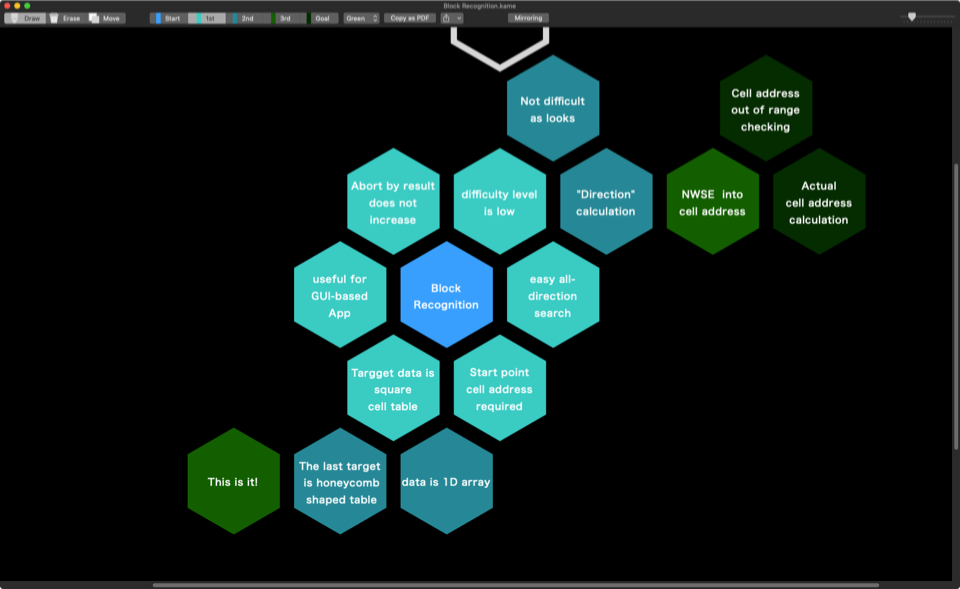
2020/2/8(土)に東京都目黒区 目黒区民センター内の中小企業センター 2F第二集会室において行われる東京マッキントッシュユーザーズグループ(TMUG)の2月度例会において、本Blogでもちょくちょく作例が載っているHex-cell Mapの作成アプリケーション「Kamenoko」のデモを行います。
すべてAppleScriptで記述している、グラフというか「図」の作成アプリケーションで、アウトラインプロセッサやマインドマップにはない、プレゼン向きの図の作成や、図を作りながら対話的にアイデアをまとめていけるツールになる(んじゃないかなぁ)と期待しています。英語ネイティブの友人に
ぴ:「これ、一般的にはなんて呼ぶの?」
友:「Graphics」
あれか? 和菓子もシュークリームも、全部『Cake』って呼ぶアレなのか?! というわけで、日本語訳として「図」。独自の用語で「Hex-cell Graphics」と呼んでいる、概念階層レベル色分けマインドマップ的なものをAppleScriptで作ってみた(最中)です。
ご興味のある方は、ぜひこの機会にご参加ください!(事前登録とか別にしなくてもけっこうですので)
日時:2020/2/8(土) 14:00〜17:00(開場14:00、開始14:30)
場所:目黒区民センター内中小企業センター2階第2集会室
東京都目黒区目黒2-4-36/03-3711-1135

▲当時のKamenokoは、フォント変更、書類保存、環境設定などが一切できない「おかわいらしい」ツールでしかありませんでした
ぴよまるソフトウェアでは、本日より2020/3/31までの間、Piyomaru SoftwareがBOOTH上にて販売している電子ブックをお買い上げの方に、もれなく「Piyomaru Script Assistant v.2.0βお試し版」を配布するキャンペーンを開始いたしました。
Piyomaru Script Assistantは、スクリプトエディタのコンテクストメニューから呼び出すAppleScript記述補助ツール群「Script Assistant」の改良強化版です。

▲左:Apple純正のScript Assistant、右:Piyomaru Script Assistant v2.0
2004年ごろに作成し、以来ずっと個人的にメンテナンスを続けてきた、いわゆる「秘伝のタレ」でしたが、「AppleScript最新リファレンス」「AppleScript 10大最新技術」の刊行時に購入特典としてオマケで配布。これがPiyomaru Script Assistant v.1.0(以下、PSA v1.0と略)です。
その後、時はながれ、macOS 10.13の時代になってこのPSA v1.0のうち動かないScriptが出てきており、さらに2000年代初頭に作成したため「Cocoaの機能を呼び出さないのはおかしい」「いまならもっとスゲーことが普通にできている」と、時代に合わなくなってきました。
# 基礎的なScriptを自動入力できるという意味では、ねらいどおりなのですが、、、
そこで、昨年よりPSAのv.2.0を企画して実装を開始。ちょくちょく画面のスナップショットが掲載されているアレです。
PSA v2.0はv1.0よりもはるかに強力で、さまざまなOSの力を引き出す構成になっており、たとえばメニューバーに常駐するメニューなどもコンテクストメニューから一発入力できるようになっています。AirDropによる編集中のAppleScript書類の共有なども組み込まれています。ほぼ、内容的にはv1.0とは別物です。
このPSA v.2.0のβ版に対するご意見をいただきたいので、macOS 10.14以降の環境をお持ちで、該当期間中にPiyomaru Softwareの電子書籍をご購入いただいた方に、このPSA v2.0の評価キット(実際に使えます)を差し上げます。
同封のアンケートにお答えいただければ、PSA v.2.0の強力な機能をお試しいただけます。
この機会にふるってご応募ください!
応募方法:ご購入後にmaro@piyocast.comまで、「年度末フェア」のタイトルで購入お知らせメールをいただければ、ダウンロード先の情報をご返送いたします。
なお、普通に購入特典の希望メールをいただいた場合でも、「年度末フェア」のご案内を申し上げます。
MacScripterのフォーラムでeppcについての質問があったので回答していました。eppcを用いて、ネットワーク上の他のMacを操作する件についての話でした。
eppcは、Remote AppleEventのプロトコル表記であり、自分のマシン上のアプリケーションだと、
application "Finder"
と表記しますが、他のMac上のアプリケーションだと、
application "Finder" of machine "eppc://user:password@machineName.local"
という表記になります。パスワードを書いておかないとダイアログで問い合わせが行われるので、書かなくてもいいです(パスワードが丸裸で書いてあるのは不用心なので、テスト時以外はおすすめしません)。
自分の認識では、ネットワーク上の他のマシンの操作については、
のような認識でした。この認識は間違っているわけではなく、リモートのアプリケーション操作はリモート側のアプレットに行わせるようにして、自分からはリモート側のアプレットのハンドラを呼び出すのがリモートアプリケーション操作の基本的な「作法」です。
GUIアプリケーションを直接操作するのは無理だけど、AppleScriptアプレットを常駐させておいて、アプレットのハンドラを呼び出すことで、各リモートマシン上のアプリケーションを操作できる、と。
で、これが他のメンバーのコメントで(リモートアプリケーションのダイレクト呼び出しは)「macOS 10.15でもできるぞ」という話が出てきて、腰を抜かしました。現状の自分のマシン環境(古いのばっかりですが)で検証してみたところ、たしかに(若干の癖はありますが)、GUIアプリケーションを直接操作できて驚きました(セキュリティ上の制約がいろいろあるので、ローカルでできることすべてがリモートアプリケーションに直接司令できるわけではありません)。
Mac OS X 10.6からmacOS 10.12あたり(厳密には確認できていない)の環境では、明確にリモートAppleEventに制約が加わっていました。
ところが、macOS 10.13あたり(10.12かも。このあたり未確認)から、eppcでGUIアプリケーションの操作ができることが確認できました。
| macOS Version | Direct eppc to GUI Apps |
| 10.0 | (No AppleScript Env) |
| 10.1 | Works???? |
| 10.2 | Works |
| 10.3 | Works |
| 10.4 | Works |
| 10.5 | (???) |
| 10.6 | Not Work |
| 10.7 | Not Work |
| 10.8 | Not Work |
| 10.9 | Not Work |
| 10.1 | Not Work |
| 10.11 | Not Work |
| 10.12 | (??? Maybe not work) |
| 10.13 | Works |
| 10.14 | Works |
| 10.15 | Works |
eppcがTCP/IPのどこのポート番号を用いているかは、/etc/servicesを見ると書いてあります。
eppc 3031/udp # Remote AppleEvents/PPC Toolbox eppc 3031/tcp # Remote AppleEvents/PPC Toolbox
なので、VPN接続時にこれらのポートが開いていれば、相手側のマシンをAppleScriptで遠隔操作できることになります(実際には、ファイル共有とかいろいろその他の付随するポートを開けておく必要があるわけですが)。
ただし、ローカルマシン上のアプリケーションを操作するのと比較して、いくつかの挙動の違いも見られます。
各GUIアプリケーションに「activate」とか「launch」コマンドを送っても無視されます。リモートマシン上でいったんアプリケーションが起動した後に「activate」で最前面に持ってくることは可能ですが、起動していない状態でactivateを実行しても、起動は行われません。
| AppleScript名:他のマシン上でSafariを起動 |
| set RemoteMachine to "eppc://me@MacMini2014.local"
using terms from application "Finder" tell application "Finder" of machine RemoteMachine open application file id "com.apple.Safari" end tell end using terms from |
Finder経由でBundle IDを指定して「application fileをオープンする」という指定であれば、たしかにアプリケーションが起動します。
面白くなっていろいろリモートアプリケーションを操作していてわかってきたのですが、初期状態だとSystem Eventsが起動していない状態です。いえ、ローカルでもSystem Eventsは常時起動してはいないんでしょうけれど、命令を発行すると自動で起動されます。
この自動起動とか明示的に指定して起動といった操作が受け付けられないので、Finder経由で間接的にapplication fileのオープンというかたちでSystem Eventsの起動を行い、処理を依頼します。
このリモートマシン上のSystem Eventsはしばらく処理が行われないと自動で終了するようなので、何かまとまった処理をSystem Eventsに行わせる前には明示的に起動を司令しておくべきなんでしょう。
| AppleScript名:他のマシン上のSystem Eventsを起動する |
| set RemoteMachine to "eppc://me@MacMini2014.local"
using terms from application "Finder" tell application "Finder" of machine RemoteMachine open application file id "com.apple.SystemEvents" end tell end using terms from |
GUIアプリケーションの代表としてSafariを実際に操作してみたところ、
Safariのバージョン名の取得、できました。
| AppleScript名:他のマシン上で起動しているアプリケーションのバージョンを取得 |
| set RemoteMachine to "eppc://me@MacMini2014.local"
using terms from application "Safari" tell application "Safari" of machine RemoteMachine version end tell end using terms from |
Safariの新規ウィンドウの作成、できました。
| AppleScript名:他のマシン上で起動しているSafariで新規ウィンドウ作成 |
| set RemoteMachine to "eppc://me@MacMini2014.local"
using terms from application "Safari" tell application "Safari" of machine RemoteMachine make new document end tell end using terms from |
SafariのウィンドウのURLの取得、できました。
| AppleScript名:他のマシン上で起動しているSafariの最前面のウィンドウのURLを取得 |
| set RemoteMachine to "eppc://me@MacMini2014.local"
using terms from application "Safari" tell application "Safari" of machine RemoteMachine set aURL to URL of front document end tell end using terms from |
SafariのウィンドウのURLの書き換え、できました。
| AppleScript名:他のマシン上で起動しているSafariのウィンドウのURLを書き換える |
| set RemoteMachine to "eppc://me@MacMini2014.local"
using terms from application "Safari" tell application "Safari" of machine RemoteMachine set URL of document 1 to "http://piyocast.com/as/" end tell end using terms from |
Safariの最前面のウィンドウの内容をメールに転送、できました。
| AppleScript名:他のマシン上で起動しているSafariの最前面の内容をメール |
| set RemoteMachine to "eppc://me@MacMini2014.local"
using terms from application "Safari" tell application "Safari" of machine RemoteMachine make new document set URL of front document to "http://www.apple.com" delay 3 –wait for page loading email contents of front document end tell end using terms from |
Safariのページローディング検出はいろいろ蓄積されているノウハウもありますが、do javascriptコマンドが問題なく動くレベルまで信用できるのかわからなかったので、delayで単純に時間待ちしています。
実際に動かしてみて、自分がビビるぐらいeppcでリモートアプリケーションの操作ができてしまいました。SIPだとかアプリケーション権限だとかでセキュリティ機能でがんじがらめにされている今日このごろですが、eppc経由でリモートマシン上のアプリケーション操作が緩和されている事実にビビりました。
これはおそらくですが、Xcode上のリモートデバッグとか、そういうあたりの機能の実装時に機能がeppcまわりの機能が再実装されたかコメントアウトしていた箇所が復活したかという話に見えます。
GUI Scriptingを用いてスクリプトエディタ上でコンテクストメニューを表示させて、コンテクストメニューのキャプチャを行うAppleScriptです。macOS 10.14.6上で試しただけなので、10.15上では試していません(たぶん動くと思うのですが)。
画面キャプチャをNSImageに取得する機能については、DSCapture.frameworkをビルドして、AppleScript(実行環境はScript Debugger)から呼び出しています。
–> Download DSCapture.framework (To ~/Library/Frameworks/)
AppleScriptの鬼っ子機能である「GUI Scripting」。ある顧客が「キーボードショートカットとキーボード操作をそのままScript化することでこれを作れ」という仕様を出してきて、とても実現できない内容がまだらに含まれていたので「ナイスジョーク!」と却下した記憶があります。
「できること」(キーボードショートカット操作)に「できないこと」(目視で当該データの位置確認)を混ぜて仕様を出されると悪夢でしかありません。
あと、GUI Scriptingで操作を行うと信頼性がないうえに、信頼性を確保するためには「待つ」という処理が必要だったり、本来のAppleScriptの処理速度よりも100倍以上遅くなるので、本当に必要な箇所にだけ使う&可能なかぎり使用しないというのが自分の基本的なスタンスです。
そんな中、新型Piyomaru Script Assistant(macOS 10.14以降対応。10.13は無視)の資料を作るために、コンテクストメニューの内容を画面キャプチャする必要に迫られました。
AppleScriptが500個ぐらい、階層化されたメニューに入っているので、これの画面キャプチャを撮るだけで一仕事です。テストで1階層分の資料を作ってみたのですが、けっこうかかります。
そこで、スクリプトエディタ上で表示させたコンテクストメニューをプログラムで撮れないかを検討することになります。
真っ先に調べたのはCocoaにそういう機能がないかどうか。自前のプログラムのビューの内容をキャプチャすることはできますが、他のアプリケーションのビューをキャプチャする機能は見つかりませんでした。
仕方がないので、画面のキャプチャをまるごと取得して、撮影対象のビューの座標から画像の切り抜きを行うようにしてみました。
GUI Scriptingでコンテクストメニューを表示させるのは無理かと思っていたのですが、できるんですね。これも冗談半分で探してみたらあっけなく方法が見つかって、
tell theTarget to perform action "AXShowMenu" --コンテクストメニューの表示
これで実際にコンテクストメニューの表示を行えました。
スクリプトエディタ上の画面撮影を行うので、Scriptの実行そのものはScript Debuggerで実行。
問題になったのは2点。
1つは、画面キャプチャの撮影を行うフレームワークでメインディスプレイから画面イメージをNSImageで取得し、その結果をメイン側(暗黙のrunハンドラといったほうがいいのか)のプロパティに返しているのですが、すぐに反映されないらしくて、クラッシュを頻発。
結局、プロパティに内容が反映されたことをループで時間待ちして受信。
もう1つ困った点は、コンテクストメニューの表示解除(キャンセル)。1つのコンテクストメニュー表示&キャプチャ撮影だけでは意味がありません。選択メニュー項目を変更して、複数のコンテクストメニューのキャプチャを順次行えなくてはなりません。
いろいろな方法を試してみたものの、最前面のアプリケーションを「スクリプトエディタ」でない状態を作ればコンテクストメニュー表示状態は解除されます(このあたり、AppleScriptが純粋なプログラマーに苦手とされる理由。実際に使っているユーザーでないとこういう発想自体が出てこない)。Script Debugger側で実行しているので、Script Debuggerをactivateすることでその状態(コンテクストメニュー表示解除)を作ってみました。
そんなわけでコンテクストメニューの(選択項目を変更して全項目を選択状態にした)画面キャプチャができました。
現在は1階層分のコンテクストメニューの撮影を行なっていますが、メニュー階層をすべてAppleScript側からスキャンして、それぞれのメニューに対して、各メニュー項目を表示した状態で巡回キャプチャできるとよさそうです。
cropNSImageTo:{x1, y1, x2, y2} fromImage:theImage ハンドラは、Y座標の変換をこの用途(全画面キャプチャしたNSImageの切り抜き)の帳尻合わせのために書き換えています。この用途以外では使えないはずです。
| AppleScript名:GUI Scriptingで指定したGUI部品のキャプチャを取得.scptd |
| — – Created by: Takaaki Naganoya – Created on: 2020/01/24 — – Copyright © 2020 Piyomaru Software, All Rights Reserved — use AppleScript version "2.4" — Yosemite (10.10) or later use framework "Foundation" use framework "DSCapture" –https://github.com/kiding/DSCapture.framework use framework "AppKit" use scripting additions property |NSURL| : a reference to current application’s |NSURL| property NSUUID : a reference to current application’s NSUUID property NSString : a reference to current application’s NSString property NSImage : a reference to current application’s NSImage property NSPNGFileType : a reference to current application’s NSPNGFileType property NSBitmapImageRep : a reference to current application’s NSBitmapImageRep property targPos : {0, 0} property targSize : {0, 0} property screenSize : {} property outPath : "" property captImg : missing value set (my captImg) to missing value tell application "System Events" tell process "スクリプトエディタ" –"Script Editor" (Japanese localized name) –Editor Area Reference set theTarg to text area 1 of scroll area 1 of splitter group 1 of splitter group 1 of window 1 end tell end tell repeat with i from 1 to 19 set captImg to missing value set outPath to (POSIX path of (path to desktop)) & ((NSUUID’s UUID()’s UUIDString()) as string) & ".png" set {mPos, mSize} to dispMenu(i, theTarg) of me copy mPos to {cx1, cy1} copy mSize to {cWidth, cHeight} screenCapture() of me repeat 100 times if (my captImg) is not equal to missing value then exit repeat delay 0.1 end repeat set bImg to (my cropNSImageTo:{cx1, cy1, cWidth, cHeight} fromImage:(my captImg)) saveNSImageAtPathAsPNG(bImg, my outPath) of me tell current application to activate –Cancel Context Menu delay 0.1 end repeat on screenCapture() current application’s DSCapture’s sharedCapture()’s |full|()’s captureWithTarget:me selector:"displayCaptureData:" useCG:false end screenCapture –Delegate Handler on displayCaptureData:aSender set aCount to aSender’s |count|() set anImage to (aSender’s imageAtIndex:0) set my captImg to anImage –saveNSImageAtPathAsPNG(anImage, my outPath) of me end displayCaptureData: on cropNSImageTo:{x1, y1, x2, y2} fromImage:theImage set newWidth to x2 set newHeight to y2 set theSize to (theImage’s |size|()) set oldHeight to height of theSize — transpose y value for Cocoa coordintates set y1 to oldHeight – newHeight – y1 set newRect to {{x:x1, y:y1}, {width:x2, height:y2}} theImage’s lockFocus() set theRep to NSBitmapImageRep’s alloc()’s initWithFocusedViewRect:newRect theImage’s unlockFocus() set outImage to NSImage’s alloc()’s initWithSize:(theRep’s |size|()) outImage’s addRepresentation:theRep return outImage end cropNSImageTo:fromImage: –NSImageを指定パスにPNG形式で保存 on saveNSImageAtPathAsPNG(anImage, outPath) set imageRep to anImage’s TIFFRepresentation() set aRawimg to current application’s NSBitmapImageRep’s imageRepWithData:imageRep set pathString to current application’s NSString’s stringWithString:outPath set newPath to pathString’s stringByExpandingTildeInPath() set myNewImageData to (aRawimg’s representationUsingType:(current application’s NSPNGFileType) |properties|:(missing value)) set aRes to (myNewImageData’s writeToFile:newPath atomically:true) as boolean return aRes –成功ならtrue、失敗ならfalseが返る end saveNSImageAtPathAsPNG on dispMenu(selInd, theTarget) activate application "Script Editor" tell application "System Events" tell process "スクリプトエディタ" –"Script Editor" (Japanese localized name) ignoring application responses tell theTarget to perform action "AXShowMenu" –コンテクストメニューの表示 end ignoring tell text area 1 of scroll area 1 of splitter group 1 of splitter group 1 of window 1 tell menu 1 set mPos to position set mSize to size set mList to every menu item tell menu item (13 + selInd) set aRes to properties set selected to true end tell end tell end tell end tell end tell return {mPos, mSize} end dispMenu |
本Blogには誰でもユーザー登録できるようになっていました。フォーラムの運用を想定していたので、誰でも登録できるようになっていたほうがよいと考えたからです。
ただ、最近はスパマーのボットによるユーザー登録が増えてきて、スパマーのブラックリストを用いての確認とかユーザー削除の作業が増えてきて、一時はスパマー除去のためのプラグインを入れて様子を見ていました。
スパマー除去プラグインのお試し期間が過ぎ、一思案。
スパマー除去サービスを利用するのが最善手でありますが、そこまでするんだったらもう少し、WordPressのユーザー登録時にロボットを弾くための認証プロセスを追加するなどの方法もありそうですし(自分が考えるぐらいだから存在するでしょう)。
とりあえずの暫定措置で、ユーザー登録そのものを一時的に停止します。日本語で書いて意味があるかは不明ですが、、、
Shane Stanleyにチャットで教えてもらっていました(お食事前に申し訳ない!) これは-1日になるほうが暦自体の仕様的に正しいようです。1888/1/1以前には「子午線」とかタイムゾーン(子午線ごとの標準時)という考え方自体が存在せず、1888/1/1に運用を開始した「日本標準時」に合わせてGMT +9になったため、この1888/1/1から前の日付はさかのぼって-1日される、と。
# 子午線のある現在の日付から子午線という概念がまだ存在しない日付をさかのぼった結果、日付が1日ズレた、と
現在施行されている「グレゴリオ暦」は、日本においても1873年(明治3年)に導入されました。この件については、よく知られていることです(自分の記憶があいまいで明治1年かと思っていました)。
ただ、この「グレゴリオ暦@Japan Ver.1」では子午線に関する決まりがなく、アメリカなどの国土が広い国では列車の時刻表などで問題になっていました。
その後、1884/10/11の国際子午線会議における子午線の制定を受け、日本標準時の運用が1888/1/1に開始になりました。この、1888/1/1の日本標準時の運用前にはタイムゾーンという考え方自体がなかったわけです。この、「グレゴリオ暦@Japan Ver.2」ともいえる暦法が1888/1/1に導入されたことにともない、時刻の変更とともに日付が変わったということである、と。
当時は子午線という概念そのものがなく、日本標準時が運用開始になったのが1888/1/1だということでようやく納得できました。
Classic Mac OSやMac OS X 10.6まではカレンダーの計算にこうした歴史的な経緯が加味されておらず、途中でポリシーが変更になったというのが真相のようです。累積誤差で日付が変わったんじゃなかったんですね、、、、
1582/10/15
ローマにてグレゴリオ暦 制定
1873/1/1(明治3年)
日本にてグレゴリオ暦に改暦。ただし、子午線の運用は各国間で規定がなかった。
1884/10/11
国際子午線会議
1888/1/1
日本標準時 運用開始
[おまけ] Cocoa自体のグレゴリオ暦の開始日を実際に取得してみました。
| AppleScript名:gregorianStartDate.scptd |
| — – Created by: Takaaki Naganoya – Created on: 2020/01/23 — – Copyright © 2020 Piyomaru Software, All Rights Reserved — use AppleScript version "2.4" — Yosemite (10.10) or later use framework "Foundation" use scripting additions set sDate to current application’s NSDateFormatter’s alloc()’s init()’s gregorianStartDate() –> (NSDate) "1582-10-15 00:00:00 +0000" set asDate to sDate as date –> date "1582年10月15日 金曜日 9:18:59" |