Archive for the 'GUI Scripting' Category

04/10 ドロップされたASをdiff表示 v4

ドロップされたASをFileMergeでビジュアルdiff表示v3のバージョンアップ版です。2つのAppleScriptのファイルをFileMerge(Xcodeをインストールすると一緒に入る)でビジュアルdiff表示します。

GUI Scriptingを用いているため、実行のためにはこれをオンにしておく必要があります。また、本Scriptはアプリケーション形式で保存したうえで実行(AppleScriptのファイルを2つ、ドラッグ&ドロップ)することになります。

スクリプト名:ドロップされたASをdiff表示 v4
on run
  –環境確認を行うべき(書いてない)
  
  
–FileMergeの起動を最初にやっておく
  
if running of application “FileMerge” then –Mac OS X 10.5だか10.6で拡張された属性
    –すでに起動している場合には何もしない
  else
    tell application “FileMerge”
      launch
    end tell
  end if
  
end run

on open fileList
  
  
tell application “Finder”
    set sortedList to sort fileList by creation date –オリジナルはmodification dateだったが……趣味の問題?
  end tell
  
  
set sortedList to sortedList’s reverse
  
  
set oldPath to writeASSourceToTempFolder((sortedList’s item 1) as alias)
  
set newPath to writeASSourceToTempFolder((sortedList’s item 2) as alias)
  
  
do shell script “/usr/bin/opendiff “ & oldPath’s POSIX path’s quoted form & ” “ & newPath’s POSIX path’s quoted form & ” > /dev/null 2>&1 &”
  
  
–指定プロセスでDialogが出て処理が停まっている場合には、強制的にダイアログをクローズして処理続行させる
  
clickFrontDialog(“FileMerge”) of me
  
end open

–AppleScriptのソースを取得してファイルに書き出し
on writeASSourceToTempFolder(macPath)
  set aName to (info for macPath size 0)’s name
  
set tmpPath to ((path to temporary items from system domain) as text) & aName & “__” & (do shell script “/usr/bin/uuidgen”) & “.txt”
  
  
set scptText to do shell script “/usr/bin/osadecompile “ & macPath’s POSIX path’s quoted form
  
  
set accessFile to open for access file tmpPath with write permission
  
set eof of accessFile to 0
  
write scptText to accessFile starting at eof as text
  
close access accessFile
  
  
return tmpPath
end writeASSourceToTempFolder

–表示されるダイアログを乗り越えるためのルーチン(「キャンセル」もしくは「Cancel」ではない方のボタンを押す)
on clickFrontDialog(aProcName)
  –余計なプロセスを起動せずにactivate
  
activateAproc(aProcName) of me
  
  
–ダイアログ検出
  
tell application “System Events”
    tell process aProcName
      if (count every window) 1 then
        if subrole of window 1 = “AXDialog” then
          tell window 1
            set bCount to count every button
            
            
–「キャンセル」もしくは「Cancel」ではない方のボタンを取得
            
repeat with i in {“キャンセル”, “Cancel”} –キャンセルに該当するキーワードのリストを各国語分だけ用意しておく???
              set bList to (every button whose title is not equal to (contents of i))
              
if length of bList is not equal to bCount then
                set aButton to first item of bList
                
tell aButton
                  click
                  
exit repeat
                end tell
              end if
            end repeat
          end tell
        end if
      end if
    end tell
  end tell
end clickFrontDialog

on activateAproc(aName)
  tell application “System Events”
    set aList to every process whose name is aName and visible of it is true
    
    
if length of aList 1 then
      set aProc to first item of aList
      
tell aProc
        set frontmost to true
      end tell
      
    else
      tell application aName to activate
    end if
    
  end tell
end activateAproc

▼新規書類に ▼カーソル位置に ▼ドキュメント末尾に

04/10 ドロップされたASをdiff表示 v3

ドロップされたASをFileMergeでビジュアルdiff表示のバージョンアップ版です。GUI Scriptingを用いているため、実行のためにはこれをオンにしておく必要があります。

asdiff.jpg

コメント欄でedama2さんに提案していただいたものがv2。これは、TextWranglerを併用しなくてよくなったのと、shell commandを呼び出したあとできちんと終了するように改良したものです。また、一時ファイルのファイル名にオリジナルが何か分かるように作成されている点も有用な改良点だと思います。

ただ……それをそのまま掲載したのでは能がないので、このv3を作成してみました。

(1)日本語入りAppleScriptをFileMergeでオープンした際に表示される「Files are not ASCII」の警告ダイアログを無理やりGUI Scriptingでスキップ

filem1.jpg

(2)FileMergeのactivate時に、なぜか複数のFileMergeが起動されてしまう、という現象が(一時的に)見られたため、起動中のFileMergeのプロセスを特定して、そいつをactivateするようにした
filem2.jpg

(3)ファイル変更日時でソートされていたものを、ファイル作成日でソート

といった変更を加えています(3つ目のは単なる個人的な趣味の問題です)。

AppleScriptのDiff表示は、AppleScriptエディタの標準機能として搭載してほしいぐらいのものです。

ほかにも、複数のAppleScript間の使用サブルーチン比較表の作成プログラム、構文要素を考慮した置換(変数名のみ置換、定数のみ置換 など)などもすでにAppleScriptで書いたものがあり、日常的に使っていると「なぜこれが標準搭載されていないのか?」と不思議に思えるほどです。

osadecompileコマンドについては、ほとんど使ったことがなかったのですが……こういう分析系のタスクに用いるのがよいのだろうと思っています。あとは、AppleScriptの実行前に「危険な内容」が含まれていないかを事前にチェックするために利用する、ぐらいでしょうか。

スクリプト名:ドロップされたASをdiff表示 v3
on open fileList
  
  
tell application “Finder”
    set sortedList to sort fileList by creation date –オリジナルはmodification dateだったが……趣味の問題?
  end tell
  
  
set sortedList to sortedList’s reverse
  
  
set oldPath to writeASSourceToTempFolder((sortedList’s item 1) as alias)
  
set newPath to writeASSourceToTempFolder((sortedList’s item 2) as alias)
  
  
do shell script “/usr/bin/opendiff “ & oldPath’s POSIX path’s quoted form & ” “ & newPath’s POSIX path’s quoted form & ” > /dev/null 2>&1 &”
  
  
–指定プロセスでDialogが出て処理が停まっている場合には、強制的にダイアログをクローズして処理続行させる
  
clickFrontDialog(“FileMerge”) of me
  
end open

–AppleScriptのソースを取得してファイルに書き出し
on writeASSourceToTempFolder(macPath)
  set aName to (info for macPath size 0)’s name
  
set tmpPath to ((path to temporary items from user domain) as text) & aName & “__” & (do shell script “/usr/bin/uuidgen”) & “.txt”
  
  
set scptText to do shell script “/usr/bin/osadecompile “ & macPath’s POSIX path’s quoted form
  
  
set accessFile to open for access file tmpPath with write permission
  
set eof of accessFile to 0
  
write scptText to accessFile starting at eof as text
  
close access accessFile
  
  
return tmpPath
end writeASSourceToTempFolder

–表示されるダイアログを乗り越えるためのルーチン(「キャンセル」もしくは「Cancel」ではない方のボタンを押す)
on clickFrontDialog(aProcName)
  –余計なプロセスを起動せずにactivate
  
activateAproc(aProcName) of me
  
–tell application aProcName to activate
  
–tell application “FileMerge” to activate
  
  
–ダイアログ検出
  
tell application “System Events”
    tell process aProcName
      if (count every window) 1 then
        if subrole of window 1 = “AXDialog” then
          tell window 1
            set bCount to count every button
            
            
–「キャンセル」もしくは「Cancel」ではない方のボタンを取得
            
repeat with i in {“キャンセル”, “Cancel”} –キャンセルに該当するキーワードのリストを各国語分だけ用意しておく???
              set bList to (every button whose title is not equal to (contents of i))
              
if length of bList is not equal to bCount then
                set aButton to first item of bList
                
tell aButton
                  click
                  
exit repeat
                end tell
              end if
            end repeat
          end tell
        end if
      end if
    end tell
  end tell
end clickFrontDialog

on activateAproc(aName)
  tell application “System Events”
    set aList to every process whose name is aName and visible of it is true
    
if length of aList 1 then
      set aProc to first item of aList
      
tell aProc
        set frontmost to true
      end tell
    end if
  end tell
end activateAproc

▼新規書類に ▼カーソル位置に ▼ドキュメント末尾に

04/05 Mail.appでメールの送信(プレーンテキストへの変換つき)

Mail.appでメールの送信を行うAppleScriptの、Mac OS X 10.6用に機能追加を行ったものです。

Mac OS X 10.6からは、AppleScript経由でMail.appをコントロールしてメールを作成・送信すると、なんとプレーンテキスト(=標準テキスト)ではなく、リッチテキストで送られてしまいます。言われてみないと、なかなか気づきにくい箇所です(コメント欄でのご指摘ありがとうございます)。

ただ……Mail.appの環境設定をいじくっても、挙動に変化はありません。AppleScriptから送信命令を送ると、リッチテキストになってしまいます。

バグ……だと思うのですが、すでにMac OS X 10.6.x上で修正の見込みはなく、その場しのぎにGUI Scriptingでメニューからコマンドを叩き込んで、強制的にプレーンテキストに変換してから送信するようにしてみました。

Mac OS X 10.7に向けて、修正の要望を出しておく必要があります。ただ、Appleはあくまでも統計的にバグの処理を行うため……1人や2人が騒いだところで取りあいません。このバグが直ってほしいと思った方は、Appleに意見を送ってください。

スクリプト名:Mail.appでメールの送信(プレーンテキストへの変換つき)
set aSubject to "メールのサブジェクトです"
set theSender to "maro@sender.com" –送信者アドレス
set recipientAddr to "maro@reciever.jp" –受信者アドレス
set bodyText to "ひよこさんへ
こんにちは。ひよこさん。
ひよこクラブへのおさそいです。

ぴよ〜"

sendMail(aSubject, theSender, recipientAddr, bodyText) of me

–Mail.appでメール送信を行う
on sendMail(theSubject, theSender, recipientAddr, bodyText)
  tell application "Mail"
    set newMessage to make new outgoing message with properties {subject:theSubject, content:bodyText}
    
tell newMessage
      set visible to true
      
set sender to theSender
      
make new to recipient at end of to recipients with properties {address:recipientAddr}
      
      
makeAMessageToPlain() of me
      
      
send
    end tell
  end tell
end sendMail

–作成したメールがリッチテキストなら標準テキスト(プレーンテキスト)に直す
on makeAMessageToPlain()
  activate application "Mail"
  
  
tell application "System Events"
    tell process "Mail"
      –メニュー内容が「Mail.app」>「フォーマット」>「標準テキストにする」だったら現在リッチテキストだと判断し、コマンド実行
      
set aTitle to title of menu item 11 of menu 1 of menu bar item 8 of menu bar 1
      
      
if aTitle = "標準テキストにする" then
        –「標準テキストにする」をクリック
        
click menu item 11 of menu 1 of menu bar item 8 of menu bar 1
      end if
    end tell
  end tell
end makeAMessageToPlain

▼新規書類に ▼カーソル位置に ▼ドキュメント末尾に

03/27 サウンド入出力の選択中の項目名を取得

「システム環境設定」で選択中のサウンド出力先、サウンド入力元の名称を取得するAppleScriptです。

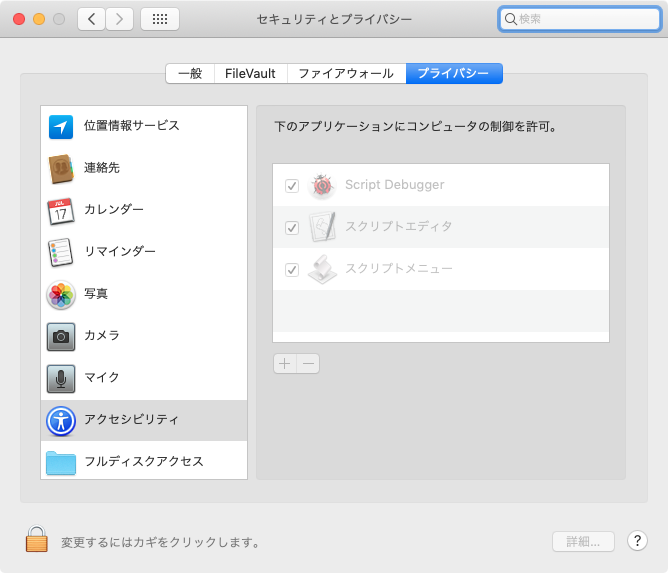
例によってGUI Scriptingを用いているため、ユニバーサルアクセスの「補助装置にアクセスできるようにする」をチェックしておく必要があります。

sound0.jpg

sound00.jpg

また、OSのバージョンが上がると書き換える必要が出てきます。

soud1.jpg

ここで選択されているサウンド入力元の名称を取得します。

soud2.jpg

ここで選択されているサウンド出力先の名称を取得します。

スクリプト名:サウンド入出力の選択中の項目名を取得
set inRes to getSelectedSoundIntputName() of me
–> “内蔵マイク”

set outRes to getSelectedSoundOutputName() of me
–> “内蔵スピーカー”

–サウンド入力元の選択されている名称を取得
on getSelectedSoundIntputName()
  activate application “System Preferences”
  
displaySoundPaneInSystemPrefs() of me
  
  
tell application “System Events”
    tell process “システム環境設定”
      click radio button 3 of tab group 1 of window 1 –「入力」タブを選択
      
set vList to value of attribute “AXVisibleRows” of table 1 of scroll area 1 of tab group 1 of window 1
      
set vCount to count every item of vList
      
      
tell table 1 of scroll area 1 of tab group 1 of window 1
        set aList to every row whose selected is true
        
set anItem to first item of aList
        
tell anItem
          set aStr to value of text field 1
        end tell
      end tell
      
    end tell
  end tell
  
  
return aStr
end getSelectedSoundIntputName

–サウンド出力先の選択されている名称を取得
on getSelectedSoundOutputName()
  activate application “System Preferences”
  
displaySoundPaneInSystemPrefs() of me
  
  
tell application “System Events”
    tell process “システム環境設定”
      click radio button 2 of tab group 1 of window 1 –「出力」タブを選択
      
set vList to value of attribute “AXVisibleRows” of table 1 of scroll area 1 of tab group 1 of window 1
      
set vCount to count every item of vList
      
      
tell table 1 of scroll area 1 of tab group 1 of window 1
        set aList to every row whose selected is true
        
set anItem to first item of aList
        
tell anItem
          set aStr to value of text field 1
        end tell
      end tell
      
    end tell
  end tell
  
  
return aStr
end getSelectedSoundOutputName

–システム環境設定で「サウンド」に表示を切り替える
on displaySoundPaneInSystemPrefs()
  tell application “System Preferences”
    activate
    
set current pane to pane “com.apple.preference.sound”
  end tell
end displaySoundPaneInSystemPrefs

▼新規書類に ▼カーソル位置に ▼ドキュメント末尾に

03/20 サウンド入力元、出力先を設定する

システム環境設定の「サウンド」で入力元、出力先を切り替えるAppleScriptです。

例によってGUI Scriptingのプログラムであるため、OSがアップデートした際には微妙な手直しが発生するはずです。

いいかげん、オーディオ入出力関連の切り替えごときは標準命令で持っていてほしいのですが……10.7で標準搭載してくれないものでしょうか。

スクリプト名:サウンド入力元、出力先を設定する
set aRes to setSountInputSource("ライン入力") of me
–> true(設定成功の場合。失敗の場合にはfalseを返す)

set aRes to setSountOutputSource("内蔵スピーカー") of me
–> true(設定成功の場合。失敗の場合にはfalseを返す)

–サウンド入力先を設定
on setSountInputSource(aName)
  activate application "System Preferences"
  
displaySoundPaneInSystemPrefs() of me
  
  
tell application "System Events"
    tell process "システム環境設定"
      click radio button 3 of tab group 1 of window 1 –「入力」タブを選択
      
set vList to value of attribute "AXVisibleRows" of table 1 of scroll area 1 of tab group 1 of window 1
      
set vCount to count every item of vList
      
      
set outList to {}
      
repeat with i from 1 to vCount
        set aStr to value of text field 1 of row i of table 1 of scroll area 1 of tab group 1 of window 1
        
if aStr = aName then
          set selected of row i of table 1 of scroll area 1 of tab group 1 of window 1 to true
          
return true
        end if
      end repeat
    end tell
  end tell
  
  
return false
end setSountInputSource

–サウンド出力先を設定
on setSountOutputSource(aName)
  activate application "System Preferences"
  
displaySoundPaneInSystemPrefs() of me
  
  
tell application "System Events"
    tell process "システム環境設定"
      click radio button 2 of tab group 1 of window 1 –「入力」タブを選択
      
set vList to value of attribute "AXVisibleRows" of table 1 of scroll area 1 of tab group 1 of window 1
      
set vCount to count every item of vList
      
      
set outList to {}
      
repeat with i from 1 to vCount
        set aStr to value of text field 1 of row i of table 1 of scroll area 1 of tab group 1 of window 1
        
if aStr = aName then
          set selected of row i of table 1 of scroll area 1 of tab group 1 of window 1 to true
          
return true
        end if
      end repeat
    end tell
  end tell
  
  
return false
end setSountOutputSource

–システム環境設定で「サウンド」に表示を切り替える
on displaySoundPaneInSystemPrefs()
  tell application "System Preferences"
    activate
    
set current pane to pane "com.apple.preference.sound"
  end tell
end displaySoundPaneInSystemPrefs

▼新規書類に ▼カーソル位置に ▼ドキュメント末尾に

03/20 サウンド入力元、出力先の名称をリストで取得する

システム環境設定から、サウンドの入力元、出力先の名称をリストで取得するAppleScriptです。

よくあるGUI Scriptingのプログラムなので、Mac OS X 10.7になったら手直しが必要になること必至ではありますが、(個人的に)早急に必要になったので組んでみました。

スクリプト名:サウンド入力元、出力先の名称をリストで取得する
set outList to getEverySoundOutputName() of me
–> {"内蔵スピーカー", "PROPlantronics", "Soundflower (2ch)", "Soundflower (16ch)"}

set inList to getEverySoundInputName() of me
–> {"内蔵マイク", "ライン入力", "PROPlantronics", "Soundflower (2ch)"}

–サウンド出力先のリストを取得
on getEverySoundOutputName()
  activate application "System Preferences"
  
displaySoundPaneInSystemPrefs() of me
  
  
tell application "System Events"
    tell process "システム環境設定"
      click radio button 2 of tab group 1 of window 1 –「出力」タブを選択
      
set vList to value of attribute "AXVisibleRows" of table 1 of scroll area 1 of tab group 1 of window 1
      
set vCount to count every item of vList
      
      
set outList to {}
      
repeat with i from 1 to vCount
        set aStr to value of text field 1 of row i of table 1 of scroll area 1 of tab group 1 of window 1
        
set the end of outList to aStr
      end repeat
    end tell
  end tell
  
  
return outList
end getEverySoundOutputName

–サウンド入力先のリストを取得
on getEverySoundInputName()
  activate application "System Preferences"
  
displaySoundPaneInSystemPrefs() of me
  
  
tell application "System Events"
    tell process "システム環境設定"
      click radio button 3 of tab group 1 of window 1 –「入力」タブを選択
      
set vList to value of attribute "AXVisibleRows" of table 1 of scroll area 1 of tab group 1 of window 1
      
set vCount to count every item of vList
      
      
set outList to {}
      
repeat with i from 1 to vCount
        set aStr to value of text field 1 of row i of table 1 of scroll area 1 of tab group 1 of window 1
        
set the end of outList to aStr
      end repeat
    end tell
  end tell
  
  
return outList
end getEverySoundInputName

–システム環境設定で「サウンド」に表示を切り替える
on displaySoundPaneInSystemPrefs()
  tell application "System Preferences"
    activate
    
set current pane to pane "com.apple.preference.sound"
  end tell
end displaySoundPaneInSystemPrefs

▼新規書類に ▼カーソル位置に ▼ドキュメント末尾に

02/04 フォルダ内の画像ファイルを順次Numbersのセルに貼り付ける

指定フォルダ内に入っている画像を順次Numbersのドキュメントに貼り付けるAppleScriptです。

指定フォルダ内の画像をPhotoshopで順次オープンして、Numbersのドキュメントに貼り付けます。

Numbersには画像を貼り込むような命令は用意されていないので、GUI Scripting経由でペーストを行います。

スクリプト名:フォルダ内の画像ファイルを順次Numbersのセルに貼り付ける
property aRange : “B”

set aFol to choose folder with prompt “Numbersに貼り付ける画像が入っているフォルダを選択してください”

tell application “Finder”
  set aList to (every file of aFol) as alias list
end tell

set aLen to length of aList

tell application “Numbers”
  tell document 1
    tell sheet 1
      tell table 1
        set row count to aLen + 5
      end tell
    end tell
  end tell
end tell

set aCounter to 2

repeat with i in aList
  tell application “Adobe Photoshop CS3″
    activate
    
open i
    
set d1Doc to (a reference to current document)
    
    
tell d1Doc
      select all
      
copy
    end tell
    
    
tell document 1
      close saving no
    end tell
    
  end tell


set aRangeStr to aRange & (aCounter as string) & “:” & aRange & (aCounter as string)
  
  
tell application “Numbers”
    tell document 1
      tell sheet 1
        tell table 1
          set selection range to range aRangeStr
        end tell
      end tell
    end tell
  end tell
  
  
activate application “Numbers”
  
tell application “System Events”
    tell process “Numbers”
      keystroke “v” using {command down}
    end tell
  end tell


set aCounter to aCounter + 1
  
end repeat

▼新規書類に ▼カーソル位置に ▼ドキュメント末尾に

01/13 iCalで選択中のイベントのカレンダー情報を取得する

iCal上で選択中のイベントが所属しているカレンダーの名称を取得するAppleScriptです。

iCalのAppleScript用語辞書には致命的な欠陥が山のようにあって……GUI上で選択中のイベント(selection)を取得できません。普通のやり方では、選択中のイベントのカレンダー名を取得できません。もっと基本的なところで、いま表示中の月が何月なのかも分かりません。

日時を指定してイベントを登録したり、フィルタ参照でイベントを抽出したりするぐらいで、画面上で選択したイベントから対話的に何かの処理を行うようなAppleScriptを作りにくい(というよりも、作れない)状況にあります。

ical1.jpg

はい、おしまいおしまい〜

……などと言っていては海外の強豪Scripter連中に顔向けできません。

選択中のイベントが存在するのであれば、コピーを実行すると何らかの情報が得られるはずです。

実際にiCal上でコピーを実行してみると、

<ここから>
退去確認@ヴィラ山田
2011年1月22日 を 16:00 〜 17:00 にスケジュールしました
</ここまで>

のような内容が得られました。この情報から日付、開始時刻、終了時刻、イベント名 などを取得できます。

これらの情報を手がかりに、すべてのカレンダー上で検索(フィルタ参照による抽出)を行ってみました。

実行条件は、GUI Scriptingがオンになっていることと、iCal上でなにがしかのイベントが選択状態になっていることです。

ical2.jpg

GUI Scripting(UI Element Scripting)経由で選択イベントのコピー動作を行い、クリップボードの内容を解析。得られた情報をもとに今度はiCalに正攻法ですべてのカレンダーに対して「日付、開始時刻、終了時刻、イベント名」を手がかりにイベントの検索を行います。条件に合致するイベントが見つかったら、カレンダーの名称を取得して返します。これを複数のイベントに対してループで実行してみました。

実験してみたところ、複数のイベントを一度に選択した場合、その中に「繰り返しイベント」が含まれているとiCalがダイアログで警告します。このダイアログが邪魔なので、ダイアログのクローズ処理も行わなくてはなりません。

ical3.jpg

作成時間はトータルで40分程度でしょうか。かなり作り込みましたが、驚くべきことに、さほど実用性がありません、、、

スクリプト名:iCalで選択中のイベントの情報を取得する
set aRes to retSelectedEvent() of me

set icalRes to {}
repeat with i in aRes
  set j to contents of i
  
set the end of icalRes to getCalName(j) of me
end repeat
icalRes
–> {”ホーム”}

–選択中のiCal上のイベントが所属しているカレンダーの名称を取得する
on getCalName(aStr)
  
  
set aList to paragraphs of aStr
  
set aTitle to contents of item 1 of aList
  
set dStr to contents of item 2 of aList
  
  
set dOffset to offset of “日 を “ in dStr
  
set dDate to text 1 thru dOffset of dStr
  
–set dDateObj to date dDate
  
  
set tSeparator to offset of ” 〜 “ in dStr
  
if tSeparator = 0 then
    –「〜」がないことから、終日のスケジュールと判断
    
set timeFrom to “0:00″
    
set timeTo to “23:59:59″
  else
    –開始時刻と終了時刻のあるスケジュールと判断
    
set timeFrom to text (dOffset + 4) thru (tSeparator - 1) of dStr
    
set timeTo to text (tSeparator + 3) thru ((length of dStr) - 12) of dStr
  end if
  
  
set timeFromObj to date (dDate & ” “ & timeFrom)
  
set timeToObj to date (dDate & ” “ & timeTo)


tell application “iCal”
    set cnList to name of every calendar
    
set cList to every calendar
    
    
set cCount to 1
    
set findF to false
    
repeat with i in cList
      tell i
        set eList to (every event whose start date is not less than timeFromObj and start date is not greater than timeToObj and summary of it is aTitle)
        
if eList is not equal to {} then
          set findF to true
          
exit repeat
        end if
      end tell
      
set cCount to cCount + 1
    end repeat
    
    
if findF = true then
      set aName to contents of item cCount of cnList
    else
      set aName to “”
    end if
  end tell
  
  
return aName
end getCalName

–選択中のイベント情報をコピー(エラー時にはfalseをリターン)
on retSelectedEvent()
  activate application “iCal”
  
tell application “System Events”
    tell process “iCal”
      –「編集」メニューの項目「コピー」がイネーブルかどうかを取得
      
set copyEnabled to (enabled of menu item 5 of menu 1 of menu bar item 4 of menu bar 1)
      
if copyEnabled = false then return false
      
      
–コピーしてみる
      
try
        
        
keystroke “c” using {command down}
      on error
        –何らかの都合でコピー等の動作を行えなかった場合
        
return false
      end try
      
      
–ダイアログ表示時のボタンクリック
      
clickiCalDialog() of me
      
      
–クリップボードから文字情報を取得
      
set aConList to the clipboard
      
set aCon to aConList as string
      
    end tell
  end tell
  
  
set aList to parseByDelim(aCon, (ASCII character 13) & (ASCII character 13)) of me
  
  
return aList
  
end retSelectedEvent

–iCalでイベントをコピー時に、繰り返しイベントが選択されていた時に表示されるダイアログを乗り越えるためのルーチン
–(「キャンセル」ではない方のボタンを押す)
on clickiCalDialog()
  –ダイアログ検出
  
tell application “System Events”
    tell process “iCal”
      if (count every window) > 1 then
        if subrole of window 1 = “AXDialog” then
          tell window 1
            –キャンセル「ではない」方のボタンを取得
            
set bList to every button whose title is not equal to “キャンセル”
            
if bList is not equal to {} then
              set aButton to first item of bList
              
tell aButton
                click
              end tell
            end if
          end tell
        end if
      end if
    end tell
  end tell
end clickiCalDialog

on parseByDelim(aData, aDelim)
  set curDelim to AppleScript’s text item delimiters
  
set AppleScript’s text item delimiters to aDelim
  
set dList to text items of aData
  
set AppleScript’s text item delimiters to curDelim
  
return dList
end parseByDelim

▼新規書類に ▼カーソル位置に ▼ドキュメント末尾に

10/07 GUI ScriptingでWebコンテンツを操作

GUI Scriptingでできることは、Mac OS Xのバージョンアップとともに、徐々に広がりを見せつつありますが……実際に試してみて「ついにここまで来たか」と驚かされました。

思えば、Safari自体もバージョンアップにともなって、アクセシビリティ系の機能が向上。このあたりは、読み上げなどの機能がアップしたぐらいにしか考えていなかったのですが……よくよく考えると、アクセシビリティ系の機能がSafariを通じてWebコンテンツにアクセスできるのであれば、AppleScriptもGUI Scriptingを使ってWebコンテンツにアクセスできるのではないか?

やってみたら、大成功。「HTMLコンテンツ」の中にあるフォーム部品(radio button)や画像をクリックしたり、テキストで書かれていることを取得したり……自分には、DOM経由でアクセスするよりも簡単に操作できました(このへんは個人差が……)。

web1.jpg

UI BrowserでSafariのUIを調査……

web2.jpg

▲Safariの「HTMLコンテンツ」から、さらに下位階層を掘り下げていく……

web3.jpg

▲リンクのテキストにアクセス……

このサンプルは、本BlogをSafariでオープンして、ページ上部にあるメニュー「ABOUT」のリンクをクリックします。

この仕組みを利用して、Webブラウザに表示されているフォームにテスト用のデータをAppleScriptから投入し、連続テストを行うことも可能です。

ちなみに、このリストは「ブックマックバー」が非表示の状態で実行したものであり、「ブックマークバー」を表示させた場合には、リンクのクリック部分が、

click static text 1 of UI element 2 of list 1 of UI element 1 of scroll area 1 of group 2 of window 1

となります。

こういうことを考えると、(外部からコントロールできないことが確実な)Flashのコンテンツは勘弁してほしいという気に……。

スクリプト名:GUI ScriptingでWebコンテンツを操作するテスト
–AS HoleのURLをSafariでオープンする
set aURL to “http://piyocast.com/as/”
set webRes to openPageBySafari(aURL) of me

delay 5 –念のため、ページローディング&レンダリングを待つ

activate application “Safari”
tell application “System Events”
  tell process “Safari”
    –ページ上部にあるメニューから、「ABOUT」のテキストをクリックする
    
click static text 1 of UI element 2 of list 1 of UI element 1 of scroll area 1 of group 1 of window 1
  end tell
end tell

–指定のURLをSafariでオープンする
on openPageBySafari(aURL)
  tell application “Safari”
    set d to count every window
    
if d = 0 then
      make new window
      
tell document 1
        set URL to aURL
      end tell
    else
      if aURL is not equal to “” then
        tell document 1
          set URL to aURL
        end tell
      end if
    end if
    
set aRes to page_loaded(10) of me
  end tell
end openPageBySafari

–Safariでオープン中のURLのローディング完了を待つ
on page_loaded(timeout_value)
  delay 2
  
repeat with i from 1 to the timeout_value
    tell application “Safari”
      if (do JavaScript “document.readyState” in document 1) is “complete” then
        return true
      else if i is the timeout_value then
        return false
      else
        delay 1
      end if
    end tell
  end repeat
  
return false
end page_loaded

▼新規書類に ▼カーソル位置に ▼ドキュメント末尾に

06/22 指定文字列のAppleScriptをAppleScriptエディタ上で実際に実行して結果を文字列として取得する 10.5_10.6

指定の文字列をAppleScriptとして評価して実行し、結果をすべて文字列で取得するAppleScript……の、Mac OS X 10.5/10.6の両バージョン対応版です。動作には、GUI Scriptingがオンになっている必要があります。

iChat経由でAppleScriptを実行するAppleScriptを作ったまでは良かったのですが、リモート環境にあるMacがMac OS X 10.5で稼働しており、10.5/10.6の両環境で動く必要が出てきました。

AppleScriptを記述したり生成用に使ったりするプログラムは、Mac OS X 10.5までは「スクリプトエディタ」、10.6からは「AppleScriptエディタ」という名前になっており、OSのバージョンを取得してGUI Scriptingでコントロールするパラメータを(ちょっとだけ)変更し、両プログラムのGUIのちがい(割り当てられたキーボードショートカットのキーが異なるとか)を吸収しています。

as106.jpg
▲Mac OS X 10.6上の「AppleScriptエディタ」の「表示」メニュー。「結果を表示」がCommand-3

as105.jpg
▲Mac OS X 10.5上の「スクリプトエディタ」の「表示」メニュー。「結果を表示」がCommand-2

とりあえず、10.4は対象にしなくてよさそうだったので10.4はサポートしていませんが、サポートしたい環境にいる方は、if文で10.4に対応させるといいかもしれません(そもそも、iChatのイベントでAppleScriptを動かす仕組みは10.5から導入されたので、あんまりうまみがありません)。

スクリプト名:指定文字列のAppleScriptをAppleScriptエディタ上で実際に実行して結果を文字列として取得する 10.5_10.6
set aScript to “tell app \”Finder\” to get properties of startup disk”
set asRes to getAppeScriptRes(aScript) of me

–指定文字列のAppleScriptをAppleScriptエディタ上で実際に実行して結果を文字列として取得する
on getAppeScriptRes(aScript)
  tell application id “com.apple.scripteditor2″
    make new document
    
tell window 1
      set bDoc to name
    end tell
    
    
tell document bDoc
      set contents to aScript
      
      
–いきなり実行する
      
try
        execute
      on error
        close without saving
        
return false
      end try
    end tell
    
  end tell


set osVer to system attribute “sys2″
  
  
–GUI Scripting経由でAppleScriptの実行結果を取得する
  
activate application id “com.apple.scripteditor2″
  
tell application “System Events”
    
    
if osVer > 5 then
      –Mac OS X 10.6以降の場合(とりあえず10.6.x)
      
tell process “AppleScript エディタ” –各国語環境で名前は違うかもしれない、と日本語で書いてみる
        keystroke “3″ using {command down} –command-3 結果を表示
        
set resVal to value of text area 1 of scroll area 1 of group 1 of group 1 of splitter group 1 of window 1
      end tell
      
    else if osVer = 5 then
      –Mac OS X 10.5の場合
      
tell process “スクリプトエディタ” –ここも各言語環境で名前が違う、と日本語で書いてみる
        keystroke “2″ using {command down} –command-2 結果を表示
        
set resVal to value of text area 1 of scroll area 1 of group 1 of splitter group 1 of window 1
      end tell
    end if
  end tell


tell application id “com.apple.scripteditor2″
    tell document bDoc
      close without saving
    end tell
  end tell
  
  
return resVal
  
end getAppeScriptRes

▼新規書類に ▼カーソル位置に ▼ドキュメント末尾に

06/19 TeamViewerを起動してIDとパスワードを取得する

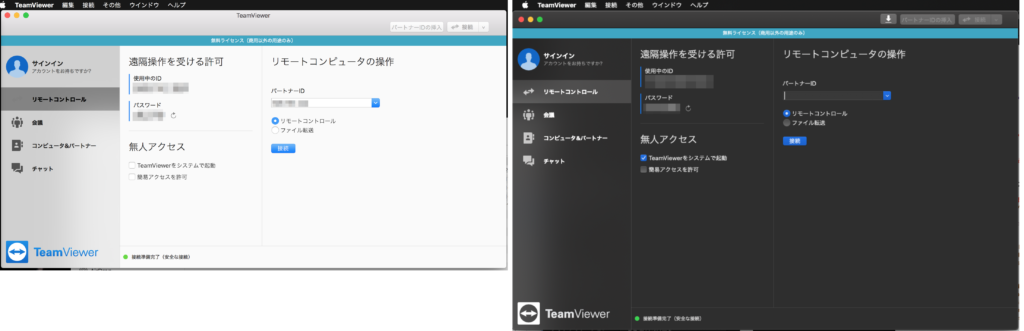
リモート操作アプリケーション「TeamViewer」を起動してIDとパスワードを取得するAppleScriptです。パラメータとして、相手側マシン上でTeamViewerが起動してID等を取得するのを待つ時間を秒で指定します。

tv1.jpg

リモート操作アプリケーション「TeamViewer」は、iChatでリモート操作できないようなネットワーク環境のマシンでもリモート操作できるなど、かなり「つぶし」の効くソフトです。

たいへん便利なのですが、相手側のマシン上でTeamViewerを起動し、IDとパスワードをメールや電話などで教えてもらう必要があります。この点がけっこう面倒で……それをiChat経由で本Scriptを相手マシンに送り付けてIDとパスワードを調査できれば、それを元にTeamViewerですぐにリモート接続可能になります。

iChatの文字チャット経由で本Scriptを送り付けて実行させれば、相手側マシンではTeamViewerが起動し、そのIDとパスワードをiChat経由で受信することができ、リモートメンテナンスを効率的に行えることでしょう。

スクリプト名:TeamViewerを起動してIDとパスワードを取得する
set aRec to getTeamViewerInfo(30) of me
–> {idInfo:”594 395 137″, passInfo:”9568″}

–TeamViewerを起動して、IDとパスワードを取得する
–ただし、GUI Scriptingをイネーブルにしておくことが必要
on getTeamViewerInfo(waitSeconds)
  repeat waitSeconds times
    activate application “TeamViewer”
    
tell application “System Events”
      tell process “TeamViewer”
        tell window “TeamViewer”
          set idText to value of (static text 1 of group 1)
          
set passText to value of (static text 2 of group 1)
        end tell
      end tell
    end tell
    
    
–両方取得できたらループから抜ける
    
if (idText is not equal to “”) and (passText is not equal to “”) then
      exit repeat
    end if
    
    
delay 1
  end repeat
  
  
return {idInfo:idText, passInfo:passText}
end getTeamViewerInfo

▼新規書類に ▼カーソル位置に ▼ドキュメント末尾に

06/19 iChat経由で受信したAppleScriptファイルを実行

iChat経由で受信したAppleScriptファイルをAppleScriptエディタ上で実行し、結果をiChatで返すAppleScriptです。

離れた場所にあるマシン用にAppleScriptを作成し、自分の手元では動いていたのに、相手のマシン上で動かなかったりエラーが発生した……というケースに対応すべく、先日シェルコマンドやAppleScreiptコマンドをiChat経由で受信して実行するAppleScriptを作成しましたが……やはり、まとまった処理を実行させたいケースが多く、ちょっとしたコマンドを実行するだけでは満足できません。

そこで、iChat経由でAppleScriptファイルを受信したら実行して結果を返すAppleScriptを作成した次第です。

本AppleScriptは、かならずテキスト形式で保存して、iChatの環境設定>「警告」で「ファイル転送の受信」および「ファイル転送の完了」イベントで本Scriptを実行するよう設定する必要があります。

ic10.jpg

マシンAの上のiChatにこのScriptを設定。マシンB上からiChatでマシンAにチャットを仕掛け……マシンBからiChatウィンドウにAppleScriptファイルをドラッグ&ドロップすると……マシンB側で送信されたAppleScriptを実行し、結果をマシンBに返します。

まだテスト段階のプログラムなので、デスクトップ上に受信したファイル転送のプロパティをログとして書き出します。

ここまで作成できたので、元のプログラムと合体させれば、リモートメンテナンス用のツールとして割と実用性が出てくるのではないでしょうか。

スクリプト名:ichat_file_receive_2.applescript
using terms from application “iChat”
  
  
on received file transfer invitation theFileTransfer
    accept theFileTransfer
  end received file transfer invitation
  
  
on completed file transfer theFileTransfer
    
    
set aProp to properties of theFileTransfer
    
    
–ログに記録
    
set dtPath to path to desktop as string
    
set wFilePath to dtPath & (do shell script “date +%Y%m%d-%H%M%S”)
    
write_to_file_asRec(aProp, wFilePath, false) of me
    
    
set aFile to (file of theFileTransfer) –ファイル
    
set aStatus to transfer status of theFileTransfer –転送状態
    
set aDirection to direction of theFileTransfer –転送方向
    
set sentBuddy to buddy of theFileTransfer –転送してきたBuddy
    
    
if aDirection is not equal to incoming then return –ファイル転送が「受信モード」でなければリターン
    
if aStatus is not equal to finished then return –ファイル転送が終了していなければリターン
    
    
–指定ファイルがAppleScriptかどうかをチェック
    
set aProp to info for (aFile as alias)
    
if kind of aProp = “スクリプト” and file type of aProp = “osas” then
      set {aRes, aReason} to executeAS(aFile) of me
    end if
    
    
if aRes = false then
      send aReason to sentBuddy
    else
      –通常の結果返信
      
send aReason to sentBuddy
    end if
    
  end completed file transfer
  
  
end using terms from

–指定のaliasのAppleScriptをオープンして結果を返す
on executeAS(asFileAlias)
  tell application “AppleScript Editor”
    try
      open asFileAlias
    on error erMes
      return {false, “AppleScriptファイルのオープンに失敗しました。” & erMes}
    end try
    
    
tell window 1
      set bDoc to name
    end tell
    
    
tell document bDoc
      
      
–実行する
      
try
        execute
      on error erMes
        –エラー発生時にはクローズしてfalseを返す
        
close without saving
        
return {false, “AppleScriptファイルの実行時にエラーが発生しました。” & erMes}
      end try
      
    end tell
    
    
–GUI Scripting経由でAppleScriptの実行結果を取得する
    
activate application “AppleScript Editor”
    
tell application “System Events”
      tell process “AppleScript エディタ” –各国語環境で名前は違うかもしれない、と日本語で書いてみる
        keystroke “3″ using {command down} –command-3 結果を表示
        
set resVal to value of text area 1 of scroll area 1 of group 1 of group 1 of splitter group 1 of window 1
      end tell
    end tell
    
    
tell application “AppleScript Editor”
      tell document bDoc
        close without saving
      end tell
    end tell
    
    
return {true, resVal}
    
  end tell
  
end executeAS

–ファイルの追記ルーチン「write_to_file」
–追記データ、追記対象ファイル、boolean(trueで追記)
on write_to_file(this_data, target_file, append_data)
  try
    set the target_file to the target_file as text
    
set the open_target_file to open for access file target_file with write permission
    
if append_data is false then set eof of the open_target_file to 0
    
write this_data to the open_target_file starting at eof
    
close access the open_target_file
    
return true
  on error error_message
    try
      close access file target_file
    end try
    
return error_message
  end try
end write_to_file

–ファイルの追記ルーチン「write_to_file」
–追記データ、追記対象ファイル、boolean(trueで追記)
on write_to_file_asRec(this_data, target_file, append_data)
  try
    set the target_file to the target_file as text
    
set the open_target_file to open for access file target_file with write permission
    
if append_data is false then set eof of the open_target_file to 0
    
write this_data to the open_target_file as record starting at eof
    
close access the open_target_file
    
return true
  on error error_message
    try
      close access file target_file
    end try
    
return error_message
  end try
end write_to_file_asRec

▼新規書類に ▼カーソル位置に ▼ドキュメント末尾に

06/17 指定文字列のAppleScriptをAppleScriptエディタ上で実際に実行して結果を文字列として取得する

指定したAppleScript文字列を、実際にAppleScriptエディタ上で実行して、その結果を「文字列として」取得するAppleScriptです。

一昨日掲載した大物AppleScriptにも、かなり不満が残っていました。それは、「as:」とAppleScriptコマンドを実行させても、結果が文字化けして返ってくることがあることです。各アプリケーション依存のオブジェクト値だったりすると、無理やり文字列に直そうとしても、

“{class:«class cdis», name:\”Cherry\”, index:2, displayed name:\”Cherry\”, name extension:\”\”, extension hidden:false, «class ctnr»:«class pcmp» of application \”Finder\”, «class cdis»:«class sdsk» of application \”Finder\”, «class posn»:{98, 82}, «class dpos»:{1714, 37}, bounds:{66, 50, 130, 114}, kind:\”ボリューム\”, «class labi»:0, locked:false, «class dscr»:missing value, «class comt»:\”\”, size:5.33816377344E+11, «class phys»:5.33816377344E+11, creation date:date \”2010年2月20日土曜日 13:24:06\”, modification date:date \”2010年6月17日木曜日 11:00:56\”, «class iimg»:missing value, URL:\”file://localhost/\”, «class sown»:\”システム\”, «class sgrp»:\”admin\”, «class ownr»:«constant ****rdwr», «class gppr»:«constant ****rdwr», «class gstp»:«constant ****read», «class cwnd»:«class cwnd» of «class sdsk» of application \”Finder\”, id:-100, «class capa»:6.39791054848E+11, «class frsp»:1.05974677504E+11, «class isej»:false, «class istd»:true, «class dfmt»:«constant ****dfh+», «class Jrnl»:true, «class isrv»:true, «class igpr»:false} “

のように、残念な結果が得られてしまいます。

そこで、パーフェクトに指定のAppleScriptの実行結果を取得できる方法を検討してみました。

こういう用途になると、がぜん登場してくるのが、AS系のブラックテクノロジーともいえる「GUI Scripting」。将来の互換性とか、アプリケーションがバージョンアップしたら使えなくなるかもしれないとか、スピードがいまいちとか、そういうことにすべて目をつぶって「目的だけ果たせればそれでいい」という手段です。

前出の実行結果も、

“{class:disk, name:\”Cherry\”, index:2, displayed name:\”Cherry\”, name extension:\”\”, extension hidden:false, container:computer container of application \”Finder\”, disk:startup disk of application \”Finder\”, position:{98, 82}, desktop position:{1714, 37}, bounds:{66, 50, 130, 114}, kind:\”ボリューム\”, label index:0, locked:false, description:missing value, comment:\”\”, size:5.3381421056E+11, physical size:5.3381421056E+11, creation date:date \”2010年2月20日土曜日 13:24:06\”, modification date:date \”2010年6月17日木曜日 11:00:56\”, icon:missing value, URL:\”file://localhost/\”, owner:\”システム\”, group:\”admin\”, owner privileges:read write, group privileges:read write, everyones privileges:read only, container window:container window of startup disk of application \”Finder\”, id:-100, capacity:6.39791054848E+11, free space:1.05976844288E+11, ejectable:false, startup:true, format:Mac OS Extended format, journaling enabled:true, local volume:true, ignore privileges:false}”

……と、きちんと得られるようになり、「もうちょっと手を入れてみようか」と欲が出てきてしまうところです。

スクリプト名:指定文字列のAppleScriptをAppleScriptエディタ上で実際に実行して結果を文字列として取得する
set aScript to “tell app \”Finder\” to get properties of startup disk”
set asRes to getAppeScriptRes(aScript) of me

–指定文字列のAppleScriptをAppleScriptエディタ上で実際に実行して結果を文字列として取得する
on getAppeScriptRes(aScript)
  tell application “AppleScript Editor”
    make new document
    
tell window 1
      set bDoc to name
    end tell
    
    
tell document bDoc
      set contents to aScript
      
      
–いきなり実行する
      
try
        execute
      on error
        close without saving
        
return false
      end try
    end tell
    
  end tell
  
  
–GUI Scripting経由でAppleScriptの実行結果を取得する
  
activate application “AppleScript Editor”
  
tell application “System Events”
    tell process “AppleScript エディタ” –各国語環境で名前は違うかもしれない、と日本語で書いてみる
      keystroke “3″ using {command down} –command-3 結果を表示
      
set resVal to value of text area 1 of scroll area 1 of group 1 of group 1 of splitter group 1 of window 1
    end tell
  end tell
  
  
tell application “AppleScript Editor”
    tell document bDoc
      close without saving
    end tell
  end tell
  
  
return resVal
  
end getAppeScriptRes

▼新規書類に ▼カーソル位置に ▼ドキュメント末尾に

02/04 Preview.appで用紙サイズおよび用紙方向を指定して印刷 v2

GUI Scripting経由でPreview.appで印刷を実行。プリンタ名、用紙サイズ、用紙方向を指定して印刷を行うAppleScriptです。

GUI Scriptingを使用しているため、「システム環境設定」の「ユニバーサルアクセス」で、「補助装置にアクセスできるようにする」をオンにしている必要があります。

ただし、使用プリンタは各ユーザー環境によって異なるため、そのまま使えるものとは思わないでください。

また、Preview.appで「画像オープン→印刷→画像クローズ」といった連続したフローを実現するものでもありません。Preview.appで画像をオープンすると、WindowのIDが画像をオープンするたびに+1されるようで、画像を1枚しかオープンしていないのにwindow 2を指定する必要があるとか、そういう状況を考慮した作りにはなっていません。

スクリプト名:Preview.appで用紙サイズおよび用紙方向を指定して印刷 v2
(*
2010/1/19

v2
Preview.appでは、書類をオープンするたびにWindowのインデックスがインクリメントされるらしく、
1枚目の書類はwindow 1でアクセスできるが、2枚目の書類(1枚しかウィンドウは開いていない)に
対しては、Window 2でアクセスする必要がある。これに対処する必要がある(問題未解決)

v1
シンプルタイプのプリントダイアログから拡張プリントダイアログに大きさをひろげたケースと、
最初から拡張プリントダイアログが表示されているケースでは、ポップアップメニューのIDが異なる。

拡張ダイアログが表示されていなかったら、拡張表示にして一度キャンセルし、再試行するようにした(10回まで)

*)

–set directionF to "V" –用紙方向=たて方向
set directionF to "H" –用紙方向=たて方向

set printerName to "PS-NX650"
set paperSize to "A4"

printViaGUI(directionF, printerName, paperSize) of me

on printViaGUI(directionF, printerName, paperSize)
  activate application "Preview"
  
tell application "System Events"
    tell process "プレビュー"
      
      
set goF to false
      
repeat 10 times
        –メニューから印刷を実行
        
click menu item "プリント…" of menu 1 of menu bar item "ファイル" of menu bar 1
        
        
tell window 1
          tell sheet 1
            –拡張プリントダイアログを表示させる
            
set sheetClosed to value of checkbox 1
            
if sheetClosed = 0 then
              click checkbox 1
              
click button "キャンセル"
            else
              set goF to true
              
exit repeat
            end if
          end tell
        end tell
        
      end repeat
      
      
if goF = false then return
    end tell
  end tell


activate application "Preview"
  
tell application "System Events"
    tell process "プレビュー"
      
      
–メニューから印刷を実行
      
click menu item "プリント…" of menu 1 of menu bar item "ファイル" of menu bar 1
      
      
tell window 1
        tell sheet 1
          
          
–出力先のプリンタを指定
          
tell pop up button 4 –「プリンタ」ポップアップボタン
            set aTitle to value
            
if aTitle is not equal to printerName then
              click
              
tell menu 1
                set mList to title of every menu item
                
set aRes1 to retIHitItem(mList, printerName as Unicode text) of me
                
if aRes1 = false then
                  return mList
                end if
                
click menu item aRes1
                
              end tell
            end if
          end tell


–用紙サイズを変更
          
tell pop up button 1
            
            
set aTitle to value as string
            
if aTitle is not equal to paperSize then
              click
              
tell menu 1
                set mList to value of every menu item
                
                
set aLen to length of mList
                
select menu item 1 –最終アイテムを選択しておく
                
                
set aRes2 to retIHitItem(mList, paperSize as string) of me
                
if aRes2 = false then
                  return false
                end if
                
click menu item aRes2
              end tell
            end if
          end tell
          
          
–用紙方向を指定
          
if directionF = "V" then
            click radio button 1 of radio group 3
          else if directionF = "H" then
            click radio button 2 of radio group 3
          end if
          
          
–「用紙サイズに合わせる」をクリック
          
click radio button 2 of radio group 1
          
          
–「プリント」ボタンをクリック
          
–click button "プリント"–ここをコメントアウトすると印刷を行う。
          
beep
        end tell
      end tell
    end tell
  end tell
end printViaGUI

–指定リスト中の何アイテム目かを調べて返す
on retIHitItem(aList, anItem)
  set aCount to 1
  
set hitF to false
  
repeat with i in aList
    set j to contents of i
    
if j = anItem then
      set hitF to true
      
exit repeat
    end if
    
set aCount to aCount + 1
  end repeat
  
  
if hitF = false then return false
  
  
return aCount
end retIHitItem

–GUI Scriptingの命令が続く中でdelayコマンドをエラーになるので、
–wait部分だけサブルーチン化
on waitSec(aNum)
  delay aNum
end waitSec

▼新規書類に ▼カーソル位置に ▼ドキュメント末尾に

02/03 Preview.appでプリンタと用紙サイズを指定して印刷

一般的なAppleScriptの命令を使用して、特定のプリンタへの印刷は実行できますが、用紙サイズまでは指定できません。そこで、仕方なくGUI Scriptingを使用して印刷を実行することになります。

ここで、「仕方なく」という前置きが入るのは、GUI Scriptingという仕組みが通常のAppleScriptによる命令よりも遅く、また確実性が劣るためです。確実性が高くないといっても、OSやアプリのクラッシュを伴うようなレベルではなく、アプリケーション側の状態を詳細に調べながら操作しないと「思い通りに動かない」という話です。

■GUI Scriptingを使えるようにするために

GUI Scriptingが動作するためには、システム環境設定の「ユニバーサルアクセス」で「補助装置にアクセスできるようにする」にチェックが入っている必要があります。GUI Scriptingは使用に注意を要する機能であるため、デフォルト状態ではオフになっています。

sysprop.jpg

このチェックボックスをオンにすれば、GUI Scripting系の命令を実行できるようになります(プログラムを作成するだけであれば、オンにする必要はありません)。

■GUI Scriptingとは何なのか?

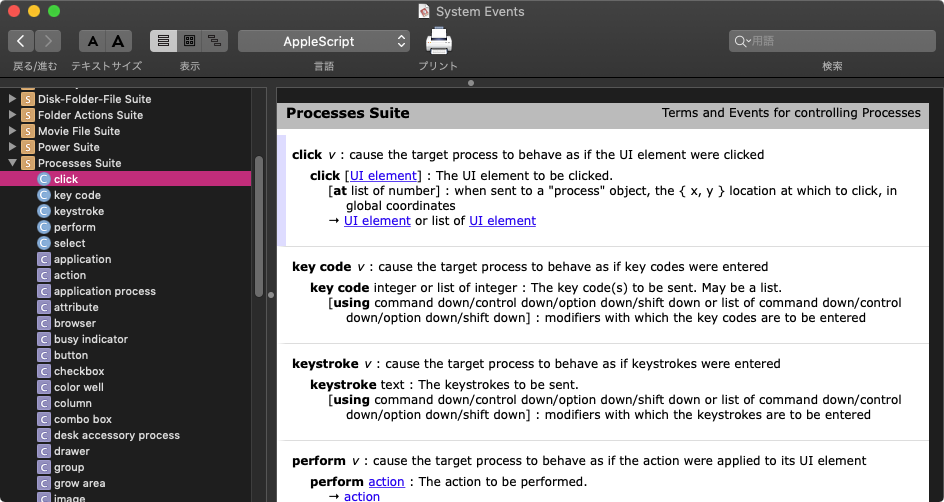
OS標準で搭載されているSystem Events.appが持っている「Process Suites」という命令群が、GUI Scripting(=UI Element Scripting)の命令です。他のSystem Eventsの命令については、システム環境設定/ユニバーサルアクセスでオンにしなくても普通に使えます。

sys2.jpg

一般的なAppleScriptでは、アプケーション内部のオブジェクトを経由して機能を呼び出すのに対し、GUI Scriptingはアプリケーションの外部からGUI部品を指定して命令を行います。このため、あるボタンを押そうとしたときに、もちろんオンになっていないと押せないですし、アプリケーション内部の状態がそのボタンがオンになる条件を満たしている必要もあります。

簡単な記述でアプリケーションをコントロールできるというのがGUI Scriptingの「理想」ではあるものの、実際に書いてみると……通常のAppleScriptとはまた別のマニアックなノウハウが必要な記法、と見るべきです。内部命令を経由しないでGUI ScriptingだけですべてのAppleScriptのプログラムを作成するというのが「幻想」というより「無理」であることはよく覚えておいてほしいと思います。通常のAppleScriptの「補助」的に使うのがGUI Scriptingの正しい使い方です。

■GUI Scriptingをはじめる前に

いろいろと前置きが長くなってしまいましたが、アプリケーションを無理矢理操作するため、「奥の手」としてGUI Scriptingが必要になるケースは確実にあります。そういう意味では、不完全なソリューションではあるものの、「じゃあいらないんだね?」とGUI Scriptingになくなられると困ります。ものすごく困ります。

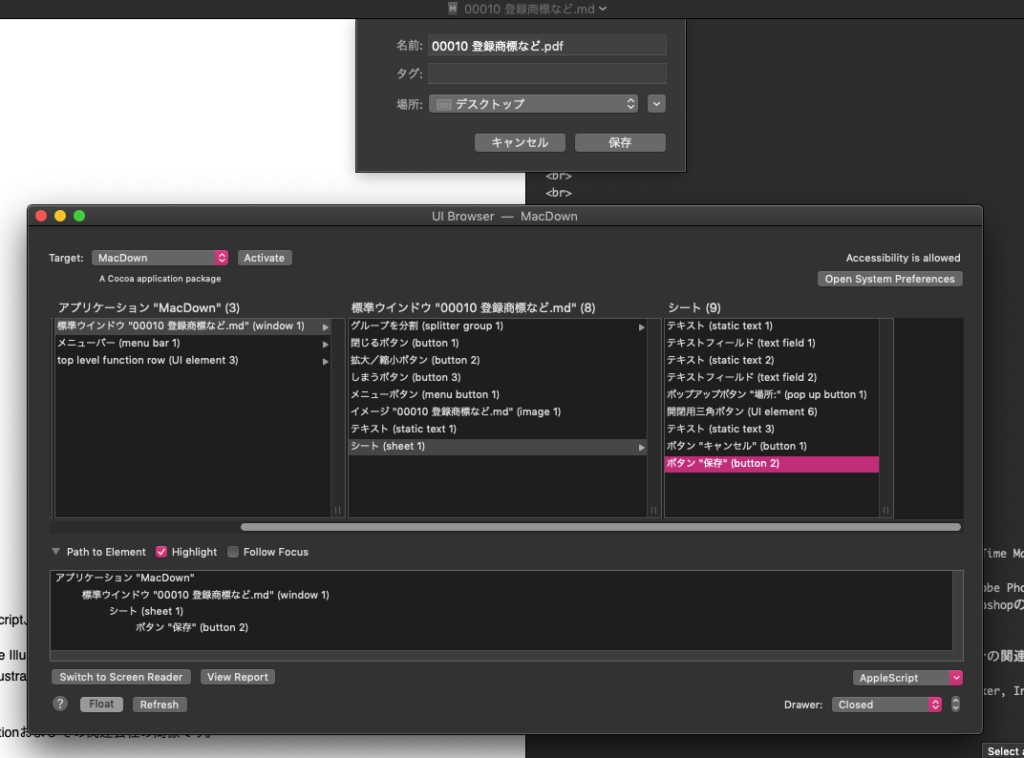
GUI Scriptingでは、画面上のGUI部品を指定して命令を記述することになりますが、この部品の番号や並び順を知るためには、どうしてもツールが必要です。

(1)PreFab UI Browser
仕事でScriptを書く必要があるとか、確実かつ迅速にGUI Scriptingによるプログラムを作成する場合には必要です。ただし、このソフトでカバーできるのは8割程度であり、あとの残り2割をカバーするためには後述の「Accessibility Inspector」が必要になります(同ツールはXcode Toolsに含まれるため、Xcode Toolsのインストールが必須です)。

sys4.jpg

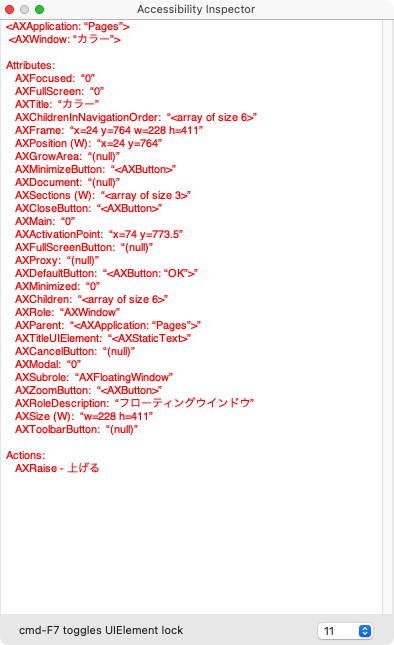
(2)Accessibility Inspector
Xcode Toolsをインストールすると、一緒に入ってきます。PreFab UI Browserでカバーできない一部のGUI部品の情報を調べるために必要です。具体的に言ってしまうと、PreFab UI Browserではポップアップメニューの内容までは追えません。とくに、ポップアップボタン「ではない」GUI部品からポップアップメニューを表示させるようなイレギュラーなプログラムでは本ツールの併用が必要です。

sys3.jpg

(3)「強引GUI Scripting」のためのツール
記述のために情報を調べるツールではなく、AppleScriptから命令して強引にマウスカーソルを移動させたりクリック動作させるようなツールです。ツールによって一長一短があるので、複数用意して用途に応じて使い分けるのが理想的です。プロのScripterはこの手のツールをいくつも手元に置いてあった、いざという時に備えています。何を使っているか、どの程度のAppleScriptライブラリを書きためているか等の情報はもちろんのこと、存在自体が門外不出のノウハウといえます。

これらのツールがそろってはじめて安心してGUI Scriptingのプログラムを作りはじめられます。……ない環境では、とても書く気になれません。

■アプリケーションの挙動を追う

GUI Scriptingでは、アプリケーションの状態を正確に認識した上で記述を行う必要があります。特定のウィンドウ上の特定のTabの中にあるGUI部品を操作する場合には、そのTabが表示されていなければなりません。ポップアップメニュー上の項目を選択するためには、ポップアップメニューを表示させておかなければなりません。通常のAppleScriptによるアプリケーション内部オブジェクト経由のコントロールの方が簡単と思えるほど、アプリケーションによってGUI部品の挙動が異なるため、正確な状況把握は欠かせません(PreFab UI Browser必須)。

■GUI部品の指定はIDか名前で

GUI ScriptingでGUI部品を指定する際には、window 1やmenu 1のように番号(ID)で指定する場合と、button “OK”のように名前で指定する場合があります。

名前で指定できたほうが、何を意味しているのか分りやすくてよさそうなものなのですが、名前で指定できるケースはあまり多くありませんし、だいたい……現在使用中の言語(日本語とか、英語とか)から別の言語環境でScriptを実行するような場合にはまったく動かなくなってしまいます。

このため、IDで指定することが多いのですが……アプリケーションがバージョンアップしたら、そのIDそのものも変わってしまうことが多々あり……GUI部品を検索して実行するような対策を行うケースもあります。

■実際に「プレビュー.app」のGUI Scriptingを行ってみよう

まずは、プレビュー.appで何も画像を開いていない状態で作業をはじめましょう。何もオープンしていない状態と画像をオープンしている状態でWindowの枚数がどう違うか、確認を行います。

何か画像をプレビュー.appでオープンすると、visibleなWindowの枚数が増えます。invisibleなwindowはほかにも何枚か用意しているようなので、ここでvisibleを指定しないで枚数を数えるとひどい目に遭います。

Windowの枚数だけでなく、画像をオープンしていない状態ではメニューの「プリント」の項目が有効になっていません。このため、「プリント」をGUI Scriptingで操作しようとしても、実行できません。このあたりで(オープンされている画像の有無を)判断するという手もあるわけです。

画像をオープンしている状態でメニューから「プリント」を実行できることを確認できたら、プリントダイアログの制御に入ります。

プリントダイアログは、デフォルトの小さいダイアログと拡張ダイアログで切り換えができるようになっており、この切り換えボタンの状態を取得して、「いま、どちらのダイアログが表示されているのか」を調べなければなりません。拡張ダイアログが表示されていないと、用紙サイズなどの詳細な情報にアクセスできません。

sys5.jpg

sys6.jpg

拡張ダイアログを表示して、用紙サイズやプリンタ名などを指定できるようになって、ようやくこれで出来上がった……と、安心していたのもつかの間……標準ダイアログの状態から拡張ダイアログに切り替えた後で、ポップアップメニューの操作が行えない。最初から拡張ダイアログが出ている分には問題ないのに……。

結論からいえば、同じGUI部品でも標準ダイアログと拡張の上でIDが異なっていました。さりとて、GUI部品に名前がついておらず名前による指定ができなかったので……拡張ダイアログが「出ていない」場合には、拡張ダイアログに切り換えたあとで、一度プリントをキャンセルし、再度プリント操作を行って拡張ダイアログ上の各種GUI部品をコントロールする……という方法で対処しました。

ちょっとしたことであれば、GUI Scriptingを少々かじったぐらいで処理できるかもしれません。ただし、そこに柔軟性を加えようとか、確実に動くようにしたい場合には、このぐらいの処理が必要になります。少々極端な例に見えるかもしれませんが、決して珍しいレベルではありません。

PreFab UI Browserを使って状態やIDを確認し、試行錯誤した末に最適な方法を見つけるなど、地道な……何かプログラミングとは別の作業のような気もするのですが、GUI Scriptingの実戦的なノウハウというのは、こういう感じのものです。

12/01 Safariのキーボード・ショートカットを取得する v1

GUI Scriptingで、Safariのメニューに振られたキーボード・ショートカットの情報を取得するAppleScriptです。

本来は、Mac OS X 10.6で大幅強化された「サービス」を活用して、Automatorで(AppleScriptを実行するステップを活用して)新規サービスを作成。これをキーボードショートカットで呼び出そうと考えていたのですが……どこのキー・コンビネーションが空いているのかさっぱり分りません(これはOS側の気配りが足りない、、、)。

そこで、どこのキーボードショートカットが空いているのか調べようと考えて試作してみたAppleScriptです。Safariが対象になっていることにはとくに意味はありません。最終的には、起動中のアプリケーション一覧から選択するとか、現在最前面にあるアプリケーションに対して調査を行う……といった利用形態を考えています。

とりあえず、メニューの通常階層にある項目の内容を走査(サブメニューは調査していません)し、キーボードショートカットの内容を調査します。ただ……グローバルキーボードショートカットの情報と、日本語インプットメソッドのキーボードショートカットまで勘案しないといけないので、まだまだ発展途上といったところでしょうか。

メニューの属性情報を取得するのにかなり時間がかかっているので、通信量を減らすためにさまざまな工夫(それ以上処理を行っても意味がない処理を早めに打ち切る)を行っています。まだまだ高速化の余地はありそうですが……とりあえず。

スクリプト名:Safariのショートカットを取得する v1
activate application “Safari”

set mList to {}

tell application “System Events”
  tell process “Safari”
    tell menu bar 1
      set iList to every UI element
    end tell
    
    
repeat with i in iList
      tell i
        tell menu 1
          set iiList to every UI element
        end tell
      end tell
      
      
repeat with ii in iiList
        
        
tell ii
          try
            set titleVal to title
            
if titleVal = missing value then set titleVal to “”
          on error
            set titleVal to “”
          end try
          
          
if titleVal is not equal to “” then
            try
              set cmdChar to value of attribute “AXMenuItemCmdChar”
              
if cmdChar = missing value then set cmdChar to “”
            on error
              set cmdChar to “”
            end try
            
            
if cmdChar is not equal to “” then
              try
                set cmdGlyph to value of attribute “AXMenuItemCmdGlyph”
                
if cmdGlyph = missing value then set cmdGlyph to “”
              on error
                set cmdGlyph to “”
              end try
              
              
try
                set cmdMod to value of attribute “AXMenuItemCmdModifiers”
                
if cmdMod = missing value then set cmdMod to “”
              on error
                set cmdMod to “”
              end try
              
              
try
                set cmdVirt to value of attribute “AXMenuItemCmdVirtualKey”
                
if cmdVirt = missing value then set cmdVirt to “”
              on error
                set cmdVirt to “”
              end try
              
              
set the end of mList to {titleVal, {cmdChar, cmdGlyph, cmdMod, cmdVirt}}
            end if
          end if
        end tell
        
      end repeat
    end repeat
  end tell
end tell

mList
–> {{”Takaaki Naganoya をログアウト…”, {”Q”, “”, 1, “”}}, {”Takaaki Naganoya をログアウト”, {”Q”, “”, 3, “”}}, {”環境設定…”, {”,”, “”, 0, “”}}, {”ポップアップウインドウを開かない”, {”K”, “”, 1, “”}}, {”キャッシュを空にする…”, {”E”, “”, 2, “”}}, {”Safari を隠す”, {”H”, “”, 0, “”}}, {”ほかを隠す”, {”H”, “”, 2, “”}}, {”Safari を終了”, {”Q”, “”, 0, “”}}, {”新規ウインドウ”, {”N”, “”, 0, “”}}, {”新規タブ”, {”T”, “”, 0, “”}}, {”ファイルを開く…”, {”O”, “”, 0, “”}}, {”場所を開く…”, {”L”, “”, 0, “”}}, {”ウインドウを閉じる”, {”W”, “”, 0, “”}}, {”ウインドウを閉じる”, {”W”, “”, 0, “”}}, {”すべてのウインドウを閉じる”, {”W”, “”, 2, “”}}, {”すべてのウインドウを閉じる”, {”W”, “”, 2, “”}}, {”別名で保存…”, {”S”, “”, 0, “”}}, {”別名で保存…”, {”S”, “”, 0, “”}}, {”このページの内容をメールで送信”, {”I”, “”, 0, “”}}, {”このページへのリンクをメールで送信”, {”I”, “”, 1, “”}}, {”プリント…”, {”P”, “”, 0, “”}}, {”取り消す”, {”Z”, “”, 0, “”}}, {”やり直す”, {”Z”, “”, 1, “”}}, {”カット”, {”X”, “”, 0, “”}}, {”コピー”, {”C”, “”, 0, “”}}, {”ペースト”, {”V”, “”, 0, “”}}, {”ペーストしてスタイルを合わせる”, {”V”, “”, 3, “”}}, {”すべてを選択”, {”A”, “”, 0, “”}}, {”フォームに自動入力”, {”A”, “”, 1, “”}}, {”特殊文字…”, {”T”, “”, 2, “”}}, {”ブックマークバーを隠す”, {”B”, “”, 1, “”}}, {”ステータスバーを隠す”, {”/”, “”, 0, “”}}, {”タブバーを表示”, {”T”, “”, 1, “”}}, {”ツールバーを隠す”, {”|”, “”, 0, “”}}, {”中止”, {”.”, “”, 0, “”}}, {”ページを再読み込み”, {”R”, “”, 0, “”}}, {”実際のサイズ”, {”0″, “”, 0, “”}}, {”拡大”, {”+”, “”, 0, “”}}, {”縮小”, {”-”, “”, 0, “”}}, {”ソースを表示”, {”U”, “”, 2, “”}}, {”Top Sites を表示”, {”1″, “”, 2, “”}}, {”前へ戻る”, {”[”, “”, 0, “”}}, {”次へ進む”, {”]”, “”, 0, “”}}, {”ホーム”, {”H”, “”, 1, “”}}, {”検索結果に SnapBack で戻る”, {”S”, “”, 2, “”}}, {”すべてのブックマークを表示”, {”B”, “”, 2, “”}}, {”ブックマークに追加…”, {”D”, “”, 0, “”}}, {”メニューにブックマークを追加”, {”D”, “”, 1, “”}}, {”ブックマークフォルダを追加”, {”N”, “”, 1, “”}}, {”Web インスペクタを表示”, {”I”, “”, 2, “”}}, {”エラーコンソールを表示”, {”C”, “”, 2, “”}}, {”JavaScript のプロファイリングを開始”, {”P”, “”, 3, “”}}, {”しまう”, {”M”, “”, 0, “”}}, {”すべてしまう”, {”M”, “”, 2, “”}}, {”ダウンロード”, {”L”, “”, 2, “”}}, {”構成ファイル一覧”, {”A”, “”, 2, “”}}}

▼新規書類に ▼カーソル位置に ▼ドキュメント末尾に

06/29 Safariで表示中のページ内容をMacJournalの現在選択中のJournalにペースト

Safariで表示中のページ内容を、MacJournalの現在選択中のJournalにペーストするAppleScriptです。

AppleScriptに対応しているのに、実践的な機能が欠けているためにいまひとつ自動化しづらいMacJournal。一括自動処理はしづらくても、ワンアクションだけ自動化するのであればなんとか使えることでしょう。

MacJournalには、Webの内容をコピー&ペーストして内容をとっておいています。ブックマークだと、内容が消えたり、Blogなどはサイトごとなくなったりすることは日常茶飯事。ローカルなりWeb上のアルバムにとっておくなりしておく必要があることでしょう。

重要なページだとコピー&ペーストして必要な部分だけクリッピングしておくのですが、そうでもないページはこの程度で十分でしょう。もうちょっと改良して、Safariで表示中のページの内容を、CLIのWebレンダラーを併用してPDFに落としておいてから、MacJournalにPDFを取り込むところまで作り込むといい感じでしょうか。

スクリプト名:Safariで表示中のページ内容をMacJournalの現在選択中のJournalにペースト
ページにフレームを使っていないことが前提条件
tell application Safari
  set wCount to count every window
  
if wCount = 0 then
    display dialog Safariでウィンドウがオープンされていません buttons {”OK“} default button 1
    
return
  end if
  
  
tell document 1
    set aURL to URL
    
set aTitle to name
  end tell
  
set aText to text of document 1 本文テキスト
end tell

MacJournalの操作
createNewEntryonMacJournal() of me

tell application MacJournal
  tell document 1
    set aSel to selected entry
    
set name of aSel to aTitle
    
set plain text content of aSel to (aURL & return & return & aText)
  end tell
end tell

MacJournalで新規エントリを作成して選択状態にしておく
on createNewEntryonMacJournal()
  activate application MacJournal
  
tell application System Events
    tell process MacJournal
      set aName to title of menu item 1 of menu 1 of menu bar item 3 of menu bar 1
      
if aName = 新規エントリー then 日本語環境用。他の言語環境では、ここのチェックを行わないか、あるいは書き換えること
        click menu item 1 of menu 1 of menu bar item 3 of menu bar 1 Menu > New Entry
      end if
    end tell
  end tell
end createNewEntryonMacJournal

▼新規書類に ▼カーソル位置に ▼ドキュメント末尾に

06/16 Dockに登録されている情報を取得する(Leopard以降用)

Dockに登録されているアプリケーション、フォルダ、書類、しまわれたウィンドウの情報を取得します。

uib1.jpg

PreFab UI Browser(仕事でGUI Scriptingを使って自動化を行うのであれば、必須のツール)を用いてDockの内容を確認したところ、属性がローカライズされた状態で取得されていることが判明。最近、DockをAppleScriptからコントロールしていなかったので、気にもしていませんでしたが……この挙動で正しいのかどうかは意見が分かれるところでしょう。

そもそも、UI Element Scripting(=GUI Scripting)が障碍者の操作支援用の機能からはじまったことを思えば、属性名がローカライズされた方がText To Speechの機能で読み上げる際に便利でしょう。

一方、強引にアプリケーションをコントロールするための最終的な機能としてUI Elemenet Scriptingを位置づけるのであれば、OSのバージョンが1つ変わったぐらいでこのあたりの仕様を変えてほしくないところです。

なんにせよ、OSのメジャー/マイナーアップデートのたびにすべてのScriptを走らせてチェックを行うというのも、本来はAppleがやるべき仕事のはずです。

スクリプト名:Dockに登録されている情報を取得する(Leopard以降用)
set dockRes to retDockPrefs() of me
> {apps:{”Finder”, “ML Ranking”, “アクティビティモニタ”, “辞書”, “DragThing”, “Okaeri”, “Safari”, “スクリプトエディタ”, “Mail”, “MacJournal”, “Xcode”, “プレビュー”, “Adobe Photoshop CS3″, “Snood”, “アドレスブック”}, docs:{”tokyo_pod_023.mp3″}, wins:{”Google”, “Free File Hosting Made Simple - MediaFire”, “Write Your Own Automator Actions - O’Reilly Media”, “Canvas”, “起動ディスクの空き容量が搭載メモリ+1Gバイトを切ったら警告”, “選択したファイルの中にあるJPEGファイルを作成日時でソートして連番でリネーム v2″, “東京ポッド許可局アーカイブス”, “アドレスブックでcountry codeが空いている住所で日本の都道府県に該当するものにjpを入れる”, “アドレスブックで特定の会社に所属するpersonの情報のみ抽出”, “アドレスブックで特定住所を含むpersonのみ抽出”, “アドレスブックに入っている会社名の一覧を取得する”, “アドレスブック上で会社の引っ越しを行う実験”, “アドレスブックで選択中の連絡先の情報を取得”}, folders:{”書類”}}

Dockに登録されている情報を取得する(Leopard以降用)
on retDockPrefs()
  tell application System Events
    tell application process Dock
      tell list 1
        アプリケーション
        
set apList to title of every UI element whose description is equal to アプリケーション Dock 項目
        
登録された書類
        
set docList to title of every UI element whose description is equal to 書類 Dock 項目
        
最小化されたウィンドウ
        
set winList to title of every UI element whose description is equal to しまわれたウインドウ Dock 項目
        
フォルダ
        
set folList to title of every UI element whose description is equal to フォルダ Dock 項目
        
      end tell
    end tell
  end tell
  
return {apps:apList, docs:docList, wins:winList, folders:folList}
end retDockPrefs

▼新規書類に ▼カーソル位置に ▼ドキュメント末尾に

02/22 GUI Scriptingによる記述(4)

GUI Scriptingの要となるツールはPreFab UI Growserですが、PreFab UI Browserで、カバーできない分はどうするのか? ポップアップボタンの上に出たメニューの内容はどうやって要素名を追いかけるのか?

inspector.jpg

……実は、その場合にはApple純正のツールを用いることになります。通常の用途にはあまり役立たないものの、Appleの「Accessibility Inspector」によってポップアップメニューなどの要素を追いかけることが可能です。同ツールは、AppleのXcode toolsをインストールすると一緒に入ってきます。

ただし、オブジェクトの名称はAppleScript的な名称ではないので、AppleScriptの記述のためには使いづらいシロモノです。

02/21 GUI Scriptingによる記述(3)

GUI Scriptingにおいて覚えておくべき重要な事項があります。それは、繰り返しになりますが……Adobeのアプリケーションの多くに、GUI Scriptingは利かないケースが多いということです。

InDesign、Photoshop、Illustrator……それらにGUI Scriptingは(ほとんど)利きません。ダイアログ上のボタンを押そうとしてもクリックできず、ダイアログ上のポップアップボタンのメニューを操作しようとしても、メニューそのものを表示させることはできません。

これは、Adobeアプリケーションの多くが、(おそらく)マルチプラットフォーム対応のためにGUI部品をプログラム側から動的に生成していることと、ポップアップメニューなどをポップアップボタンのエリア内にマウスカーソルが入ってきたときに動的に生成しているからです。

Adobeのアプリケーションにはやたらとバグが多いとか、機能を検証もせずに出荷しているとか、バグを訴えても誰もコードの内容の全貌を把握していないために直せないとか、そうした傾向はあるものの、構造的にGUI Scriptingに向いていないといった側面があるということです。

02/21 GUI Scriptingによる記述(2)

GUI Scriptingを覚えたてのScripterにありがちなのは、なんでもかんでもすべてGUI Scriptingで記述しようとすることです。

GUI Scriptingは、AppleScriptによるプログラミングとしては(他に選択手段がない場合の)「最終手段」であり、GUI Scriptingは本当に必要な箇所にのみ使用する程度にとどめておくべきです。

なぜなら、GUI Scriptingはスピードが遅く、信頼性に欠けるためです。たとえば、あるボタンをクリックさせようとしたとしても、アプリケーションの状態によっては、そのボタンが表示されていなかったり、イネーブルになっていない可能性もあります。

GUI Scriptingによる記述について、スピードを向上させることはできませんが……確実性を向上させるための処理は重要です。確実性を向上させてはじめて、「最終手段」としての信頼性を確保できることになります。

たとえば、あるボタンをクリックさせるためには、ボタンの存在を確認し、そのボタンがイネーブルであるかを確認し、クリックした後にエラーのダイアログが表示されていないかを確認する……といった確認操作が必要になります。そこまで処理する慎重さが重要です。

実際には、そこまでしつこくGUI部品の状態をスキャンするよりも、失敗したときに備えてtry文でエラートラップを仕掛けておけば足りる場合が多いので、その程度でも大丈夫でしょう。

02/14 Keynote上でコピーされたテキストオブジェクトの内容をTextEditで解析してIllustratorで白フチ文字を作成してKeynoteにペースト v2

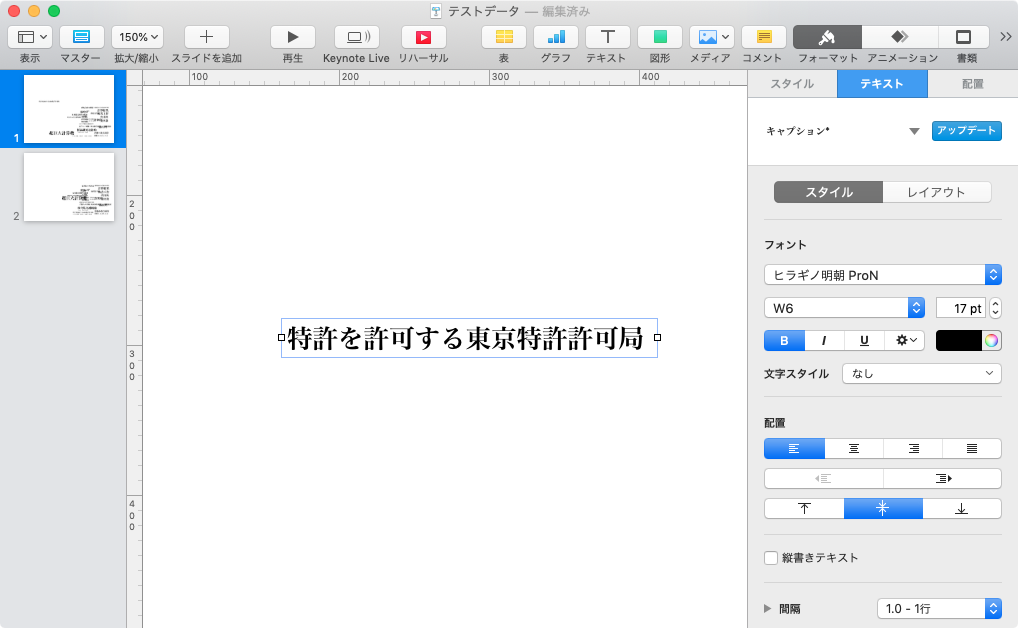
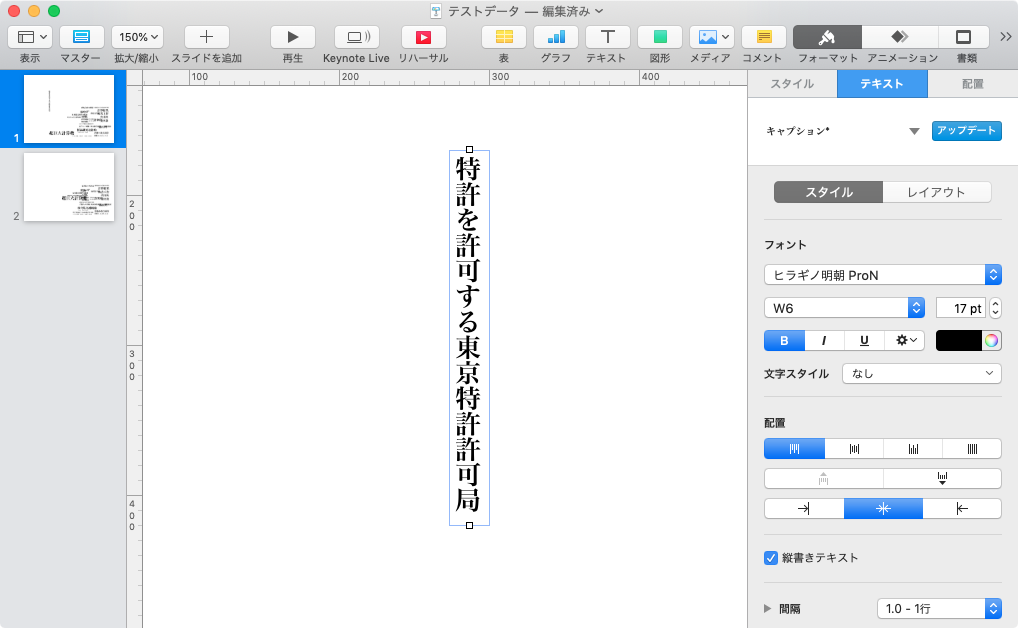
Keynote上で選択・コピーしておいたテキストアイテムを、白フチ文字化してKeynoteに貼り込むAppleScriptです。バージョンアップして、オリジナルのテキストアイテムのフォント種別が反映されるようになりました。

Keynoteでプレゼン資料を作っていて、どうしても白フチ文字を作りたいという場合に備えて作っておいたものです。やはり、フォント書式がそのまま反映されると仕上がりの見栄えが段違いです。スクリプトメニューに入れて使うとよいでしょう。

fuvhi1.jpg
▲Keynote上でテキストオブジェクトを選択しておいて本スクリプトを実行

fuchi2.jpg
▲Keynoteに白フチ化した文字(PDF)がペーストされる

fuchi3.jpg
▲さまざまなフォントの文字オブジェクトを白フチ化。疑似的な縦書きにも対応

スクリプト名:Keynote上でコピーされたテキストオブジェクトの内容をTextEditで解析してIllustratorで白フチ文字を作成してKeynoteにペーストv2

何もコピーされていなければリターン
set a to the clipboard
if a = “” then return

Text Editで新規ドキュメントを作成してコピーされていたデータをコピー
tell application TextEdit
  set aDoc to make new document
  
activate
end tell

tell application System Events
  tell process TextEdit
    keystroke v using {command down}
  end tell
end tell

TextEditの書類上から各種情報を取得する
tell application TextEdit
  tell text of aDoc
    set colorList to color of every attribute run
    
set fontList to font of every attribute run
    
set sizeList to size of every attribute run
    
set textList to characters of every attribute run
    
    
set itemCount to length of colorList
    
    
set contList to {}
    
repeat with i from 1 to itemCount
      set aRec to {textData:(item i of textList) as string, colorData:item i of colorList, fontData:item i of fontList, sizeData:item i of sizeList}
      
set the end of contList to aRec
    end repeat
  end tell
end tell

tell application TextEdit
  tell document 1
    close without saving
  end tell
end tell

set textList to contents of item 1 of textList

set aDirection to detectTextDirection(textList) of me
> “vertical” / “horizontal”

set aFontName to contents of item 1 of fontList
set aSize to contents of item 1 of sizeList
set aLineWidth to aSize / 8
set aLineWidth to round aLineWidth rounding up

set aCon to textList as string
set aCon to repChar(aCon, ASCII character 10, “”) of me
set aColor to item 1 of colorList
set rColor to (item 1 of aColor) / 256
set rColor to round rColor rounding down
set gColor to (item 2 of aColor) / 256
set gColor to round gColor rounding down
set bColor to (item 3 of aColor) / 256
set bColor to round bColor rounding down
set colorList to {rColor, gColor, bColor}

makeTextGraphicWithEdgeLine(aCon, aSize, aLineWidth, aDirection, aFontName, colorList) of me

tell application Keynote
  activate
end tell

tell application System Events
  tell process Keynote
    keystroke v using {command down}
  end tell
end tell

以下、サブルーチン

Attribute runsのテキストデータの並びから、Keynote上で縦書き/横書きだったかの判定を行う
on detectTextDirection(aList)
  set normCount to 0
  
set retCount to 0
  
repeat with i in aList
    set jj to contents of (item 1 of i)
    
set j to id of (contents of jj)
    
if (j = 10) or (j = 13) then
      set retCount to retCount + 1
    else
      set normCount to normCount + 1
    end if
  end repeat
  
  
set vhCalc to (retCount / normCount)
  
  
if vhCalc > 0.5 then
    return vertical
  else
    return horizontal
  end if
  
end detectTextDirection

on makeTextGraphicWithEdgeLine(aCon, aSize, aLineWidth, aDirection, aFontName, colorList)
  copy colorList to {rColor, gColor, bColor}
  
  
using terms from application Adobe Illustrator
    tell application Adobe Illustrator
      set textFont to text font aFontName
      
set aDoc to make new document with properties {color space:RGB}
      
      
tell aDoc
        setOriginToLeftCorner() of me
        
        
set aGroup to make new group item
        
        
set aFrame1 to make new text frame at the end of aGroup
        
tell aFrame1
          set position to {0, 0}
          
set contents to aCon
          
if aDirection = vertical then
            set text orientation to vertical
          else if aDirection = horizontal then
            set text orientation to horizontal
          end if
          
tell every character
            set size to aSize
            
set stroke weight to aLineWidth ふちどり線の太さ
            
set stroke color to {red:255, green:255, blue:255}
          end tell
          
set it’s text’s text font to textFont 不思議な指定方法だが、これ以外通らない
        end tell
        
        
set aFrame2 to make new text frame at the beginning of aGroup
        
tell aFrame2
          set contents to aCon
          
set position to {0, 0}
          
if aDirection = vertical then
            set text orientation to vertical
          else if aDirection = horizontal then
            set text orientation to horizontal
          end if
          
tell every character
            set size to aSize
            
set stroke weight to 0.0
            
set fill color to {red:rColor, green:gColor, blue:bColor}
          end tell
          
set it’s text’s text font to textFont 不思議な指定方法だが、これ以外通らない
        end tell


set selection to aGroup
        
copy ふちどり文字をクリップボードにコピー
        
        
close saving no Illustratorの書類を破棄する
      end tell
    end tell
  end using terms from
end makeTextGraphicWithEdgeLine

Illustratorの原点座標を変更する
on setOriginToLeftCorner()
  using terms from application Adobe Illustrator
    tell application Adobe Illustrator
      tell document 1
        set aHeight to height
        
set ruler origin to {0, aHeight}
      end tell
    end tell
  end using terms from
end setOriginToLeftCorner

Written By Philip Aker
文字置換ルーチン
on repChar(origText, targStr, repStr)
  set {txdl, AppleScript’s text item delimiters} to {AppleScript’s text item delimiters, targStr}
  
set temp to text items of origText
  
set AppleScript’s text item delimiters to repStr
  
set res to temp as text
  
set AppleScript’s text item delimiters to txdl
  
return res
end repChar

▼新規書類に ▼カーソル位置に ▼ドキュメント末尾に

02/11 Keynote上でコピーされたテキストオブジェクトの内容をTextEditで解析してIllustratorで白フチ文字を作成してKeynoteにペースト

iWork ‘09のKeynote 5.x上で文字オブジェクトをコピーし、実行すると白フチ文字に変換してKeynote上にペーストする(趣味の)AppleScriptです。

まずは、Keynote上で文字オブジェクトをコピーして本Scriptを実行。

keynote1.jpg

クリップボードに入っているデータ(Ritch Text Format)をテキストエディットの新規書類にペースト。テキストエディット上で書式などを分析します。分析したら、用済みのテキストエディット書類は破棄。

テキストエディット上で得られた情報をもとに、今度はIllustrator CS3上で同様にオブジェクトを組み立て、白フチ文字を作成。白フチ文字のオブジェクトをコピーして、Illustrator書類を破棄します。

最後に、Keynoteを最前面に持ってきてSystem Eventsで(GUI Scriptingで)ペースト操作を実行。

keynote2.jpg

keynote3.jpg

以前に作成しておいたルーチンに一部手を加えて、縦方向の文字(1文字ごとに改行)でも、横方向の文字(通常)でも対応します。ただし、本バージョンではオリジナルのフォント情報までは白フチ文字に反映していません。

keynote4.jpg

スクリプト名:Keynote上でコピーされたテキストオブジェクトの内容をTextEditで解析してIllustratorで白フチ文字を作成してKeynoteにペースト

何もコピーされていなければリターン
set a to the clipboard
if a = “” then return

Text Editで新規ドキュメントを作成してコピーされていたデータをコピー
tell application TextEdit
  set aDoc to make new document
  
activate
end tell

tell application System Events
  tell process TextEdit
    keystroke v using {command down}
  end tell
end tell

TextEditの書類上から各種情報を取得する
tell application TextEdit
  tell text of aDoc
    set colorList to color of every attribute run
    
set fontList to font of every attribute run
    
set sizeList to size of every attribute run
    
set textList to characters of every attribute run
    
    
set itemCount to length of colorList
    
    
set contList to {}
    
repeat with i from 1 to itemCount
      set aRec to {textData:(item i of textList) as string, colorData:item i of colorList, fontData:item i of fontList, sizeData:item i of sizeList}
      
set the end of contList to aRec
    end repeat
  end tell
end tell

tell application TextEdit
  tell document 1
    close without saving
  end tell
end tell

set aDirection to detectTextDirection(textList) of me
> “vertical” / “horizontal”

set aFontName to contents of item 1 of fontList
set aSize to contents of item 1 of sizeList
set aLineWidth to aSize / 8
set aLineWidth to round aLineWidth rounding up

set aCon to textList as string
set aCon to repChar(aCon, ASCII character 10, “”) of me
set aColor to item 1 of colorList
set rColor to (item 1 of aColor) / 256
set rColor to round rColor rounding down
set gColor to (item 2 of aColor) / 256
set gColor to round gColor rounding down
set bColor to (item 3 of aColor) / 256
set bColor to round bColor rounding down
set colorList to {rColor, gColor, bColor}

makeTextGraphicWithEdgeLine(aCon, aSize, aLineWidth, aDirection, aFontName, colorList) of me

tell application Keynote
  activate
end tell

tell application System Events
  tell process Keynote
    keystroke v using {command down}
  end tell
end tell

以下、サブルーチン

Attribute runsのテキストデータの並びから、Keynote上で縦書き/横書きだったかの判定を行う
on detectTextDirection(aList)
  set normCount to 0
  
set retCount to 0
  
log aList
  
repeat with i in aList
    set jj to contents of (item 1 of i)
    
set j to id of (contents of jj)
    
display dialog (string id of j)
    
if (j = 10) or (j = 13) then
      set retCount to retCount + 1
    else
      set normCount to normCount + 1
    end if
  end repeat
  
  
set vhCalc to (retCount / normCount)
  
  
if vhCalc > 0.5 then
    return vertical
  else
    return horizontal
  end if
  
end detectTextDirection

on makeTextGraphicWithEdgeLine(aCon, aSize, aLineWidth, aDirection, aFontName, colorList)
  copy colorList to {rColor, gColor, bColor}
  
  
using terms from application Adobe Illustrator
    tell application Adobe Illustrator
      set aDoc to make new document with properties {color space:RGB}
      
      
tell aDoc
        setOriginToLeftCorner() of me
        
        
set aGroup to make new group item
        
        
set aFrame1 to make new text frame at the end of aGroup
        
tell aFrame1
          set position to {0, 0}
          
set contents to aCon
          
if aDirection = vertical then
            set text orientation to vertical
          else if aDirection = horizontal then
            set text orientation to horizontal
          end if
          
tell every character
            set size to aSize
            
set font to aFontName
            
set stroke weight to aLineWidth ふちどり線の太さ
            
set stroke color to {red:255, green:255, blue:255}
          end tell
        end tell
        
        
set aFrame2 to make new text frame at the beginning of aGroup
        
tell aFrame2
          set contents to aCon
          
set position to {0, 0}
          
if aDirection = vertical then
            set text orientation to vertical
          else if aDirection = horizontal then
            set text orientation to horizontal
          end if
          
tell every character
            set size to aSize
            
set font to aFontName
            
set stroke weight to 0.0
            
set fill color to {red:rColor, green:gColor, blue:bColor}
          end tell
        end tell


set selection to aGroup
        
copy ふちどり文字をクリップボードにコピー
        
        
close saving no Illustratorの書類を破棄する
      end tell
    end tell
  end using terms from
end makeTextGraphicWithEdgeLine

Illustratorの原点座標を変更する
on setOriginToLeftCorner()
  using terms from application Adobe Illustrator
    tell application Adobe Illustrator
      tell document 1
        set aHeight to height
        
set ruler origin to {0, aHeight}
      end tell
    end tell
  end using terms from
end setOriginToLeftCorner

Written By Philip Aker
文字置換ルーチン
on repChar(origText, targStr, repStr)
  set {txdl, AppleScript’s text item delimiters} to {AppleScript’s text item delimiters, targStr}
  
set temp to text items of origText
  
set AppleScript’s text item delimiters to repStr
  
set res to temp as text
  
set AppleScript’s text item delimiters to txdl
  
return res
end repChar

▼新規書類に ▼カーソル位置に ▼ドキュメント末尾に

01/10 Finderの最前面のパスをTerminalで開く(強化ver5, Leopard対応)

Mac OS X 10.4の時代に作ったScriptが、10.5になって動かなくなっていたのに気付き、修正を行いました(以前のバージョンは、10.4であれば問題なく動きます)。
(more…)

01/08 スクリプトエディタがオープンしているウィンドウのうち、指定名称のものを最前面に出す

スクリプトエディタでオープンしているAppleScriptのうち、指定名称のものを最前面に出します。ただ、このAppleScriptをスクリプトエディタ上で実行すると、スクリプトエディタの制御がうまく行きません。

実際には、Script Menuに入れて実行するか……Script Debugger上から実行することになります。GUI Scriptingを使用しているため、システム環境設定のユニバーサルアクセスで「補助装置にアクセスできるようにする」チェックボックスをオンにしておく必要があります。

スクリプトの内容を書式つきのリッチテキストで取得したかったので、特定のScriptのウィンドウを最前面に出す必要があったのでした。本来の目的(Mindjet MindManagerのノート欄に書式つきでAppleScriptのリストを入れたかった)は果たせませんでしたが……残骸のサブルーチンはきっとどこかで何か別の用途で役立つことでしょう。

(more…)

12/30 テキストエディットで選択中のテキストを取得する

テキストエディットはOS標準搭載のエディタにしてはよく出来たエディタですが、いくつかの基本的な機能が欠落しています。それが、ドキュメント上の選択内容(selection)を取得する機能であり、Scriptableなアプリケーションが当然のように備えていることを期待されるものです。
(more…)

10/21 PDFのページ数を数えるv3

PDFのページ数を数えるScriptを久しぶりに動かしてみたら、Mac OS X 10.5.5上で期待どおりの動作を行わなかったので、修正を行ってみました。

画面上のウィンドウの文字やメニューの状態を検出して処理を行うUI Element Scripting(GUI Scripting)を用いた場合に、アプリケーションの画面構成が変更になると当初の想定どおりの動作が期待できなくなってしまう、その実例といえるでしょうか。

preview_app.jpg

Mac OS X 10.4と10.5のPreview.appでは、PDFのページ数表示が異なります。Mac OS X 10.5では当初は異なる表示を行っていたのですが、途中で変更になったようです。

とりあえず、極力バージョンに依存しないよう配慮して修正してみました。

スクリプト名:PDFのページ数を数えるv3
set a to choose file
set pNumStr to getPDFPages(a) of me
set pNum to pNumStr as number

指定PDFのページ数をPreview.appを使って数える。要・GUI Scriptingオン
Mac OS X 10.4および10.5対応
ただし、日本語環境であることが動作の前提条件
on getPDFPages(aFile)
  tell application Preview to open aFile
  
activate application Preview
  
tell application System Events
    tell process プレビュー
      tell window 1
        set aTitle to title
      end tell
      
keystroke w using command down
    end tell
  end tell
  
  
このあたりを変更した(v3) 10.4 & 10.5で共通ルール
  
set pRes to trimStrings(aTitle, “, “) of me
  
set pRes to repChar(pRes, ページ“, “”) of me
  
if pRes contains / then
    set aPos to offset of / in pRes
    
set pRes to text (aPos + 1) thru -1 of pRes
  end if
  
  
return pRes
end getPDFPages

任意の文字列から指定開始子、指定終了子でトリミングした文字列を取り出す
あんまり出来がよくないのでちょっと直した
on trimStrings(aString, fromStr, endStr)
  set fromLen to length of fromStr
  
set eLen to length of endStr
  
  
set sPos to offset of fromStr in aString
  
set body1 to text (sPos + fromLen) thru -1 of aString
  
set ePos to offset of endStr in body1
  
set body2 to text 1 thru (ePos - 1) of body1
  
  
return body2
end trimStrings

文字置換
on repChar(origText, targChar, repChar)
  set origText to origText as string
  
set targChar to targChar as string
  
set repChar to repChar as string
  
  
set curDelim to AppleScript’s text item delimiters
  
set AppleScript’s text item delimiters to targChar
  
set tmpList to text items of origText
  
set AppleScript’s text item delimiters to repChar
  
set retText to tmpList as string
  
set AppleScript’s text item delimiters to curDelim
  
return retText
end repChar

▼新規書類に ▼カーソル位置に ▼ドキュメント末尾に

07/28 iCalに「日本の祝日」を追加

iCalに、「Japanese Holidays」というAppleが配布しているWebcalの登録確認を行い、登録していない場合には登録するという処理を行います。

一部、GUI Scriptingによる処理を含んでいるため、Mac OS X 10.6以降でそのまま動くという保証はまったくないのですが、自前で日本の祝日を計算しなくてもiCalに問い合わせるだけでいい(しかも、祝日が増えた場合でも自動対応してくれる)ため、実装実験を行ってみたものです。

結局、このルーチンは実戦投入されませんでしたが、何かの折に使ってみたいものです。

スクリプト名:iCalに日本の祝日を追加
set aRes to addJapaneseHolidays() of iCalLib

script iCalLib
  iCalに「日本の休日」のwebcalを追加する
  
on addJapaneseHolidays()
    OSバージョンの確認を行う
    
set v2 to system attribute sys2 > 4/5
    
if v2 < 4 then return false 10.3や10.2などであれば実行禁止
    
    
GUI scriptingの有効チェックを行う
    
set guiRes to retGUIScriptingEnabled() of me
    
if guiRes = false then return false
    
    
repeat
      using terms from application iCal
        tell application iCal
          set cList to name of every calendar
          
          
if Japanese Holidays is not in cList then
            インターネット接続確認
            
set a to connection_check() of me
            
if a = false then return false
            
            
ignoring application responses
              GetURL webcal://ical.mac.com/ical/Japanese32Holidays.ics
            end ignoring
          else
            return true
          end if
        end tell
      end using terms from
      
      
activate application iCal
      
tell application System Events
        tell process iCal
          tell window 1
            tell sheet 1
              click button 2
            end tell
            
            
repeat
              delay 1
              
tell sheet 1
                set bCount to count every button
                
if bCount is not equal to 1 then exit repeat
              end tell
            end repeat
            
            
tell sheet 1
              if v2 = 4 then
                Mac OS X 10.4の場合
                
set value of checkbox 1 to 1
                
set value of checkbox 2 to 1
                
                
click button 2 of list 1 OKボタン
              else if v2 = 5 then
                Mac OS X 10.5の場合
                
tell list 1
                  set value of checkbox 1 to 1
                  
set value of checkbox 2 to 1
                  
set value of checkbox 3 to 1
                end tell
                
                
click button 1 OK
                
              else
                return false 10.6などの想定外のバージョンであった場合    
              end if
            end tell
          end tell
        end tell
      end tell
    end repeat
  end addJapaneseHolidays
  
  
on connection_check()
    try
      tell application System Events
        do shell script sbin/ping -c 1 www.google.com
      end tell
      
set the connection_status to true
    on error
      set the connection_status to false
    end try
    
return connection_status
  end connection_check
  
  
GUI Scriptingの設定判定。10.4/10.5対応
  
on retGUIScriptingEnabled()
    set v2 to system attribute sys2 > 4, 5
    
    
Mac OS X 10.4以上なら実行
    
if v2 > 3 then
      tell application System Events
        set anUIe to UI elements enabled
      end tell
      
      
if anUIe = true then
        return true UI Element Scripting (GUI Scripting)がイネーブルならtrueを返す
      else
        beep
        
display dialog UI Element Scriptingが有効になっていません。 & return & return & 「システム環境設定」の「ユニバーサルアクセス」で、「補助装置を使用可能にする」のチェックボックスにチェックを入れてから再実行してください。 with icon stop
        
if button returned of result is OK then
          tell application System Preferences
            activate
            
set current pane to pane com.apple.preference.universalaccess
          end tell
          
return false
        end if
      end if
    end if
  end retGUIScriptingEnabled
end script

▼新規書類に ▼カーソル位置に ▼ドキュメント末尾に

07/18 GUI Scriptingのenable/disableを取得する

UI Element Scripting(GUI Scripting)が有効になっているかどうかを調べるAppleScriptです。UI Element Scriptingといえば、もうただ黙ってPrefab UI Browserを買えという話にしかならないのですが、このPrefab UI Browserが書き出すUI Scriptingの調査用コードというやつが、Mac OS X 10.5(日本語環境)ではそのままでは動かないことに気付きました。

そこで、エラーが出ないように、Mac OS X 10.4でも10.5でも動くように書き換えてサブルーチン化したのがこれです。

prefs.jpg

スクリプト名:GUI Scriptingのenableを取得する
retGUIScriptingEnabled() of me

GUI Scriptingの設定判定。10.4/10.5対応
on retGUIScriptingEnabled()
  set v2 to system attribute sys2 > 4, 5
  
  
Mac OS X 10.4以上なら実行
  
if v2 > 3 then
    tell application System Events
      set anUIe to UI elements enabled
    end tell
    
    
if anUIe = true then
      return true UI Element Scripting (GUI Scripting)がイネーブルならtrueを返す
    else
      beep
      
display dialog UI Element Scriptingが有効になっていません。 & return & return & 「システム環境設定」の「ユニバーサルアクセス」で、「補助装置を使用可能にする」のチェックボックスにチェックを入れてから再実行してください。 with icon stop
      
if button returned of result is OK then
        tell application System Preferences
          activate
          
set current pane to pane com.apple.preference.universalaccess
        end tell
        
return false
      end if
    end if
  end if
end retGUIScriptingEnabled

▼新規書類に ▼カーソル位置に ▼ドキュメント末尾に

07/15 PDFのページ数を数える

指定のPDFのページ数を数えます。この手の処理を行うには、GhostScriptやらpdftkをインストールして、というのがお約束のやり方です。また、Acrobat Professionalを使ってページ数を数える、というのも一般的な方法でしょう(ふつうのAcrobat Readerは、AppleScript用語辞書が見えるのにAppleScriptからのコントロールを拒絶します)。

Acrobat Professionalは高いし、GhostScriptやらpdftkがあまねくすべてのマシンにインストールされているわけではないため、もうちょっと違うアプローチを試してみたのが本Scriptです。

なんと、Preview.appでオープンしてタイトルバーの文字列を取得して、文字を切り抜きしてページ数を取得するとかいう、えらく強引な方法でやってみました。10.4.11と10.5.4で動作確認してあります。こんな方法がいいとは思わないのですが、AppleScriptからPDFのページ数を調査する手段が限られているため、「ないよりはマシ」といったレベルのScriptです。

ただし、GUI Scriptingがオンになっていないと動作しませんし、日本語環境以外では動きません。

スクリプト名:PDFのページ数を数える v2
set a to choose file
set pNumStr to getPDFPages(a) of me
set pNum to pNumStr as number

指定PDFのページ数をPreview.appを使って数える。要・GUI Scriptingオン
Mac OS X 10.4および10.5対応
ただし、日本語環境であることが動作の前提条件
on getPDFPages(aFile)
  tell application Preview to open aFile
  
activate application Preview
  
tell application System Events
    tell process プレビュー
      tell window 1
        set aTitle to title
      end tell
      
keystroke w using command down
    end tell
  end tell
  
  
set v2 to system attribute sys2
  
if v2 = 4 then
    Mac OS X 10.4.xの場合
    
set pRes to trimStrings(aTitle, “, ページ)“) of me
  else if v2 = 5 then
    Mac OS X 10.5.xの場合
    
set pRes to trimStrings(aTitle, /“, “) of me
  end if
  
return pRes
end getPDFPages

任意の文字列から指定開始子、指定終了子でトリミングした文字列を取り出す
あんまり出来がよくないのでちょっと直した
on trimStrings(aString, fromStr, endStr)
  set fromLen to length of fromStr
  
set eLen to length of endStr
  
  
set sPos to offset of fromStr in aString
  
set body1 to text (sPos + fromLen) thru -1 of aString
  
set ePos to offset of endStr in body1
  
set body2 to text 1 thru (ePos - 1) of body1
  
  
return body2
end trimStrings

▼新規書類に ▼カーソル位置に ▼ドキュメント末尾に