| AppleScript名:実行中のコンピュータのアイコン画像を取得してデスクトップにPNG形式で保存 |
| — Created 2016-02-09 by Takaaki Naganoya — 2016 Piyomaru Software use AppleScript version "2.4" use scripting additions use framework "Foundation" use framework "AppKit" –Get Computer Icon set anImage to current application’s NSImage’s imageNamed:(current application’s NSImageNameComputer) set aDesktopPath to (current application’s NSProcessInfo’s processInfo()’s environment()’s objectForKey:("HOME"))’s stringByAppendingString:"/Desktop/" set savePath to aDesktopPath’s stringByAppendingString:((current application’s NSUUID’s UUID()’s UUIDString())’s stringByAppendingString:".png") set fRes to saveNSImageAtPathAsPNG(anImage, savePath) of me –NSImageを指定パスにPNG形式で保存 on saveNSImageAtPathAsPNG(anImage, outPath) set imageRep to anImage’s TIFFRepresentation() set aRawimg to current application’s NSBitmapImageRep’s imageRepWithData:imageRep set pathString to current application’s NSString’s stringWithString:outPath set newPath to pathString’s stringByExpandingTildeInPath() set myNewImageData to (aRawimg’s representationUsingType:(current application’s NSPNGFileType) |properties|:(missing value)) set aRes to (myNewImageData’s writeToFile:newPath atomically:true) as boolean return aRes –成功ならtrue、失敗ならfalseが返る end saveNSImageAtPathAsPNG |
TwitterへのTweet文字数チェック
Twitterへの投稿可能な文字数のチェックを行うAppleScriptです。
Twitterへの投稿可能な文字数の計算は、なかなか頭の痛い処理です。つい先日廃止されたMac版のクライアントアプリケーションはついに最後まで正しい文字数をカウントできていませんでした(本来の仕様よりも少ない文字数しか投稿できなかった)。
# macOS 10.15以降向けにCatalystアプリケーションとしてMac用クライアントが再公開されました。が……
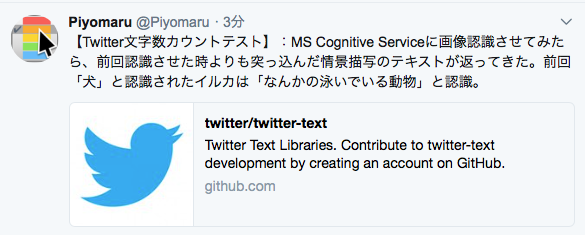
Twitter, IncがGithubで公開しているフレームワーク「twitter-text」を使えば、Tweet文字数カウントシミュレーションを行えるようだったので、フレームワークをXcodeでビルドして試してみました。

この(↑)テスト文字列は、普通にlengthで文字数をカウントすると155文字ですが、Twitterの文字カウントロジックを用いると139文字。実際にTwitterのWebサイト上から投稿してみると、なるほどたしかにエラーになりません(じゃあなんでMac版のTwitterクライアントにこの機能が乗ってなかったんだろう。とっても不思議)。
TwitterText.framework (To ~/Library/Frameworks/)
| AppleScript名:TwitterへのTweet文字数チェック |
| — Created 2018-04-03 by Takaaki Naganoya — 2018 Piyomaru Software use AppleScript version "2.4" use scripting additions use framework "Foundation" use framework "TwitterText" –https://github.com/twitter/twitter-text set aText to "【Twitter文字数カウントテスト】:MS Cognitive Serviceに画像認識させてみたら、前回認識させた時よりも突っ込んだ情景描写のテキストが返ってきた。前回「犬」と認識されたイルカは「なんかの泳いでいる動物」と認識。https://github.com/twitter/twitter-text" set aParser to current application’s TwitterTextParser’s defaultParser()’s parseTweet:aText set aLen to aParser’s weightedLength() –> 139 set aPerm to aParser’s permillage() –Twitter文字数Fullで1,000 –> 992 set aValid to aParser’s isValid() as boolean –> true set aRange to aParser’s displayTextRange() –> {location:0, length:155} set aVDTRange to aParser’s validDisplayTextRange() –> {location:0, length:155} |
Evernoteで選択中のnoteを指定のNotebookにコピー
Evernoteで選択中のnoteをいったん書き出して、指定のNotebookにインポートするAppleScriptです。
# Evernoteはバージョン10でAppleScriptサポートが削除されてしまったので、本Scriptはバージョン10以降のEvernoteでは動作しません
選択中のnoteを指定のNotebookにコピーします(添付画像なども含めてすべて)。元の選択中のnoteを削除すれば、「移動」したのと同じことになります。
EvernoteのAppleScript用語辞書には、importコマンドの説明に、
Import notes from an xml file.
とあります。このXML fileというのがENEXファイルだというのがこのimportコマンドの説明に書かれていないので、
「ENEXファイルで書き出して、ENEXファイルで読み込む」
という操作ができることが読み解けません。辞書の説明の書き方がよくない、としかいいようがありません。
| AppleScript名:Evernoteで選択中のnoteをいったん書き出して、書き出したファイルで新規noteを作成する |
| — Created 2018-04-03 by Takaaki Naganoya — 2018 Piyomaru Software set exPath to ((path to desktop folder) as string) & (do shell script "uuidgen") & ".ENEX" tell application "Evernote" set aSel to selection if aSel = {} then return –デスクトップに選択中のノートを書き出す export aSel to file exPath format ENEX –指定のノートブックに書き出したノートをインポートする set aNote to (import file exPath to notebook "hiyoko") end tell do shell script "rm -f " & quoted form of POSIX path of exPath |
Safariで検索を実行
Safariで指定の検索エンジンで検索を実行するAppleScriptです。
URL欄にキーワードを入れて検索を行うと、文字入力の途中で待たされることがあるため、別途ダイアログで入力して検索できたほうが便利です。
Script Menuに入れて呼び出して使っています。
| AppleScript名:Safariで検索を実行 |
| tell application "Safari" set aText to text returned of (display dialog "検索キーワードを入力" default answer "") set dCount to count every document if dCount > 0 then search the web in front document for aText else search the web for aText end if end tell |
SafariとiTunesがアップデート
macOS 10.13.4 Releaseに合わせて、macOS 10.12向けにもSafari v11.1とiTunes v12.7.4のアップデートがリリースされました。
大幅な整理と謎の見直しが行われたSafari v11.1
Safari v11.1では過去に例を見ないほどの用語辞書の変更が行われました。ただし、ほとんどが「整理」「清書」に類するものであり、機能的に変更があったということではありません。

これまで、Safariの用語辞書には「Text Suites」という「意味のない予約語」が記載されていました。
これがv11.1では削除されました。削除されても、もともと意味がなかったので問題はありません。
saveコマンドで指定するパスオブジェクトがaliasからfileに変更されていますが、これはもともとfileで指定するものなので、「用語辞書の間違いを直した」といえます。実体が存在しない(保存する前なので)パスのaliasは作れません。
ほかには、AppleScript用語内の細かい表記が修正されています。もともと、macOS 10.5でText, String, Unicode textは統一されているので、あえて用語辞書にUnicode Textと書いておく必要はなかったわけで、それがTextに書き換えられていたりします(説明文が変わっただけで動作に変更はありません)。

あと気になるのは「anything」の表記があることです。あまり多用されてこなかったこの予約語、AppleScriptObjC環境でも「list of string or string」などという表記にならないことを期待したいところです(ScriptDebuggerではこれが「any」などという単語に解釈されてしまうし)。
iTunesには変更なし
iTunes v12.7.4には変更がありません。

選択中のEvernoteのNoteに添付されているattachmentのファイルをデスクトップに書き出す
Evernoteの選択中のNoteに添付されているattachmentファイル(おそらく画像)をデスクトップに書き出すAppleScriptです。
# Evernoteはバージョン10でAppleScriptサポートが削除されてしまったので、本Scriptはバージョン10以降のEvernoteでは動作しません
書き出す添付ファイルのファイル名はAppleScript経由でオリジナルのものを求めていますが、オリジナルのファイル名に「missing value」を返してくるものもあるので、その場合にはUUIDを割り振っています。
また、MIME TYPEを調査しててきとーに割り振っていますが、すべてのパターンに対処するものではありません。
正直なところ、Evernoteはあまりできのよくないアプリケーションです。同様の機能を提供するアプリケーションやサービスに、もっと出来のいいものがたくさんあります。調子に乗ってAppleScriptから大量のNoteを自動作成すると、デバイス間のデータのシンクロが大量に発生してデータ転送量が増え、利用料金が増えていきます。
# 自分は、MacJournalやmacOS標準装備のメモ(Notes.app)をよく使っています
AppleScript対応機能も動くんだか動かないんだかよくわからないものが多く、挙げ句の果てには間違った命令を実行するとアプリケーションまるごとクラッシュしたりします。
AppleScriptからEvernoteをコントロールしようとすると、
(1)AppleScript用語辞書の範囲内で操作
(2)GUI Scirptingを用いてGUI操作
(3)REST API経由で操作
の3つの方法があるでしょう。Evernoteの(1)の出来がよくないので、(3)について少々調べておくぐらいでしょうか。ただ、調査に無限に時間がかかりそうなので、結局(2)に落ち着きそうな、、、、
| AppleScript名:選択中のNoteに添付されているattachmentのファイルをデスクトップに書き出す |
| set dtPath to (path to desktop folder) as string
tell application "Evernote" set aSel to selection if aSel = {} then return set aaSel to first item of aSel tell aaSel set aList to every attachment repeat with i in aList set aFN to (filename of i) if aFN = missing value then –ファイル名が添付画像ファイルについていなかった場合の対策 set aFN to (do shell script "uuidgen") & retExtFromEvernoteMIME(mime of i) of me end if set tmpPath to dtPath & aFN try write i to file tmpPath on error erM log erM end try end repeat end tell end tell –EvernoteのNoteに添付した画像のMIME TYPEから拡張子を判定する(とりあえず版) on retExtFromEvernoteMIME(aMime) if aMime = "image/jpeg" then return ".jpg" else if aMime = "image/png" then return ".png" else if aMime = "application/pdf" then return ".pdf" else return ".dat" end if end retExtFromEvernoteMIME |
file URL文字列からPOSIX pathに変換 v2
“file://”ではじまるfile URL文字列からPOSIX pathに変換するAppleScriptの改修版です。
たまたまScripting Bridge経由でFinder上の選択中のファイル一覧を取得したら、”file://”ではじまる文字列が返ってきて、Cocoaに変換する機能がないか調べたものの….ない。
・・・と思ったら「あるよ」というのを教えてもらいました。


下調べして「path()」でNSURLから変換できるというのは調査してあったんですが、試行錯誤する中でうまくいかなかった記憶が…..結果的には教えていただいた方法で無事変換できた次第です。
| AppleScript名:file URL文字列からPOSIX pathに変換 v2 |
| use AppleScript version "2.4" use framework "Foundation" use scripting additions set aStr to "file:///Users/me/Desktop/%E3%82%B9%E3%82%AF%E3%83%AA%E3%83%BC%E3%83%B3%E3%82%B7%E3%83%A7%E3%83%83%E3%83%88%202018-03-12%2015.22.44.png" set aURL to (current application’s |NSURL|’s URLWithString:aStr) set aPOSIX to aURL’s |path|() as string |
Twitterで指定アカウントのタイムラインを取得
| AppleScript名:Twitterで指定アカウントのタイムラインを取得 |
| — Created 2016-11-22 by Takaaki Naganoya — 2016 Piyomaru Software use AppleScript version "2.4" use scripting additions use framework "Foundation" set myConsumerKey to "xXXXXXXXxxXXxXxxxXXxXxXXX" set myConsumerSecret to "xxxxXXXxXxXXXxXXXxxxXXXXXxxXxxXXXxXXXxxXXxxxXXxxXx" –認証を行って認証済みのBarer Tokenを取得する set authedToken to getAuthedTokenFromTwitter(myConsumerKey, myConsumerSecret) of me if authedToken = missing value then return –実際のAPI呼び出し set reqURLStr to "https://api.twitter.com/1.1/statuses/user_timeline.json" –URLの前後に空白などが入らないように!! set bRec to {|count|:"10", screen_name:"realDonaldTrump"} set bURL to retURLwithParams(reqURLStr, bRec) of me set aRes to callRestGETAPIAWithAuth(bURL, authedToken) of me set aRESCode to responseCode of aRes –Response Code if aRESCode is not equal to 200 then return false set aRESHeader to responseHeader of aRes –Response Header set aRESTres to (json of aRes) as list of string or string –set timeLine to (aRESTres’s valueForKeyPath:"text") as list –> {"Many people would like to see @Nigel_Farage represent Great Britain as their Ambassador to the United States. He would do a great job!", "Prior to the election it was well known that I have interests in properties all over the world.Only the crooked media makes this a big deal!", ".@transition2017 update and policy plans for the first 100 days. https://t.co/HTgPXfPWeJ", "I have always had a good relationship with Chuck Schumer. He is far smarter than Harry R and has the ability to get things done. Good news!", "General James \"Mad Dog\" Mattis, who is being considered for Secretary of Defense, was very impressive yesterday. A true General’s General!", "I watched parts of @nbcsnl Saturday Night Live last night. It is a totally one-sided, biased show – nothing funny at all. Equal time for us?", "Numerous patriots will be coming to Bedminster today as I continue to fill out the various positions necessary to MAKE AMERICA GREAT AGAIN!", "The cast and producers of Hamilton, which I hear is highly overrated, should immediately apologize to Mike Pence for their terrible behavior", "The Theater must always be a safe and special place.The cast of Hamilton was very rude last night to a very good man, Mike Pence. Apologize!", "Our wonderful future V.P. Mike Pence was harassed last night at the theater by the cast of Hamilton, cameras blazing.This should not happen!"} –Authenticate APIを呼び出して認証を行う on getAuthedTokenFromTwitter(aConsumerKey, aConsumerSecret) set aURL to "https://api.twitter.com/oauth2/token" set barerToken to aConsumerKey & ":" & aConsumerSecret set aStr to current application’s NSString’s stringWithString:barerToken set aData to aStr’s dataUsingEncoding:(current application’s NSUTF8StringEncoding) set bStr to (aData’s base64EncodedStringWithOptions:0) as string set bStr to current application’s NSString’s stringWithString:("Basic " & bStr) set aRec to {grant_type:"client_credentials"} set a2URL to retURLwithParams(aURL, aRec) of me set a2Res to callRestPOSTAPIWithAuth(a2URL, bStr) of me if (responseCode of a2Res) is not equal to 200 then return set aJSON to (json of a2Res) set authedToken to "Bearer " & (aJSON’s valueForKey:"access_token") return authedToken end getAuthedTokenFromTwitter on retURLwithParams(aBaseURL, aRec) set aDic to current application’s NSMutableDictionary’s dictionaryWithDictionary:aRec set aKeyList to (aDic’s allKeys()) as list set aValList to (aDic’s allValues()) as list set aLen to length of aKeyList set qList to {} repeat with i from 1 to aLen set aName to contents of item i of aKeyList set aVal to contents of item i of aValList set the end of qList to (current application’s NSURLQueryItem’s queryItemWithName:aName value:aVal) end repeat set aComp to current application’s NSURLComponents’s alloc()’s initWithString:aBaseURL aComp’s setQueryItems:qList set aURL to (aComp’s |URL|()’s absoluteString()) –as text return aURL end retURLwithParams –POST methodのREST APIを呼ぶ(認証つき) on callRestPOSTAPIWithAuth(aURL, anAPIkey) set aRequest to current application’s NSMutableURLRequest’s requestWithURL:(current application’s |NSURL|’s URLWithString:aURL) aRequest’s setHTTPMethod:"POST" aRequest’s setCachePolicy:(current application’s NSURLRequestReloadIgnoringLocalCacheData) aRequest’s setHTTPShouldHandleCookies:false aRequest’s setTimeoutInterval:60 if anAPIkey is not equal to "" then aRequest’s setValue:anAPIkey forHTTPHeaderField:"Authorization" end if aRequest’s setValue:"gzip" forHTTPHeaderField:"Accept-Encoding" aRequest’s setValue:"application/x-www-form-urlencoded;charset=UTF-8" forHTTPHeaderField:"Accept" –CALL REST API set aRes to current application’s NSURLConnection’s sendSynchronousRequest:aRequest returningResponse:(reference) |error|:(missing value) –Parse Results set resList to aRes as list set bRes to contents of (first item of resList) set resStr to current application’s NSString’s alloc()’s initWithData:bRes encoding:(current application’s NSUTF8StringEncoding) set jsonString to current application’s NSString’s stringWithString:resStr set jsonData to jsonString’s dataUsingEncoding:(current application’s NSUTF8StringEncoding) set aJsonDict to current application’s NSJSONSerialization’s JSONObjectWithData:jsonData options:0 |error|:(missing value) –Get Response Code & Header set dRes to contents of second item of resList if dRes is not equal to missing value then set resCode to (dRes’s statusCode()) as number set resHeaders to (dRes’s allHeaderFields()) as record else set resCode to 0 set resHeaders to {} end if return {json:aJsonDict, responseCode:resCode, responseHeader:resHeaders} end callRestPOSTAPIWithAuth –GET methodのREST APIを呼ぶ(認証つき) on callRestGETAPIAWithAuth(aURL, anAPIkey) set aRequest to current application’s NSMutableURLRequest’s requestWithURL:(current application’s |NSURL|’s URLWithString:aURL) aRequest’s setHTTPMethod:"GET" aRequest’s setCachePolicy:(current application’s NSURLRequestReloadIgnoringLocalCacheData) aRequest’s setHTTPShouldHandleCookies:false aRequest’s setTimeoutInterval:60 if anAPIkey is not equal to "" then aRequest’s setValue:anAPIkey forHTTPHeaderField:"Authorization" end if aRequest’s setValue:"gzip" forHTTPHeaderField:"Accept-Encoding" aRequest’s setValue:"application/x-www-form-urlencoded;charset=UTF-8" forHTTPHeaderField:"Accept" set aRes to current application’s NSURLConnection’s sendSynchronousRequest:aRequest returningResponse:(reference) |error|:(missing value) set resList to aRes as list set bRes to contents of (first item of resList) set resStr to current application’s NSString’s alloc()’s initWithData:bRes encoding:(current application’s NSUTF8StringEncoding) set jsonString to current application’s NSString’s stringWithString:resStr set jsonData to jsonString’s dataUsingEncoding:(current application’s NSUTF8StringEncoding) set aJsonDict to current application’s NSJSONSerialization’s JSONObjectWithData:jsonData options:0 |error|:(missing value) –Get Response Code & Header set dRes to contents of second item of resList if dRes is not equal to missing value then set resCode to (dRes’s statusCode()) as number set resHeaders to (dRes’s allHeaderFields()) as record else set resCode to 0 set resHeaders to {} end if return {json:aJsonDict, responseCode:resCode, responseHeader:resHeaders} end callRestGETAPIAWithAuth |
Twitterでフォロワーリストの情報を取得する
| AppleScript名:Twitterでフォロワーリストの情報を取得する |
| — Created 2016-11-22 by Takaaki Naganoya — 2016 Piyomaru Software use AppleScript version "2.4" use scripting additions use framework "Foundation" set myConsumerKey to "xXXXXXXXxxXXxXxxxXXxXxXXX" set myConsumerSecret to "xxxxXXXxXxXXXxXXXxxxXXXXXxxXxxXXXxXXXxxXXxxxXXxxXx" –認証を行って認証済みのBarer Tokenを取得する set authedToken to getAuthedTokenFromTwitter(myConsumerKey, myConsumerSecret) of me if authedToken = missing value then return set nextCursor to "0" set allFolList to current application’s NSMutableArray’s new() –実際のAPI呼び出し set reqURLStr to "https://api.twitter.com/1.1/followers/list.json" repeat 100 times if nextCursor = "0" then set bRec to {|count|:"200", screen_name:"Piyomaru"} else set bRec to {|count|:"200", cursor:nextCursor, screen_name:"Piyomaru"} end if set bURL to retURLwithParams(reqURLStr, bRec) of me set aRes to callRestGETAPIAWithAuth(bURL, authedToken) of me set aRESCode to responseCode of aRes –Response Code if aRESCode is not equal to 200 then return false set aRESHeader to responseHeader of aRes –Response Header set aRESTres to (json of aRes) set followerList to (aRESTres’s valueForKeyPath:"users") as list allFolList’s addObjectsFromArray:followerList set nextCursor to aRESTres’s valueForKeyPath:"next_cursor_str" if (nextCursor as string) = "0" then exit repeat end repeat return allFolList –Authenticate APIを呼び出して認証を行う on getAuthedTokenFromTwitter(aConsumerKey, aConsumerSecret) set aURL to "https://api.twitter.com/oauth2/token" set barerToken to aConsumerKey & ":" & aConsumerSecret set aStr to current application’s NSString’s stringWithString:barerToken set aData to aStr’s dataUsingEncoding:(current application’s NSUTF8StringEncoding) set bStr to (aData’s base64EncodedStringWithOptions:0) as string set bStr to current application’s NSString’s stringWithString:("Basic " & bStr) set aRec to {grant_type:"client_credentials"} set a2URL to retURLwithParams(aURL, aRec) of me set a2Res to callRestPOSTAPIWithAuth(a2URL, bStr) of me if (responseCode of a2Res) is not equal to 200 then return set aJSON to (json of a2Res) set authedToken to "Bearer " & (aJSON’s valueForKey:"access_token") return authedToken end getAuthedTokenFromTwitter on retURLwithParams(aBaseURL, aRec) set aDic to current application’s NSMutableDictionary’s dictionaryWithDictionary:aRec set aKeyList to (aDic’s allKeys()) as list set aValList to (aDic’s allValues()) as list set aLen to length of aKeyList set qList to {} repeat with i from 1 to aLen set aName to contents of item i of aKeyList set aVal to contents of item i of aValList set the end of qList to (current application’s NSURLQueryItem’s queryItemWithName:aName value:aVal) end repeat set aComp to current application’s NSURLComponents’s alloc()’s initWithString:aBaseURL aComp’s setQueryItems:qList set aURL to (aComp’s |URL|()’s absoluteString()) –as text return aURL end retURLwithParams –POST methodのREST APIを呼ぶ(認証つき) on callRestPOSTAPIWithAuth(aURL, anAPIkey) set aRequest to current application’s NSMutableURLRequest’s requestWithURL:(current application’s |NSURL|’s URLWithString:aURL) aRequest’s setHTTPMethod:"POST" aRequest’s setCachePolicy:(current application’s NSURLRequestReloadIgnoringLocalCacheData) aRequest’s setHTTPShouldHandleCookies:false aRequest’s setTimeoutInterval:60 if anAPIkey is not equal to "" then aRequest’s setValue:anAPIkey forHTTPHeaderField:"Authorization" end if aRequest’s setValue:"gzip" forHTTPHeaderField:"Accept-Encoding" aRequest’s setValue:"application/x-www-form-urlencoded;charset=UTF-8" forHTTPHeaderField:"Accept" –CALL REST API set aRes to current application’s NSURLConnection’s sendSynchronousRequest:aRequest returningResponse:(reference) |error|:(missing value) –Parse Results set resList to aRes as list set bRes to contents of (first item of resList) set resStr to current application’s NSString’s alloc()’s initWithData:bRes encoding:(current application’s NSUTF8StringEncoding) set jsonString to current application’s NSString’s stringWithString:resStr set jsonData to jsonString’s dataUsingEncoding:(current application’s NSUTF8StringEncoding) set aJsonDict to current application’s NSJSONSerialization’s JSONObjectWithData:jsonData options:0 |error|:(missing value) –Get Response Code & Header set dRes to contents of second item of resList if dRes is not equal to missing value then set resCode to (dRes’s statusCode()) as number set resHeaders to (dRes’s allHeaderFields()) as record else set resCode to 0 set resHeaders to {} end if return {json:aJsonDict, responseCode:resCode, responseHeader:resHeaders} end callRestPOSTAPIWithAuth –GET methodのREST APIを呼ぶ(認証つき) on callRestGETAPIAWithAuth(aURL, anAPIkey) set aRequest to current application’s NSMutableURLRequest’s requestWithURL:(current application’s |NSURL|’s URLWithString:aURL) aRequest’s setHTTPMethod:"GET" aRequest’s setCachePolicy:(current application’s NSURLRequestReloadIgnoringLocalCacheData) aRequest’s setHTTPShouldHandleCookies:false aRequest’s setTimeoutInterval:60 if anAPIkey is not equal to "" then aRequest’s setValue:anAPIkey forHTTPHeaderField:"Authorization" end if aRequest’s setValue:"gzip" forHTTPHeaderField:"Accept-Encoding" aRequest’s setValue:"application/x-www-form-urlencoded;charset=UTF-8" forHTTPHeaderField:"Accept" set aRes to current application’s NSURLConnection’s sendSynchronousRequest:aRequest returningResponse:(reference) |error|:(missing value) set resList to aRes as list set bRes to contents of (first item of resList) set resStr to current application’s NSString’s alloc()’s initWithData:bRes encoding:(current application’s NSUTF8StringEncoding) set jsonString to current application’s NSString’s stringWithString:resStr set jsonData to jsonString’s dataUsingEncoding:(current application’s NSUTF8StringEncoding) set aJsonDict to current application’s NSJSONSerialization’s JSONObjectWithData:jsonData options:0 |error|:(missing value) –Get Response Code & Header set dRes to contents of second item of resList if dRes is not equal to missing value then set resCode to (dRes’s statusCode()) as number set resHeaders to (dRes’s allHeaderFields()) as record else set resCode to 0 set resHeaders to {} end if return {json:aJsonDict, responseCode:resCode, responseHeader:resHeaders} end callRestGETAPIAWithAuth |
Twitterでフォロワーリストの情報を取得して作成日とscreen_nameを抽出して最終Tweet日を取得
| AppleScript名:Twitterでフォロワーリストの情報を取得して作成日とscreen_nameを抽出して最終Tweet日を取得 |
| — Created 2016-11-22 by Takaaki Naganoya — 2016 Piyomaru Software use AppleScript version "2.4" use scripting additions use framework "Foundation" set myConsumerKey to "xXXXXXXXxxXXxXxxxXXxXxXXX" set myConsumerSecret to "xxxxXXXxXxXXXxXXXxxxXXXXXxxXxxXXXxXXXxxXXxxxXXxxXx" –認証を行って認証済みのBarer Tokenを取得する set authedToken to getAuthedTokenFromTwitter(myConsumerKey, myConsumerSecret) of me if authedToken = missing value then return set nextCursor to "0" set allFolList to current application’s NSMutableArray’s new() –実際のAPI呼び出し set reqURLStr to "https://api.twitter.com/1.1/followers/list.json" repeat 100 times if nextCursor = "0" then set bRec to {|count|:"200", screen_name:"Piyomaru"} else set bRec to {|count|:"200", cursor:nextCursor, screen_name:"Piyomaru"} end if set bURL to retURLwithParams(reqURLStr, bRec) of me set aRes to callRestGETAPIAWithAuth(bURL, authedToken) of me set aRESCode to responseCode of aRes –Response Code if aRESCode is not equal to 200 then return false set aRESHeader to responseHeader of aRes –Response Header set aRESTres to (json of aRes) set followerList to (aRESTres’s valueForKeyPath:"users") as list allFolList’s addObjectsFromArray:followerList set nextCursor to aRESTres’s valueForKeyPath:"next_cursor_str" if (nextCursor as string) = "0" then exit repeat end repeat –return allFolList set creList to (allFolList’s valueForKeyPath:"created_at") as list of string or string set idList to (allFolList’s valueForKeyPath:"id_str") as list of string or string set scNameList to (allFolList’s valueForKeyPath:"screen_name") as list of string or string –Authenticate APIを呼び出して認証を行う on getAuthedTokenFromTwitter(aConsumerKey, aConsumerSecret) set aURL to "https://api.twitter.com/oauth2/token" set barerToken to aConsumerKey & ":" & aConsumerSecret set aStr to current application’s NSString’s stringWithString:barerToken set aData to aStr’s dataUsingEncoding:(current application’s NSUTF8StringEncoding) set bStr to (aData’s base64EncodedStringWithOptions:0) as string set bStr to current application’s NSString’s stringWithString:("Basic " & bStr) set aRec to {grant_type:"client_credentials"} set a2URL to retURLwithParams(aURL, aRec) of me set a2Res to callRestPOSTAPIWithAuth(a2URL, bStr) of me if (responseCode of a2Res) is not equal to 200 then return set aJSON to (json of a2Res) set authedToken to "Bearer " & (aJSON’s valueForKey:"access_token") return authedToken end getAuthedTokenFromTwitter on retURLwithParams(aBaseURL, aRec) set aDic to current application’s NSMutableDictionary’s dictionaryWithDictionary:aRec set aKeyList to (aDic’s allKeys()) as list set aValList to (aDic’s allValues()) as list set aLen to length of aKeyList set qList to {} repeat with i from 1 to aLen set aName to contents of item i of aKeyList set aVal to contents of item i of aValList set the end of qList to (current application’s NSURLQueryItem’s queryItemWithName:aName value:aVal) end repeat set aComp to current application’s NSURLComponents’s alloc()’s initWithString:aBaseURL aComp’s setQueryItems:qList set aURL to (aComp’s |URL|()’s absoluteString()) –as text return aURL end retURLwithParams –POST methodのREST APIを呼ぶ(認証つき) on callRestPOSTAPIWithAuth(aURL, anAPIkey) set aRequest to current application’s NSMutableURLRequest’s requestWithURL:(current application’s |NSURL|’s URLWithString:aURL) aRequest’s setHTTPMethod:"POST" aRequest’s setCachePolicy:(current application’s NSURLRequestReloadIgnoringLocalCacheData) aRequest’s setHTTPShouldHandleCookies:false aRequest’s setTimeoutInterval:60 if anAPIkey is not equal to "" then aRequest’s setValue:anAPIkey forHTTPHeaderField:"Authorization" end if aRequest’s setValue:"gzip" forHTTPHeaderField:"Accept-Encoding" aRequest’s setValue:"application/x-www-form-urlencoded;charset=UTF-8" forHTTPHeaderField:"Accept" –CALL REST API set aRes to current application’s NSURLConnection’s sendSynchronousRequest:aRequest returningResponse:(reference) |error|:(missing value) –Parse Results set resList to aRes as list set bRes to contents of (first item of resList) set resStr to current application’s NSString’s alloc()’s initWithData:bRes encoding:(current application’s NSUTF8StringEncoding) set jsonString to current application’s NSString’s stringWithString:resStr set jsonData to jsonString’s dataUsingEncoding:(current application’s NSUTF8StringEncoding) set aJsonDict to current application’s NSJSONSerialization’s JSONObjectWithData:jsonData options:0 |error|:(missing value) –Get Response Code & Header set dRes to contents of second item of resList if dRes is not equal to missing value then set resCode to (dRes’s statusCode()) as number set resHeaders to (dRes’s allHeaderFields()) as record else set resCode to 0 set resHeaders to {} end if return {json:aJsonDict, responseCode:resCode, responseHeader:resHeaders} end callRestPOSTAPIWithAuth –GET methodのREST APIを呼ぶ(認証つき) on callRestGETAPIAWithAuth(aURL, anAPIkey) set aRequest to current application’s NSMutableURLRequest’s requestWithURL:(current application’s |NSURL|’s URLWithString:aURL) aRequest’s setHTTPMethod:"GET" aRequest’s setCachePolicy:(current application’s NSURLRequestReloadIgnoringLocalCacheData) aRequest’s setHTTPShouldHandleCookies:false aRequest’s setTimeoutInterval:60 if anAPIkey is not equal to "" then aRequest’s setValue:anAPIkey forHTTPHeaderField:"Authorization" end if aRequest’s setValue:"gzip" forHTTPHeaderField:"Accept-Encoding" aRequest’s setValue:"application/x-www-form-urlencoded;charset=UTF-8" forHTTPHeaderField:"Accept" set aRes to current application’s NSURLConnection’s sendSynchronousRequest:aRequest returningResponse:(reference) |error|:(missing value) set resList to aRes as list set bRes to contents of (first item of resList) set resStr to current application’s NSString’s alloc()’s initWithData:bRes encoding:(current application’s NSUTF8StringEncoding) set jsonString to current application’s NSString’s stringWithString:resStr set jsonData to jsonString’s dataUsingEncoding:(current application’s NSUTF8StringEncoding) set aJsonDict to current application’s NSJSONSerialization’s JSONObjectWithData:jsonData options:0 |error|:(missing value) –Get Response Code & Header set dRes to contents of second item of resList if dRes is not equal to missing value then set resCode to (dRes’s statusCode()) as number set resHeaders to (dRes’s allHeaderFields()) as record else set resCode to 0 set resHeaders to {} end if return {json:aJsonDict, responseCode:resCode, responseHeader:resHeaders} end callRestGETAPIAWithAuth |
Twitterでフォロワーリストの情報を取得して作成日とscreen_nameを抽出
| AppleScript名:Twitterでフォロワーリストの情報を取得して作成日とscreen_nameを抽出 |
| — Created 2016-11-22 by Takaaki Naganoya — 2016 Piyomaru Software use AppleScript version "2.4" use scripting additions use framework "Foundation" set myConsumerKey to "xXXXXXXXxxXXxXxxxXXxXxXXX" set myConsumerSecret to "xxxxXXXxXxXXXxXXXxxxXXXXXxxXxxXXXxXXXxxXXxxxXXxxXx" –認証を行って認証済みのBarer Tokenを取得する set authedToken to getAuthedTokenFromTwitter(myConsumerKey, myConsumerSecret) of me if authedToken = missing value then return set nextCursor to "0" set allFolList to current application’s NSMutableArray’s new() –実際のAPI呼び出し set reqURLStr to "https://api.twitter.com/1.1/followers/list.json" repeat 100 times if nextCursor = "0" then set bRec to {|count|:"200", screen_name:"Piyomaru"} else set bRec to {|count|:"200", cursor:nextCursor, screen_name:"Piyomaru"} end if set bURL to retURLwithParams(reqURLStr, bRec) of me set aRes to callRestGETAPIAWithAuth(bURL, authedToken) of me set aRESCode to responseCode of aRes –Response Code if aRESCode is not equal to 200 then return false set aRESHeader to responseHeader of aRes –Response Header set aRESTres to (json of aRes) set followerList to (aRESTres’s valueForKeyPath:"users") as list allFolList’s addObjectsFromArray:followerList set nextCursor to aRESTres’s valueForKeyPath:"next_cursor_str" if (nextCursor as string) = "0" then exit repeat end repeat –return allFolList set creList to (allFolList’s valueForKeyPath:"created_at") as list of string or string set idList to (allFolList’s valueForKeyPath:"id_str") as list of string or string set scNameList to (allFolList’s valueForKeyPath:"screen_name") as list of string or string –Authenticate APIを呼び出して認証を行う on getAuthedTokenFromTwitter(aConsumerKey, aConsumerSecret) set aURL to "https://api.twitter.com/oauth2/token" set barerToken to aConsumerKey & ":" & aConsumerSecret set aStr to current application’s NSString’s stringWithString:barerToken set aData to aStr’s dataUsingEncoding:(current application’s NSUTF8StringEncoding) set bStr to (aData’s base64EncodedStringWithOptions:0) as string set bStr to current application’s NSString’s stringWithString:("Basic " & bStr) set aRec to {grant_type:"client_credentials"} set a2URL to retURLwithParams(aURL, aRec) of me set a2Res to callRestPOSTAPIWithAuth(a2URL, bStr) of me if (responseCode of a2Res) is not equal to 200 then return set aJSON to (json of a2Res) set authedToken to "Bearer " & (aJSON’s valueForKey:"access_token") return authedToken end getAuthedTokenFromTwitter on retURLwithParams(aBaseURL, aRec) set aDic to current application’s NSMutableDictionary’s dictionaryWithDictionary:aRec set aKeyList to (aDic’s allKeys()) as list set aValList to (aDic’s allValues()) as list set aLen to length of aKeyList set qList to {} repeat with i from 1 to aLen set aName to contents of item i of aKeyList set aVal to contents of item i of aValList set the end of qList to (current application’s NSURLQueryItem’s queryItemWithName:aName value:aVal) end repeat set aComp to current application’s NSURLComponents’s alloc()’s initWithString:aBaseURL aComp’s setQueryItems:qList set aURL to (aComp’s |URL|()’s absoluteString()) –as text return aURL end retURLwithParams –POST methodのREST APIを呼ぶ(認証つき) on callRestPOSTAPIWithAuth(aURL, anAPIkey) set aRequest to current application’s NSMutableURLRequest’s requestWithURL:(current application’s |NSURL|’s URLWithString:aURL) aRequest’s setHTTPMethod:"POST" aRequest’s setCachePolicy:(current application’s NSURLRequestReloadIgnoringLocalCacheData) aRequest’s setHTTPShouldHandleCookies:false aRequest’s setTimeoutInterval:60 if anAPIkey is not equal to "" then aRequest’s setValue:anAPIkey forHTTPHeaderField:"Authorization" end if aRequest’s setValue:"gzip" forHTTPHeaderField:"Accept-Encoding" aRequest’s setValue:"application/x-www-form-urlencoded;charset=UTF-8" forHTTPHeaderField:"Accept" –CALL REST API set aRes to current application’s NSURLConnection’s sendSynchronousRequest:aRequest returningResponse:(reference) |error|:(missing value) –Parse Results set resList to aRes as list set bRes to contents of (first item of resList) set resStr to current application’s NSString’s alloc()’s initWithData:bRes encoding:(current application’s NSUTF8StringEncoding) set jsonString to current application’s NSString’s stringWithString:resStr set jsonData to jsonString’s dataUsingEncoding:(current application’s NSUTF8StringEncoding) set aJsonDict to current application’s NSJSONSerialization’s JSONObjectWithData:jsonData options:0 |error|:(missing value) –Get Response Code & Header set dRes to contents of second item of resList if dRes is not equal to missing value then set resCode to (dRes’s statusCode()) as number set resHeaders to (dRes’s allHeaderFields()) as record else set resCode to 0 set resHeaders to {} end if return {json:aJsonDict, responseCode:resCode, responseHeader:resHeaders} end callRestPOSTAPIWithAuth –GET methodのREST APIを呼ぶ(認証つき) on callRestGETAPIAWithAuth(aURL, anAPIkey) set aRequest to current application’s NSMutableURLRequest’s requestWithURL:(current application’s |NSURL|’s URLWithString:aURL) aRequest’s setHTTPMethod:"GET" aRequest’s setCachePolicy:(current application’s NSURLRequestReloadIgnoringLocalCacheData) aRequest’s setHTTPShouldHandleCookies:false aRequest’s setTimeoutInterval:60 if anAPIkey is not equal to "" then aRequest’s setValue:anAPIkey forHTTPHeaderField:"Authorization" end if aRequest’s setValue:"gzip" forHTTPHeaderField:"Accept-Encoding" aRequest’s setValue:"application/x-www-form-urlencoded;charset=UTF-8" forHTTPHeaderField:"Accept" set aRes to current application’s NSURLConnection’s sendSynchronousRequest:aRequest returningResponse:(reference) |error|:(missing value) set resList to aRes as list set bRes to contents of (first item of resList) set resStr to current application’s NSString’s alloc()’s initWithData:bRes encoding:(current application’s NSUTF8StringEncoding) set jsonString to current application’s NSString’s stringWithString:resStr set jsonData to jsonString’s dataUsingEncoding:(current application’s NSUTF8StringEncoding) set aJsonDict to current application’s NSJSONSerialization’s JSONObjectWithData:jsonData options:0 |error|:(missing value) –Get Response Code & Header set dRes to contents of second item of resList if dRes is not equal to missing value then set resCode to (dRes’s statusCode()) as number set resHeaders to (dRes’s allHeaderFields()) as record else set resCode to 0 set resHeaders to {} end if return {json:aJsonDict, responseCode:resCode, responseHeader:resHeaders} end callRestGETAPIAWithAuth |
パラメータを指定してdateオブジェクトを作成
| AppleScript名:パラメータを指定してdateオブジェクトを作成 |
| — Created 2017-09-22 by Takaaki Naganoya — 2017 Piyomaru Software use AppleScript version "2.5" use scripting additions use framework "Foundation" set a to getDateInternational(2012, 2, 28) of me –> date "2012年2月28日火曜日 0:00:00" set b to getDateInternationalYMDhms(2012, 2, 28, 1, 2, 3) of me –> date "2012年2月28日火曜日 1:02:03" –現在のカレンダーで指定年月のdate objectを返す(年、月、日、時、分、秒) on getDateInternationalYMDhms(aYear, aMonth, aDay, anHour, aMinute, aSecond) set theNSCalendar to current application’s NSCalendar’s currentCalendar() set theDate to theNSCalendar’s dateWithEra:1 |year|:aYear |month|:aMonth |day|:aDay hour:anHour minute:aMinute |second|:aSecond nanosecond:0 return theDate as date end getDateInternationalYMDhms –現在のカレンダーで指定年月のdate objectを返す(年、月、日) on getDateInternational(aYear, aMonth, aDay) set theNSCalendar to current application’s NSCalendar’s currentCalendar() set theDate to theNSCalendar’s dateWithEra:1 |year|:aYear |month|:aMonth |day|:aDay hour:0 minute:0 |second|:0 nanosecond:0 return theDate as date end getDateInternational |
MMMM dd yyyyの文字列をdateに変換
基礎的なScriptです。文字列で形式を指定した日付文字列を認識してAppleScriptのdateオブジェクトに変換するAppleScriptです。
「as list of string or string」の行は「as anything」が解釈されて(macOS 10.13まで)このようになるわけですが、macOS 10.14からは「as anything」(スクリプトエディタ)、「as any」(Script Debugger)と解釈されます。
本プログラムであれば、「as date」と書いておくと問題がないでしょう。
| AppleScript名:MMMM dd yyyyの文字列をdateに変換.scptd |
| — – Created by: Takaaki Naganoya – Created on: 2018/03/23 — – Copyright © 2018 Piyomaru Software, All Rights Reserved — use AppleScript version "2.4" — Yosemite (10.10) or later use framework "Foundation" use scripting additions set tmpDate to "2014-09-14 15:45:00" set tmpD1 to dateFromStringWithDateFormat(tmpDate, "yyyy-MM-dd HH:mm:ss") of me –> date "2014年9月14日日曜日 15:45:00" set tmpDate to "August 19, 2018 15:45:00" set tmpD2 to dateFromStringWithDateFormat(tmpDate, "MMMM dd, yyyy HH:mm:ss") of me –> date "2018年8月19日日曜日 15:45:00" return {tmpD1, tmpD2} on dateFromStringWithDateFormat(dateString, dateFormat) set dStr to current application’s NSString’s stringWithString:dateString set dateFormatStr to current application’s NSString’s stringWithString:dateFormat set aDateFormatter to current application’s NSDateFormatter’s alloc()’s init() aDateFormatter’s setDateFormat:dateFormatStr aDateFormatter’s setLocale:(current application’s NSLocale’s alloc()’s initWithLocaleIdentifier:"en_US_POSIX") set aDestDate to (aDateFormatter’s dateFromString:dStr) return aDestDate as list of string or string end dateFromStringWithDateFormat |
Twitter APIの日付フォーマットをAppleScriptのdateに変換する
Twitter APIの日付フォーマットの文字列をAppleScriptのdateオブジェクトに変換するAppleScriptです。
TwitterのREST APIから返ってくる日付フォーマットの文字列を変換しようとしてハマったのでメモしておきました。
| AppleScript名:Twitter APIの日付フォーマットをAppleScriptのdateに変換する.scptd |
| — – Created by: Takaaki Naganoya – Created on: 2018/03/30 — – Copyright © 2018 Piyomaru Software, All Rights Reserved — use AppleScript version "2.5" — El Capitan (10.11) or later use framework "Foundation" use scripting additions property NSString : a reference to current application’s NSString property NSLocale : a reference to current application’s NSLocale property NSDateFormatter : a reference to current application’s NSDateFormatter set a to "Fri Mar 30 11:03:57 +0000 2018" set aDF to NSDateFormatter’s alloc()’s init() aDF’s setDateFormat:"EEE MMM dd HH:mm:ss Z yyyy" aDF’s setLocale:(NSLocale’s alloc()’s initWithLocaleIdentifier:"en_US_POSIX") set aResDate to aDF’s dateFromString:a set aDateO to aResDate as date –> date "2018年3月30日金曜日 20:03:57" |
Numbersの選択中の表を取得してMarkdown書式の表に変換する v2
Numbers上の選択中のテーブルの内容をMarkdown形式のデータに書き出して、書き出したデータをMacDownでオープンしてHTMLのソース文字列を取得するAppleScriptです。
Numbersの表の内容をHTMLに書き出すのに、2D Arrayの内容を直接HTML Tableに変換するScriptが手元に見当たらなかったので、いったんMarkdown書類を経由させてみました。
MarkdownのレンダラーのFrameworkもいくつかチェックはしていますが、なぜかどれもこれもTableタグをサポートしていません(ーー;;
| AppleScript名:Numbersの選択範囲を取得してMarkdown書式の表に変換する v2 |
| — Created 2016-05-12 by Takaaki Naganoya — Modified 2018-03-29 by Takaaki Naganoya — 2018 Piyomaru Software use AppleScript version "2.4" use scripting additions use framework "Foundation" property NSUUID : a reference to current application’s NSUUID property NSString : a reference to current application’s NSString property NSFileManager : a reference to current application’s NSFileManager set htmlRes to selectedNumbersTableToHTML() of me –選択中のNumbersのワークシート上で選択中のテーブルのデータをHTML化 on selectedNumbersTableToHTML() set aSeparator to "|" set aCell to ":—" –Align Left Tag set aLineTerminator to return –Numbersの選択範囲からExcel仕様で2Dリストを返す set aSel to get2DListFromNumbersSelection() of me if aSel = "" then tell current application display dialog "Numbersのワークシート上で何も選択されていません" with icon 2 buttons {"OK"} default button 1 with title "選択範囲エラー" return false end tell end if –選択範囲の横幅チェック、ヘッダー部のデータ作成 set colNum to length of (contents of first item of aSel) set sepList to {} repeat colNum times set end of sepList to aCell end repeat –ヘッダーセパレータを配列の2番目に挿入する set newList to insListItem(aSel, sepList, 2) of me –Markdown書式の表を文字列で作成する set outStr to "" repeat with i in newList set outStr to outStr & retStrFromArrayWithDelimiter(contents of i, aSeparator) of me & aLineTerminator end repeat –Desktopにmarkdown書類を書き出してMacDownでオープンしてHTMLソースを取得する set targFol to POSIX path of (path to desktop) set fRes to savePlainText(targFol, outStr, "md") of me tell application "MacDown" open ((POSIX file fRes) as alias) tell front document set aProp to properties set aHtmlDat to html of aProp close end tell end tell –デスクトップフォルダ上に作成したMarkdown書類を削除する set aRes to deleteItemAt(fRes) of me return aHtmlDat end selectedNumbersTableToHTML –指定のリスト(2次元配列)に、要素(1次元配列)を、指定箇所(1はじまり)にインサートする on insListItem(aList as list, insList as list, insertItemNum as integer) set newList to {} set itemCounter to 1 repeat with i in aList if itemCounter = insertItemNum then set the end of newList to insList end if set end of newList to (contents of i) set itemCounter to itemCounter + 1 end repeat return newList end insListItem –リストを指定デリミタをはさんでテキスト化 on retStrFromArrayWithDelimiter(aList as list, aDelim as string) set anArray to current application’s NSArray’s arrayWithArray:aList set aRes to anArray’s componentsJoinedByString:aDelim return aRes as text end retStrFromArrayWithDelimiter on retArrowText(aList as list, aDelim as string) –自分のASでよく使うハンドラ名称なので、同じものを用意 return my retStrFromArrayWithDelimiter(aList, aDelim) end retArrowText –テキストを指定デリミタでリスト化 on parseByDelim(aData, aDelim) set aText to current application’s NSString’s stringWithString:aData set aList to aText’s componentsSeparatedByString:aDelim return aList as list end parseByDelim on get2DListFromNumbersSelection() –Numbersで選択範囲を縦に区切ったリストを返す tell application "Numbers" tell front document tell active sheet set theTable to first table whose class of selection range is range tell theTable try set selList to value of every cell of selection range –選択範囲のデータを取得 on error return "" –何も選択されてなかった場合 end try set selName to name of selection range –選択範囲のrange情報を取得 set {s1, s2} to parseByDelim(selName, ":") of me –始点の情報を取得する set s1Row to (address of row of range s1) as integer set s1Column to (address of column of range s1) as integer –終点の情報を取得する set s2Row to (address of row of range s2) as integer set s2Column to (address of column of range s2) as integer –選択範囲の情報を取得する set selHeight to s2Row – s1Row + 1 –高さ(Height of selection range) set selWidth to s2Column – s1Column + 1 –幅(Width of selection range) end tell end tell end tell end tell set aLen to length of selList set aaLen to selHeight set bList to {} repeat with i from 1 to aaLen set aHoriList to {} repeat with ii from 1 to selWidth set j1 to ii + (i – 1) * selWidth set tmpCon to contents of item j1 of selList set aClass to class of tmpCon if aClass = number or aClass = integer or aClass = real then set tmpCon to tmpCon as integer end if set the end of aHoriList to tmpCon end repeat set the end of bList to aHoriList end repeat return bList end get2DListFromNumbersSelection –プレーンテキストを指定フォルダ(POSIX path)にUTF-8で書き出し on savePlainText(targFol, aString, aExt) set aString to current application’s NSString’s stringWithString:aString set theName to (NSUUID’s UUID()’s UUIDString()) set thePath to NSString’s stringWithString:targFol set thePath to (thePath’s stringByAppendingPathComponent:theName)’s stringByAppendingPathExtension:aExt set aRes to aString’s writeToFile:thePath atomically:false encoding:(current application’s NSUTF8StringEncoding) |error|:(missing value) if aRes as boolean = true then return thePath as string else return false end if end savePlainText –指定のPOSIX pathのファイルを削除 on deleteItemAt(aPosixPath) set theNSFileManager to NSFileManager’s defaultManager() set theResult to theNSFileManager’s removeItemAtPath:(aPosixPath) |error|:(missing value) return (theResult as integer = 1) as boolean end deleteItemAt |
file URL文字列からPOSIX pathに変換
“file://”ではじまるfile URL文字列からPOSIX pathに変換するAppleScriptです。
たまたまScripting Bridge経由でFinder上の選択中のファイル一覧を取得したら、”file://”ではじまる文字列が返ってきて、Cocoaに変換する機能がないか調べたものの….ない。
というわけで、とりあえず作ってみました。
| AppleScript名:file URL文字列からPOSIX pathに変換 |
| — Created 2018-03-29 by Takaaki Naganoya — 2018 Piyomaru Software use AppleScript version "2.4" use scripting additions use framework "Foundation" set aStr to "file:///Users/me/Desktop/%E3%82%B9%E3%82%AF%E3%83%AA%E3%83%BC%E3%83%B3%E3%82%B7%E3%83%A7%E3%83%83%E3%83%88%202018-03-12%2015.22.44.png" set bStr to convfileURLStringtoPOSIXpath(aStr) of me –> "/Users/me/Desktop/スクリーンショット 2018-03-12 15.22.44.png" on convfileURLStringtoPOSIXpath(aURLencodedStr) set aStr to current application’s NSString’s stringWithString:aURLencodedStr set aDecoded to (aStr’s stringByRemovingPercentEncoding()) as string if aDecoded begins with "file:///" then return text (length of "file:///") thru -1 of aDecoded else return aDecoded end if end convfileURLStringtoPOSIXpath |
指定PDFの全ページからリンクアノテーションのURLを取得してURLを書きかえる
指定PDFの全ページのURLリンクアノテーションのURLを書き換えるAppleScriptです。
URL Linkアノテーションを添付したPDFに対して、Linkアノテーションのboundsを取得して削除し、同じboundsの異なるURLへのリンクアノテーションを作成して保存します。
Keynote、Pages、NumbersのiWorkアプリケーションにはオブジェクトに対してリンクを付加し、URLを指定することができるようになっていますが、URLスキームはhttpがデフォルトで指定されています。
Pages上でURLスキームを指定できたら、それはそれで使い道がいろいろありそうですが、リクエストを出してもここはhttp(かmailto)以外は有効になる気配がありません。
そこで、URLだけダミーのものをこれらのiWorkアプリケーション上で割り振っておいていったんPDF書き出しを行い、書き出されたPDFのLinkアノテーションをあとでAppleScriptから書き換えることで、任意のURLリンクを埋め込むのと同じことができるようになるだろう、と考えて実験してみました。
ただ、1つのグラフィックオブジェクトに対してKeynote上でリンクを付与してPDF書き出しすると、Keynoteがオブジェクトの領域を細分化してリンクを作成するようです。文字とグラフィックにリンクを指定しただけなのに、やたらと大量のリンクアノテーションが検出されるので、念のためにチェックしてみたらこんな(↓)感じでした。


| AppleScript名:指定PDFの全ページからリンクアノテーションのURLを取得してURLを書きかえる |
| — Created 2017-06-08 by Takaaki Naganoya — Modified 2018-03-14 by Takaaki Naganoya — 2017, 2018 Piyomaru Software use AppleScript version "2.5" use scripting additions use framework "Foundation" use framework "Quartz" property |NSURL| : a reference to current application’s |NSURL| property PDFActionURL : a reference to current application’s PDFActionURL property PDFDocument : a reference to current application’s PDFDocument property PDFAnnotationLink : a reference to current application’s PDFAnnotationLink set aPOSIX to POSIX path of (choose file of type {"com.adobe.pdf"} with prompt "Choose a PDF with Annotation") set linkList to replaceLinkURLFromPDF(aPOSIX, "http://www.apple.com/jp", "applescript://com.apple.scripteditor?action=new&script=display%20dialog%20%22TEST%22") of me on replaceLinkURLFromPDF(aPOSIX, origURL, toURL) set v2 to system attribute "sys2" –> case: macOS 10.12 =12 set aURL to (|NSURL|’s fileURLWithPath:aPOSIX) set aPDFdoc to PDFDocument’s alloc()’s initWithURL:aURL set pCount to aPDFdoc’s pageCount() –PDFのページ(PDFPage)でループ repeat with ii from 0 to (pCount – 1) set tmpPage to (aPDFdoc’s pageAtIndex:ii) –PDFPage set anoList to (tmpPage’s annotations()) as list if anoList is not equal to {missing value} then –指定PDF中にAnotationが存在した –対象PDFPage内で検出されたAnnotationでループ repeat with i in anoList if v2 < 13 then set aType to (i’s type()) as string –to macOS Sierra (10.10, 10.11 & 10.12) else set aType to (i’s |Type|()) as string –macOS High Sierra (10.13) or later end if –Link Annotationの削除と同様のサイズでLink Annotationの新規作成 if aType = "Link" then set tmpURL to (i’s |URL|()’s absoluteString()) as string if tmpURL = origURL then set theBounds to i’s |bounds|() –削除する前にLink Annotationの位置情報を取得 –> {origin:{x:78.65625, y:454.7188}, size:{width:96.96875, height:4.0937}} (tmpPage’s removeAnnotation:i) –PDFPageから指定のLink Annotationを削除 set theLink to (PDFAnnotationLink’s alloc()’s initWithBounds:theBounds) set theAction to (PDFActionURL’s alloc()’s initWithURL:(current application’s |NSURL|’s URLWithString:toURL)) (theLink’s setMouseUpAction:theAction) (tmpPage’s addAnnotation:theLink) log {ii + 1, theBounds, origURL} end if end if end repeat end if end repeat return (aPDFdoc’s writeToFile:aPOSIX) as boolean end replaceLinkURLFromPDF |
Keynote, Pages, Numbersがアップデート
Keynote、Pages、Numbersがアップデートしました。
Keynote:v7.3.1 –> v8.0.0
Pages:v6.3.1 –> v 7.0.0
Numbers:v4.3.1 –> v5.0.0
NumbersのCSV書き出し機能が強化・変更されたとのことなので、これまでNumbersで複数のシートを含む書類をCSV書き出ししたときの挙動とやや変わる可能性があります。

AppleScript用語辞書については、Pagesにのみ変更があります。これまで用語辞書には「ePub」と書かれていましたが、「EPUB」に変更されました。
また、PagesのEPUB書き出し設定(export options)で「fixed layout」という項目(boolean)が増えました。
Microsoft Azure Computer Vision API Version 1.0で画像認識(analyze) v2
Microsoft AzureのComputer Vision API Version 1.0(analyze)を呼び出して、画像認識するAppleScriptです。
Microsoft Azureで無料アカウントを取得して「Computer Vision API」を使用する設定にするとAPI Keyが開示されるので、Keyを本Script末尾のハンドラにコピー&ペーストで記入してください。
再掲載時に動作確認してみたら、REST APIのEndpointのURLがMicrosoft Projext OxfordからMicrosoft Azureのものに変更になっていたので、書き換えました。そのぐらいです。
あいかわらず、惚れ惚れするぐらい見事に画像認識してくれて驚かされます。これでWebサイトがわかりやすかったら最高なのに、、、、(ーー;;
ちなみに、水着の女性の認識率がぶっちぎりで高く、その一方で子供の認識率が低いという趣味に走りまくった特徴があります。学習モデルの偏りがすごくて好感が持てます。顔認識、人物認識はWASP向けに最適化されていて、黄色人種などの有色人種の認識でえっらく苦労していますね。コンピュータには影の部分なので黒いのか、それとも髪が黒くてその部分が黒いのかはわかりません。とくに、われわれ「平たい顔」族の顔認識と、肌が黒い方々の顔認識が大変なようです。物量で乗り切るか、写真撮影の方法に一手間加えるしかありません。

–> {{metadata:{width:450, |format|:”Png”, height:600}, categories:{{|name|:”drink_”, score:0.6875}}, |description|:{tags:{“bottle”, “table”, “indoor”, “wine”, “sitting”, “food”, “glass”, “cup”, “beer”, “top”, “banana”, “wooden”, “computer”, “sandwich”, “counter”, “phone”, “desk”, “refrigerator”, “laying”, “pizza”, “kitchen”, “plate”, “white”}, captions:{{|text|:”a bottle of wine and a glass of beer on a table”, confidence:0.669977619305}}}, requestId:”fa209b50-f693-428b-9502-bb04ae18a612″}}

–> {{metadata:{width:450, |format|:”Png”, height:338}, categories:{{|name|:”others_”, score:0.00390625}, {|name|:”people_”, score:0.40625}}, |description|:{tags:{“cake”, “table”, “indoor”, “thing”, “birthday”, “object”, “food”, “sitting”, “lit”, “chocolate”, “plate”, “decorated”, “top”, “woman”, “covered”, “bowl”, “man”, “holding”, “people”, “standing”}, captions:{{|text|:”a person sitting at a table with a birthday cake with lit candles”, confidence:0.767489416177}}}, requestId:”f8a27ffe-7a0c-44ef-b4d3-403b539f7202″}}

–> {{metadata:{width:450, |format|:”Png”, height:338}, categories:{{|name|:”outdoor_”, score:0.0078125, detail:{landmarks:{}}}, {|name|:”outdoor_waterside”, score:0.2890625, detail:{landmarks:{}}}}, |description|:{tags:{“outdoor”, “sunset”, “building”, “plane”, “airplane”, “runway”, “sitting”, “large”, “track”, “front”, “sun”, “orange”, “cloudy”, “top”, “road”, “train”, “light”, “standing”, “city”, “riding”, “jet”, “red”, “bridge”, “tower”, “man”, “water”, “flying”, “white”, “night”, “parked”, “tarmac”, “blue”, “traffic”, “air”}, captions:{{|text|:”a sunset over a city”, confidence:0.920834312504}}}, requestId:”dce04975-c95a-4d70-9f9d-661ffda12de8″}}

–> {{metadata:{width:450, |format|:”Png”, height:338}, categories:{{|name|:”animal_horse”, score:0.984375}}, |description|:{tags:{“grass”, “outdoor”, “animal”, “bird”, “standing”, “field”, “water”, “white”, “walking”, “small”, “food”, “brown”, “sitting”, “large”, “green”, “grassy”, “parrot”, “river”}, captions:{{|text|:”a bird that is standing in the grass”, confidence:0.958508972922}}}, requestId:”4372eca0-ce0a-484a-ada9-4c49e5490f00″}}

–> {{metadata:{width:450, |format|:”Png”, height:338}, categories:{{|name|:”abstract_net”, score:0.18359375}, {|name|:”abstract_texture”, score:0.53515625}, {|name|:”others_”, score:0.00390625}}, |description|:{tags:{“animal”, “outdoor”, “shellfish”, “snail”, “food”, “bird”, “piece”, “sitting”, “street”, “laying”, “top”, “beach”, “fruit”, “standing”, “slug”, “plate”, “board”, “white”}, captions:{{|text|:”a snail on the ground”, confidence:0.889422773135}}}, requestId:”7edb1788-2887-45d9-bb48-68f78f72ee2c”}}

–> {{metadata:{width:450, |format|:”Png”, height:338}, categories:{{|name|:”dark_fireworks”, score:0.99609375}}, |description|:{tags:{“object”, “fireworks”}, captions:{{|text|:”fireworks in the sky”, confidence:0.542768984765}}}, requestId:”0a2d5b92-27ff-4ac4-a431-14ca2f0454c3″}}

–> {{metadata:{width:1280, |format|:”Jpeg”, height:960}, categories:{{|name|:”others_”, score:0.00390625}, {|name|:”outdoor_”, score:0.01171875, detail:{landmarks:{}}}}, |description|:{tags:{“outdoor”, “person”, “toy”, “thing”, “man”, “white”, “grass”, “standing”, “people”, “field”, “riding”, “jumping”, “doing”, “air”, “holding”, “group”, “trick”, “board”, “statue”, “dog”, “player”, “ramp”}, captions:{{|text|:”a statue of a man”, confidence:0.666301928732}}}, requestId:”45a3a778-c4d5-4b9e-9a0f-480345197fc6″}}
| AppleScript名:Microsoft Asure Analyze Image APIで画像認識(analyze) v2 |
| — Created 2017-05-03 by Takaaki Naganoya — 2017 Piyomaru Software use AppleScript version "2.4" use scripting additions use framework "Foundation" property |NSURL| : a reference to current application’s |NSURL| property NSData : a reference to current application’s NSData property NSString : a reference to current application’s NSString property NSMutableData : a reference to current application’s NSMutableData property NSURLQueryItem : a reference to current application’s NSURLQueryItem property NSURLConnection : a reference to current application’s NSURLConnection property NSJSONSerialization : a reference to current application’s NSJSONSerialization property NSURLComponents : a reference to current application’s NSURLComponents property NSMutableDictionary : a reference to current application’s NSMutableDictionary property NSMutableURLRequest : a reference to current application’s NSMutableURLRequest property NSUTF8StringEncoding : a reference to current application’s NSUTF8StringEncoding property NSURLRequestReloadIgnoringLocalCacheData : a reference to current application’s NSURLRequestReloadIgnoringLocalCacheData set imgFilePath to POSIX path of (choose file of type {"public.image"} with prompt "Select an Image to Analyze") set aRes to recogImage(imgFilePath) of me –> {{metadata:{width:3264, |format|:"Jpeg", height:2448}, categories:{{|name|:"abstract_", score:0.01171875}, {|name|:"abstract_shape", score:0.4609375}, {|name|:"others_", score:0.0078125}, {|name|:"outdoor_", score:0.046875, detail:{landmarks:{{|name|:"Tokyo Skytree", confidence:0.999957323074}}}}}, |description|:{tags:{"outdoor", "building", "bridge", "large", "water", "top", "tower", "blue", "tall", "riding", "city", "standing", "snow", "train", "man", "clock", "air", "sign", "white", "skiing", "street", "boat", "flying", "group", "people"}, captions:{{|text|:"a close up of Tokyo Skytree", confidence:0.90930354838}}}, requestId:"72909fd5-c0be-47dd-81ce-d626873fcbfe"}} on recogImage(imgFilePath) set reqURLStr to "https://westcentralus.api.cognitive.microsoft.com/vision/v1.0/analyze" –Microsoft Azure (New) –set reqURLStr to "https://api.projectoxford.ai/vision/v1.0/analyze" –Microsoft Project Oxford (OLD) set myAPIkey to retAPIkey() of me –API Key 1 set aRec to {visualFeatures:"Description", details:"Celebrities", |language|:"en"} –age, gender, headPose, smile, facialHair, glasses set bURL to retURLwithParams(reqURLStr, aRec) of me set aRes to callRestPOSTAPIAndParseResultsWithImage(bURL, imgFilePath, myAPIkey) of me set aRESTres to json of aRes set aRESCode to responseCode of aRes set aRESHeader to responseHeader of aRes return (aRESTres as list) end recogImage –POST methodのREST APIを画像をアップロードしつつ呼ぶ on callRestPOSTAPIAndParseResultsWithImage(aURL, imgFilePath, anAPIkey) –Get Image Contents from file set imgPathStr to NSString’s stringWithString:imgFilePath set imgData to NSData’s dataWithContentsOfFile:imgPathStr set postBody to NSMutableData’s |data|() postBody’s appendData:imgData –Request set aRequest to NSMutableURLRequest’s requestWithURL:(|NSURL|’s URLWithString:aURL) aRequest’s setHTTPMethod:"POST" aRequest’s setCachePolicy:(NSURLRequestReloadIgnoringLocalCacheData) aRequest’s setHTTPShouldHandleCookies:false aRequest’s setTimeoutInterval:60 aRequest’s setHTTPBody:postBody aRequest’s setValue:"application/octet-stream" forHTTPHeaderField:"Content-Type" aRequest’s setValue:anAPIkey forHTTPHeaderField:"Ocp-Apim-Subscription-Key" –CALL REST API set aRes to NSURLConnection’s sendSynchronousRequest:aRequest returningResponse:(reference) |error|:(missing value) –Parse Results set resList to aRes as list set bRes to contents of (first item of resList) set resStr to NSString’s alloc()’s initWithData:bRes encoding:(NSUTF8StringEncoding) set jsonString to NSString’s stringWithString:resStr set jsonData to jsonString’s dataUsingEncoding:(NSUTF8StringEncoding) set aJsonDict to NSJSONSerialization’s JSONObjectWithData:jsonData options:0 |error|:(missing value) –Get Response Code set dRes to contents of second item of resList if dRes = missing value then set resCode to -1 set resHeaders to {} else set resCode to (dRes’s statusCode()) as integer –Get Response Header set resHeaders to (dRes’s allHeaderFields()) as record end if return {json:aJsonDict, responseCode:resCode, responseHeader:resHeaders} end callRestPOSTAPIAndParseResultsWithImage on retURLwithParams(aBaseURL, aRec) set aDic to NSMutableDictionary’s dictionaryWithDictionary:aRec set aKeyList to (aDic’s allKeys()) as list set aValList to (aDic’s allValues()) as list set aLen to length of aKeyList set qList to {} repeat with i from 1 to aLen set aName to contents of item i of aKeyList set aVal to contents of item i of aValList set the end of qList to (NSURLQueryItem’s queryItemWithName:aName value:aVal) end repeat set aComp to NSURLComponents’s alloc()’s initWithString:aBaseURL aComp’s setQueryItems:qList set aURL to (aComp’s |URL|()’s absoluteString()) –as text return aURL end retURLwithParams on retAPIkey() return "xxXXXxXXxxXxXXXXxXXxXxXXXXxXxxXX" –API Primary Key end retAPIkey |
デスクトップ以下のスクリーンキャプチャファイルの一覧を取得 v2
指定フォルダ以下に存在するファイルのうち条件に合うものをSpotlightの機能を用いて抽出するAppleScriptです。デスクトップフォルダ以下にあるスクリーンキャプチャを検索します。
Spotlight検索にはShane Stanleyの「Metadata Lib」のバージョン2.0を使用しています。インストールしていない環境では動かないので、事前に~/Library/Script Libraries/フォルダにインストールしておいてください。
Metadata Libはv1.xではAppleScript用語辞書がついていませんでしたが、v2.xではAppleScript用語辞書(sdef)が追加され、いわゆる英単語っぽい表記でパラメータを指定できるようになりました。
再掲載にあたってv2.0の表記に書き換えてみました。
| AppleScript名:デスクトップ以下のスクリーンキャプチャファイルの一覧を取得 v2 |
| — Created 2017-09-23 by Takaaki Naganoya — 2017 Piyomaru Software use AppleScript version "2.4" use scripting additions use framework "Foundation" use mdLib : script "Metadata Lib" version "2.0.0" set theFolder to path to desktop set sStr to "kMDItemIsScreenCapture == %@" set fRes to perform search in folders {theFolder} predicate string sStr search arguments {true} return fRes |