
App Engineer Journal “猛者”(モサ)というオンラインマガジンに「Appleに関するウワサ話と付き合う方法(下)」を寄稿しました。
Xcodeで表示中のソースの選択中の範囲のテキストを取得する v3
Xcodeで編集中のテキストの選択中の範囲のテキストを取得するAppleScriptです。
Xcode v9.2+macOS 10.12.6およびXcode v9.3.1+macOS 10.13.5betaで動作を確認しています。
Xcode上で編集中のソーステキストの選択範囲(selected character range)を取得し、さらに実際に選択範囲のテキストを取得しています。

Xcode上でソーステキストではなくXibファイルやplistなどの他のファイルを選択中の場合にはfalseを返します。
また、本Scriptでは個別に独立したWindow上に表示中のテキストについては無視します。
常識的なMacのテキスト編集系のGUIアプリケーションであれば、
①指定パスのテキストをオープンできる
②テキストを指定パスに保存できる
③表示中のテキストの選択範囲のテキストを取得できる
④表示中のテキストの選択範囲の内容を書き換えることができる
という動作は期待したいところですが、Xcodeについては①②が怪しく(Workspace Documentに新規テキストを追加するとかできそうもない)、③はなんとかなったものの、④ができるかどうか試行錯誤してみないとわからない、といったところです(パスを取得できているので、Xcodeを経由しないで直接ファイルを書き換えれば不可能ではなさそうですが、、、)。
AppleScript対応アプリケーションが標準でそなえているopen/close/quit/count/delete/exists/make/moveなどのコマンドをのぞくと、XcodeのAppleScript用語辞書に掲載されているコマンドは、build、clean、stop、run、testの5つだけ。archiveとかのproduct(ビルド後に生成されるバイナリ)を操作するための命令は用意されていません(わざと?)。
| AppleScript名:表示中のソースの選択中の範囲のテキストを取得する v3 |
| — Created 2018-05-19 by Takaaki Naganoya — 2018 Piyomaru Software use AppleScript version "2.4" use scripting additions use framework "Foundation" tell application "Xcode" tell front file document try set selRange to selected character range if selRange = {} or selRange = missing value then return false –No Selection or other copy selRange to {aSelBegin, aSelEnd} set aText to text of it set aSelText to text aSelBegin thru aSelEnd of aText on error return "" –No Selection or other end try return aSelText end tell end tell –> (* " property parent : class \"NSObject\" property NSTimer : class \"NSTimer\"" *) |
Xcodeでオープン中のソースコードのパスを求める
Xcodeでオープン中のソースコードのファイルパスを求めるAppleScriptです。
Xcode v9.2+macOS 10.12.6、Xcode v9.3.1+macOS 10.13.5betaで確認しました。
おおまかにいえば、Xcodeは大きくわけて2種類の書類を扱っています。1つは、拡張子「.xcodeproj」のXcodeプロジェクト(Workspace)書類。

そして、個別のソースコード書類(SwiftとかObjective-CとかAppleScriptとか)。

そんなわけで、普通のGUIアプリケーションとはdocumentの概念がやや異なり、少々めんどくさい上にXcodeのAppleScript用語辞書に載っている用例自体も「え、そんな書き方を推奨するの?」という、なんとも不思議な仕上がりになっていますが、まあいいんでしょう。
ちなみに、本ScriptはXcodeのメインウィンドウ上でソースコードを表示する場合と、個別のウィンドウで表示する場合に対応しています。

また、Xcodeのウィンドウ上でXibファイルやInfo.plistやアイコンのAssetsなどソースコード書類以外のものを表示している場合には、エラートラップをかけてfalseを返すようにしています。

▲XcodeのAppleScript用語辞書に書かれている記述例。Workspace Documentのオープン完了待ちをpropertyを確認しつつループで待つという仕様。そんなとこ、非同期実行してドーする、という不思議感満載
| AppleScript名:Xcodeでオープン中のソースコードのパスを求める |
| — Created 2018-05-19 by Takaaki Naganoya — 2018 Piyomaru Software use AppleScript version "2.4" use scripting additions use framework "Foundation" tell application "Xcode" –最前面のWindowの情報を取得 set winProp to properties of front window set aDoc to document of winProp –Xcode のworkspace document(xcodeproj) –> workspace document "WKWebViewDemo.xcodeproj" of application "Xcode" set docProp to properties of aDoc set xcodeDocPath to path of docProp –> "/Users/me/Documents/Objective-C/WKWebViewDemo_MAC-master/WKWebViewDemo.xcodeproj" set aFileDoc to name of winProp –> "ViewController.m" try set aDoc to file document aFileDoc –> source document "ViewController.m" of application "Xcode" on error –Storyboard/Xib file/info.plist/Assetsなどを表示中の場合にはエラーになる return false end try set aDocPath to path of aDoc –> "/Users/me/Documents/Objective-C/WKWebViewDemo_MAC-master/WKWebViewDemo/ViewController.m" end tell |
Keynoteスライドの末尾にQRコードのスライドを追加
指定の連絡先情報のQRコード画像を作成して、現在オープン中のKeynoteのスライドの末尾に追加するAppleScriptです。

このAppleScriptでは、ただ固定の文字列をQRコード画像化していますが、Contacts(連絡先)から自分の連絡先の情報を取得して、そこからQRコード画像を作成すると、より「AppleScriptらしい」自動処理になると思います。
さらに、このKeynoteのスライドからPDFを書き出して、Slide Shareに自動アップロードし、そのURLもQRコード画像の中に入れると文句のつけようがありません。
AppleScriptによる自動化で「単なる1つのコマンドをScriptから呼び出すだけ」のものを大量に見かけますが、それだとほとんど意味がありません。複数のアプリケーションや複数のサービスを呼び出してそれらを連携させてはじめて「自動化する意味がある」内容になります。
| AppleScript名:Keynoteスライドの末尾にQRコードのスライドを追加 |
| — Created 2018-05-16 by Takaaki Naganoya — 2018 Piyomaru Software use AppleScript version "2.4" use scripting additions use framework "Foundation" use framework "AppKit" use framework "QuartzCore" –QRCodeを作成 set a to "MEMORY:Piyomaru Software NAME1:長野谷 隆昌 NAME2:ながのや たかあき TEL1:080-xxxx-xxxxx MAIL1:maro@piyocast.com TEL2:080-xxxx-xxxxx MAIL2:maro@xxxxxxxxx MECARD:N:長野谷,隆昌;SOUND:ながのや,たかあき;TEL:080-9999-9999;TEL:03-9999-9999;EMAIL:maro@piyocast.com;EMAIL:maro@xxxxx.xxxxx;NOTE:ぴよまる;;" set savedPath to makeQRCodeImageOnDesktop(a) of me set savedFile to (POSIX file savedPath) set savedAlias to savedFile as alias tell application "Keynote" tell front document set endSlide to make new slide at end set blankMaster to master slide "空白" –"Blank" in Japanese. This string is *localized* tell endSlide set base slide to blankMaster set thisImage to make new image with properties {file:savedAlias} end tell end tell end tell do shell script "rm -f " & quoted form of savedPath on makeQRCodeImageOnDesktop(aData) set aStr to current application’s NSString’s stringWithString:aData set strData to aStr’s dataUsingEncoding:(current application’s NSShiftJISStringEncoding) –シフトJISにエンコード set qrFilter to current application’s CIFilter’s filterWithName:"CIQRCodeGenerator" qrFilter’s setValue:strData forKey:"inputMessage" qrFilter’s setValue:"H" forKey:"inputCorrectionLevel" set anImage to qrFilter’s outputImage() set convImg to convCIimageToNSImage(anImage) of me –NSImageを拡大(アンチエイリアス解除で) set resizedImg to my resizeNSImageWithoutAntlialias:convImg toScale:6.0 –デスクトップに保存 set aDesktopPath to (current application’s NSProcessInfo’s processInfo()’s environment()’s objectForKey:("HOME"))’s stringByAppendingString:"/Desktop/" set savePath to aDesktopPath’s stringByAppendingString:((current application’s NSUUID’s UUID()’s UUIDString())’s stringByAppendingString:".png") saveNSImageAtPathAsPNG(resizedImg, savePath) of me return savePath as string end makeQRCodeImageOnDesktop on convCIimageToNSImage(aCIImage) set aRep to current application’s NSBitmapImageRep’s alloc()’s initWithCIImage:aCIImage set tmpSize to aRep’s |size|() set newImg to current application’s NSImage’s alloc()’s initWithSize:tmpSize newImg’s addRepresentation:aRep return newImg end convCIimageToNSImage on convNSImageToCIimage(aNSImage) set tiffDat to aNSImage’s TIFFRepresentation() set aRep to current application’s NSBitmapImageRep’s imageRepWithData:tiffDat set newImg to current application’s CIImage’s alloc()’s initWithBitmapImageRep:aRep return newImg as string end convNSImageToCIimage –NSImageを指定パスにPNG形式で保存 on saveNSImageAtPathAsPNG(anImage, outPath) set imageRep to anImage’s TIFFRepresentation() set aRawimg to current application’s NSBitmapImageRep’s imageRepWithData:imageRep set pathString to current application’s NSString’s stringWithString:outPath set newPath to pathString’s stringByExpandingTildeInPath() set myNewImageData to (aRawimg’s representationUsingType:(current application’s NSPNGFileType) |properties|:(missing value)) set aRes to (myNewImageData’s writeToFile:newPath atomically:true) as boolean return aRes –成功ならtrue、失敗ならfalseが返る end saveNSImageAtPathAsPNG –NSImageを指定倍率で拡大(アンチエイリアス解除状態で)–By Shane Stanley on resizeNSImageWithoutAntlialias:aSourceImg toScale:imgScale set aSize to aSourceImg’s |size|() set aWidth to (aSize’s width) * imgScale set aHeight to (aSize’s height) * imgScale set aRep to current application’s NSBitmapImageRep’s alloc()’s initWithBitmapDataPlanes:(missing value) pixelsWide:aWidth pixelsHigh:aHeight bitsPerSample:8 samplesPerPixel:4 hasAlpha:true isPlanar:false colorSpaceName:(current application’s NSCalibratedRGBColorSpace) bytesPerRow:0 bitsPerPixel:0 set newSize to {width:aWidth, height:aHeight} aRep’s setSize:newSize current application’s NSGraphicsContext’s saveGraphicsState() set theContext to current application’s NSGraphicsContext’s graphicsContextWithBitmapImageRep:aRep current application’s NSGraphicsContext’s setCurrentContext:theContext theContext’s setShouldAntialias:false theContext’s setImageInterpolation:(current application’s NSImageInterpolationNone) aSourceImg’s drawInRect:(current application’s NSMakeRect(0, 0, aWidth, aHeight)) fromRect:(current application’s NSZeroRect) operation:(current application’s NSCompositeCopy) fraction:(1.0) current application’s NSGraphicsContext’s restoreGraphicsState() set newImg to current application’s NSImage’s alloc()’s initWithSize:newSize newImg’s addRepresentation:aRep return newImg end resizeNSImageWithoutAntlialias:toScale: |
noteのオンラインマガジン「猛者」に寄稿しています
App Engineer Journal “猛者”(モサ)というオンラインマガジンに寄稿しています。
現在のところ、
「WWDC18」
「Appleに関するウワサ話と付き合う方法(上)」
といった記事を寄稿しています。
MOSAはNPO法人としてさまざまな(主にApple系の)開発者を支援する団体として活動してきましたが、この初夏にしばりの強いNPO法人から任意団体への移行が計画されており、その話し合いの中にPiyomaru Softwareも加わっています(MOSA会員じゃないんですけど)。
1箇所から別の箇所の方位を求める v2
任意の緯度・経度情報から、別の箇所の緯度・経度情報の「方位」を計算するAppleScriptです。
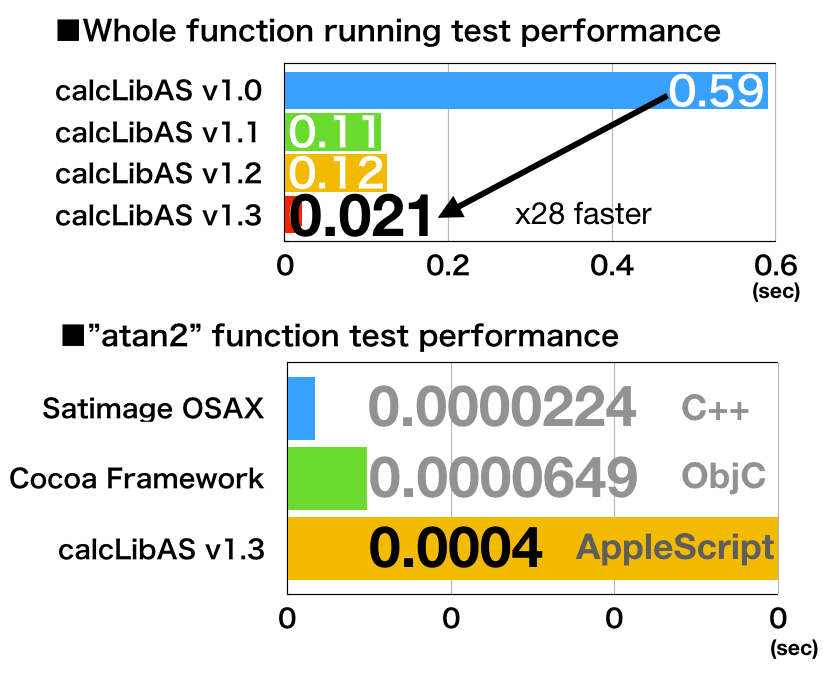
v1では、Satimage OSAXのインストールが必要でしたが、自前でObjective-Cで書いた「atan2だけを計算するフレームワーク」に置き換えたものです。

–> trigonometry.framework (To ~/Library/Frameworks/)
北を0として、西に向かうとマイナス、東に向かうとプラスの値で角度(方位)を返します。この手の計算に必須のatan2関数がAppleScriptに標準装備されていないため、atan2を呼び出すだけの簡単なCocoa FrameworkをObjective-Cで記述して、呼び出してみました。
| AppleScript名:1箇所から別の箇所の方位を求める v2 |
| — Created 2018-05-10 by Takaaki Naganoya — 2017-2018 Piyomaru Software use AppleScript version "2.4" use scripting additions use framework "Foundation" use framework "trigonometry" –(for atan2 calculation) use bPlus : script "BridgePlus" –https://www.macosxautomation.com/applescript/apps/BridgePlus.html set coord1 to {latitude:35.73677496, longitude:139.63754457} –Nakamurabashi Sta. set coord2 to {latitude:35.78839012, longitude:139.61241447} –Wakoshi Sta. set dirRes1 to calcDirectionBetweenTwoPlaces(coord1, coord2) of me –> -25.925429877542 set coord2 to {latitude:35.7227821, longitude:139.63860897} –Saginomiya Sta. set dirRes2 to calcDirectionBetweenTwoPlaces(coord1, coord2) of me –> 175.649833487804 set coord2 to {latitude:35.73590542, longitude:139.62986745} –Fujimidai Sta. set dirRes3 to calcDirectionBetweenTwoPlaces(coord1, coord2) of me –> -96.385293928667 set coord2 to {latitude:35.73785024, longitude:139.65339321} –Nerima Sta. set dirRes4 to calcDirectionBetweenTwoPlaces(coord1, coord2) of me –> 85.959474671834 set coord2 to {latitude:35.71026838, longitude:139.81215754} –Tokyo Sky Tree set dirRes5 to calcDirectionBetweenTwoPlaces(coord1, coord2) of me –> 96.826542737106 –位置情報1から位置情報2の方角を計算。北が0度 on calcDirectionBetweenTwoPlaces(coord1, coord2) load framework –BridgePlus set deltaLong to (longitude of coord2) – (longitude of coord1) set yComponent to bPlus’s sinValueOf:deltaLong set xComponent to (bPlus’s cosValueOf:(latitude of coord1)) * (bPlus’s sinValueOf:(latitude of coord2)) – (bPlus’s sinValueOf:(latitude of coord1)) * (bPlus’s cosValueOf:(latitude of coord2)) * (bPlus’s cosValueOf:deltaLong) set radians to (current application’s calcAtan2’s atan2Num:yComponent withNum:xComponent) as real set degreeRes to (radToDeg(radians) of me) return degreeRes end calcDirectionBetweenTwoPlaces on radToDeg(aRadian) return aRadian * (180 / pi) end radToDeg |
指定のリスト中の指定要素が占める割合をパーセントで返す
指定List中の指定要素が占める割合をパーセントの数値で返すAppleScriptです。
ローカルのiTunesライブラリに入っている楽曲のアーティスト名を集計して、各アーティストがiTunes Music Storeで販売している楽曲のうち、どの程度の割合でApple Musicでも配信しているかを調査するAppleScriptを作成するために作成したものです。
| AppleScript名:指定のリスト中の指定要素が占める割合をパーセントで返す |
| use AppleScript version "2.4" use scripting additions use framework "Foundation" set aList to {false, false, false, false, false, false, false, false, false, false, false, false, false, true, false, false, true, true, true, false, true, true, true, true, true, true, true, false, false, true, true, true, true, true, true, true, true, true, true, true, true, true, true, true, true, true, true} set tPercent to calcOneItemsPercent(aList, true) of me –> 62 (%) –true/falseで構成されるlistのうち、指定要素が占める割合を%で計算。小数点以下を四捨五入 on calcOneItemsPercent(aList, targItem) set aLen to length of aList set theCountedSet to current application’s NSCountedSet’s alloc()’s initWithArray:aList set tRes to (theCountedSet’s countForObject:targItem) if tRes < 1 then return 0 set pRes to (tRes / aLen) * 100 return (round pRes rounding as taught in school) end calcOneItemsPercent |
path control×2を作成 v2
Windowを作成して、その上に2つのNSPathControlを作成し、ドラッグ&ドロップでパス情報を取得するAppleScriptです。


パス情報をドラッグ&ドロップで受け付けるNSPathControlはXcode上でAppleScriptのアプリケーションを作成する場合にはよく使うGUI部品ですが、通常の(Script Editor上の)AppleScriptではあまり使っていませんでした。
AppleScriptでは、choose fileやchoose folderコマンドを複数回実行して複数のパス情報を取得するのが「いつものやり方」ですが、複数のフォルダを指定する場合で人為的なミスが許されない場合には、指定されたパス情報をあらためてダイアログで表示するなどの処理を入れていました。
受け付けた2つのパス情報は、とくにファイルであってもフォルダであってもかまわないのですが、Cocoaで取得したフォルダのPOSIX path情報は末尾にスラッシュがついていないため、AppleScriptのPOSIX pathとして使用する場合には末尾にスラッシュを補う必要があります。
AppleScript側からハンドラを強制的にMain Threadで実行しているため、Command-Control-Rで実行させる必要はありません。その一方で、Script Menuから呼び出した場合にはドラッグ&ドロップを受け付けることや、ボタンのクリックの受信ができません。
| AppleScript名:path control×2を作成 v2 |
| — Created 2018-05-09 by Takaaki Naganoya — 2018 Piyomaru Software use AppleScript version "2.4" use scripting additions use framework "Foundation" use framework "AppKit" property windisp : false property wController : false property resList : {} set aButtonMSG to "OK" set aSliderValMSG to "処理対象フォルダと移動先の指定" set paramList to {aButtonMSG, aSliderValMSG} my performSelectorOnMainThread:"getPathControlValue:" withObject:paramList waitUntilDone:true return my resList on getPathControlValue:paramList copy paramList to {aButtonMSG, aSliderValMSG} set timeOutSecs to 180 –タイムアウト時間 set (my windisp) to true — Window表示中フラグ set aView to current application’s NSView’s alloc()’s initWithFrame:(current application’s NSMakeRect(0, 0, 600, 120)) –Labelをつくる set a1TF to current application’s NSTextField’s alloc()’s initWithFrame:(current application’s NSMakeRect(20, 110, 80, 20)) set a2TF to current application’s NSTextField’s alloc()’s initWithFrame:(current application’s NSMakeRect(20, 70, 80, 20)) a1TF’s setEditable:false a2TF’s setEditable:false a1TF’s setStringValue:"処理対象:" a2TF’s setStringValue:"移動後 :" a1TF’s setDrawsBackground:false a2TF’s setDrawsBackground:false a1TF’s setBordered:false a2TF’s setBordered:false –Ppopup Buttonをつくる set aPathControl to current application’s NSPathControl’s alloc()’s initWithFrame:(current application’s NSMakeRect(80, 110, 500, 20)) set bPathControl to current application’s NSPathControl’s alloc()’s initWithFrame:(current application’s NSMakeRect(80, 70, 500, 20)) aPathControl’s setBackgroundColor:(current application’s NSColor’s cyanColor()) bPathControl’s setBackgroundColor:(current application’s NSColor’s yellowColor()) set aHome to current application’s |NSURL|’s fileURLWithPath:(current application’s NSHomeDirectory()) aPathControl’s setURL:aHome bPathControl’s setURL:aHome –Buttonをつくる set bButton to (current application’s NSButton’s alloc()’s initWithFrame:(current application’s NSMakeRect(200, 10, 180, 40))) bButton’s setButtonType:(current application’s NSMomentaryLightButton) bButton’s setBezelStyle:(current application’s NSRoundedBezelStyle) bButton’s setTitle:aButtonMSG bButton’s setTarget:me bButton’s setAction:("clicked:") bButton’s setKeyEquivalent:(return) aView’s addSubview:a1TF aView’s addSubview:a2TF aView’s addSubview:aPathControl aView’s addSubview:bPathControl aView’s addSubview:bButton aView’s setNeedsDisplay:true –NSWindowControllerを作ってみた set aWin to (my makeWinWithView(aView, 600, 160, aSliderValMSG)) set wController to current application’s NSWindowController’s alloc() wController’s initWithWindow:aWin wController’s showWindow:me set aCount to timeOutSecs * 10 set hitF to false repeat aCount times if (my windisp) = false then set hitF to true exit repeat end if delay 0.1 set aCount to aCount – 1 end repeat my closeWin:aWin if hitF = true then set s1Val to (aPathControl’s |URL|’s |path|()) as string set s2Val to (bPathControl’s |URL|’s |path|()) as string else set {s1Val, s2Val} to {false, false} end if set resList to {s1Val, s2Val} end getPathControlValue: on clicked:aSender set (my windisp) to false end clicked: –make Window for Display on makeWinWithView(aView, aWinWidth, aWinHeight, aTitle) set aScreen to current application’s NSScreen’s mainScreen() set aFrame to {{0, 0}, {aWinWidth, aWinHeight}} set aBacking to current application’s NSTitledWindowMask set aDefer to current application’s NSBackingStoreBuffered — Window set aWin to current application’s NSWindow’s alloc() (aWin’s initWithContentRect:aFrame styleMask:aBacking backing:aDefer defer:false screen:aScreen) aWin’s setTitle:aTitle aWin’s setDelegate:me aWin’s setDisplaysWhenScreenProfileChanges:true aWin’s setHasShadow:true aWin’s setIgnoresMouseEvents:false aWin’s setLevel:(current application’s NSNormalWindowLevel) aWin’s setOpaque:false aWin’s setReleasedWhenClosed:true aWin’s |center|() aWin’s setContentView:aView return aWin end makeWinWithView –close win on closeWin:aWindow repeat with n from 10 to 1 by -1 (aWindow’s setAlphaValue:n / 10) delay 0.02 end repeat aWindow’s |close|() end closeWin: |
searchTreeKitを呼び出して1D List抽出
PJTernarySearchTreeをCocoa Framework化したsearchTreeKitを呼び出して、高速にテキスト検索を行う(はずの)AppleScriptです。
–> SearchTreeKit.framework (To ~/Library/Frameworks/)
普通に1DのNSArrayにテキストを入れて絞り込みを行うよりもスピード面でメリットがあるのかは実測していないのでなんともいえません。PJTernarySearchTreeは検索フィールドの入力履歴からの候補語の検索などに利用するために作られた部品のようです。
| AppleScript名:SearchTreeKitのじっけん1(ファイル書き込み) |
| — Created 2018-05-08 by Takaaki Naganoya — 2018 Piyomaru Software use AppleScript version "2.4" use scripting additions use framework "Foundation" use framework "SearchTreeKit" –https://github.com/peakji/PJTernarySearchTree set savePath to POSIX path of (path to desktop) & (do shell script "uuidgen") & "_test.tree" set aTree to current application’s PJTernarySearchTree’s alloc()’s init() aTree’s insertString:"http://www.peakji.com" aTree’s insertString:"http://www.peak-labs.com" aTree’s insertString:"http://www.facebook.com" aTree’s insertString:"http://www.face.com" aTree’s insertString:"http://blog.foo.com" aTree’s insertString:"http://blog.foo.com/bar" aTree’s insertString:"http://chinese.hello.com/ぴよー" aTree’s insertString:"http://chinese.hello.com/ぴよぴよー" aTree’s saveTreeToFile:savePath |
| AppleScript名:SearchTreeKitのじっけん2(ファイル読み込み) |
| — Created 2018-05-08 by Takaaki Naganoya — 2018 Piyomaru Software use AppleScript version "2.4" use scripting additions use framework "Foundation" use framework "SearchTreeKit" –https://github.com/peakji/PJTernarySearchTree set savePath to POSIX path of (choose file) set aTree to current application’s PJTernarySearchTree’s treeWithFile:savePath set aRetrieved to (aTree’s retrievePrefix:"http://" countLimit:0) as list –return aRetrieved –> {"http://blog.foo.com", "http://blog.foo.com/bar", "http://chinese.hello.com/ぴよぴよー", "http://chinese.hello.com/ぴよー", "http://www.face.com", "http://www.facebook.com", "http://www.peak-labs.com", "http://www.peakji.com"} set bRetrieved to (aTree’s retrievePrefix:"http://" countLimit:2) as list –return bRetrieved –>{"http://blog.foo.com", "http://blog.foo.com/bar"} set cRetrieved to (aTree’s retrievePrefix:"http://www." countLimit:0) as list –return cRetrieved –> {"http://www.face.com", "http://www.facebook.com", "http://www.peak-labs.com", "http://www.peakji.com"} –Remove a string or object aTree’s removeString:"http://www.face.com" set dRetrieved to (aTree’s retrievePrefix:"http://www.fa." countLimit:0) as list –> {} |
| AppleScript名:SearchTreeKitのじっけん3(オブジェクトの追加と検索) |
| — Created 2018-05-09 by Takaaki Naganoya — 2018 Piyomaru Software use AppleScript version "2.4" use scripting additions use framework "Foundation" use framework "SearchTreeKit" –https://github.com/peakji/PJTernarySearchTree set tagSearchTree to current application’s PJTernarySearchTree’s alloc()’s init() tagSearchTree’s insertString:"abcd" (tagSearchTree’s retrievePrefix:"abc") as list –> {"abcd"} tagSearchTree’s insertString:"def" tagSearchTree’s insertString:"ghi" tagSearchTree’s removeString:"abcd" set aList to (tagSearchTree’s retrievePrefix:"") as list –> {"def", "ghi"} |
atan2をFramework呼び出しで計算する
自作のCocoa Frameworkを呼び出してatan2の値を計算するAppleScriptです。
2点の緯度経度情報同士の方位(角度)を計算するatan2は、位置情報計算において割と重要な関数ですが、AppleScriptの標準状態では利用できません。
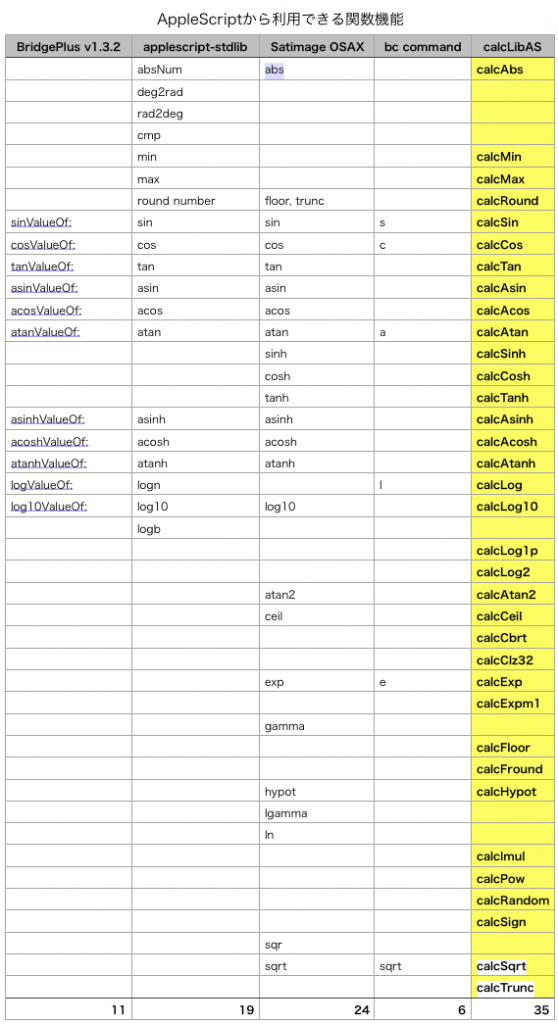
Satimage SoftwareのSatimage OSAX(フリー)をインストールすることでAppleScript中から利用できるようになりますが、これだけだといまひとつ不安なので、atan2を呼び出すだけの簡単なCocoa FrameworkをObjective-Cで記述して、呼び出してみました。
trigonometry.framework (To ~/Library/Frameworks)
Cocoa FrameworkとAppleScriptの間ではNSNumberでやりとりしますが、atan2の計算をObjective-C内で行うにはCGFloatで値を渡す必要がありました(maybe)。また、atan2の計算後に結果をCGFloatからNSNumberに変換。この計算結果をAppleScriptで受け取っています。
一応、両方の計算結果を付けあわせて0〜180度、0〜-180度の範囲で検算を行なったところ、同じ結果が得られました。
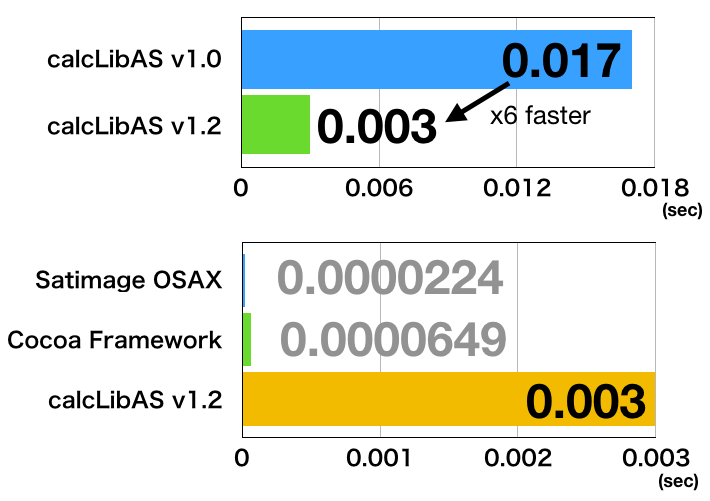
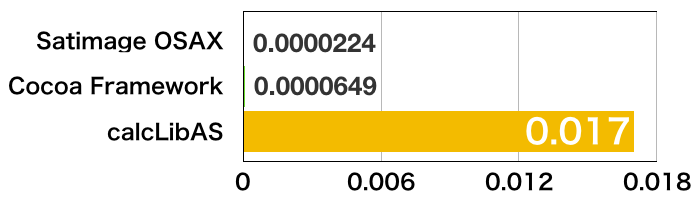
atan2の計算速度について、Satimage OSAXとFramework呼び出しで比較してみたところ(1万回ループで計測)、
Satimage OSAX:0.0000224 sec
Cocoa Framework:0.0000649 sec
と、OSAXよりもFramework呼び出しのほうが3倍時間がかかることがわかりました。ただし、1回あたりの所要時間がごくごく短いので、あまり問題にならないレベルでしょう。
Numbers.appの内部で利用している関数ライブラリ「cephes math library」をCocoa FrameworkにWrappingした「ObjectiveCephes」が存在しているものの、同ライブラリがCのライブラリであるためか、入出力をNSNumberで行うことができない仕様になっていました(処理速度を確保するため???)。このatan2の計算フレームワークと同様にパラメータをcastするようにすれば、cephes math libraryに含まれる各関数をAppleScriptから利用できることになるはずです。
| AppleScript名:atan2をFramework呼び出しで計算する |
| — Created 2018-05-07 by Takaaki Naganoya — 2018 Piyomaru Software use AppleScript version "2.4" use scripting additions use framework "Foundation" use framework "trigonometry" –By myself set aNum to 10 set bNum to 20 set aList to {aNum, bNum} set cNum to atan2 aList –SatImage OSAX –> 0.463647609001 set dNum to (current application’s calcAtan2’s atan2Num:aNum withNum:bNum) as real –> 0.463647609001 |
| AppleScript名:atan2をFramework呼び出しで計算する(検算) |
| — Created 2018-05-07 by Takaaki Naganoya — 2018 Piyomaru Software use AppleScript version "2.4" use scripting additions use framework "Foundation" use framework "trigonometry" –By myself set aNum to 0 set notMatchList to {} repeat with bNum from 0 to 180 set aList to {aNum, bNum} set cNum to atan2 aList –SatImage OSAX set dNum to (current application’s calcAtan2’s atan2Num:aNum withNum:bNum) as real if cNum is not equal to dNum then set the end of notMatchList to {cNum, dNum} end if end repeat repeat with bNum from 0 to -180 by -1 set aList to {aNum, bNum} set cNum to atan2 aList –SatImage OSAX set dNum to (current application’s calcAtan2’s atan2Num:aNum withNum:bNum) as real if cNum is not equal to dNum then set the end of notMatchList to {cNum, dNum} end if end repeat return notMatchList |
Geofenceを付けつつReminder項目を追加

Reminders.app(リマインダー)に新規リマインド項目を作成し、Geofenceを設定するAppleScriptです。
Reminders.appのAppleScript用語辞書にはGeofence作成機能は用意されていないため、Cocoaの機能を利用して追加しました。

Geofenceは、指定の緯度・経度のポイントから半径xxxメートルの円の中に入る場合に発生するアラーム(Enter Alarm)、脱出する場合に発生するアラーム(Leave Alarm)の2種類を設定できます。

Mac上のReminders.app上で登録したこのリマインド項目がiCloud経由でiPhoneにシンクロされ、iPhoneを持って当該期間中に指定場所に行って半径200メートルの円の中から出るとアラームが表示されることになります。

| AppleScript名:Geofenceを付けつつReminder項目を追加 |
| — Created 2014-12-08 by Shane Stanley — Modified 2015-09-24 by Takaaki Naganoya –Geofence Alarm — Modified 2015-09-24 by Shane Stanley –Fix the way to Create the geofence alarm — Modified 2015-09-24 by Takaaki Naganoya –change and test for El Capitan’s Enum bridging –Reference: –http://stackoverflow.com/questions/26903847/add-location-to-ekevent-ios-calendar –http://timhibbard.com/blog/2013/01/03/how-to-create-remove-and-manage-geofence-reminders-in-ios-programmatically-with-xcode/ use AppleScript version "2.5" use scripting additions use framework "Foundation" use framework "EventKit" property EKAlarm : a reference to current application’s EKAlarm property CLLocation : a reference to current application’s CLLocation property EKEventStore : a reference to current application’s EKEventStore property EKStructuredLocation : a reference to current application’s EKStructuredLocation property EKEntityMaskReminder : a reference to current application’s EKEntityMaskReminder property EKAlarmProximityEnter : a reference to current application’s EKAlarmProximityEnter property EKAlarmProximityLeave : a reference to current application’s EKAlarmProximityLeave –Start Date set dSt to "2018/06/01 00:00:00" set dateO1 to date dSt –End Date set dSt2 to "2018/08/01 00:00:00" set dateO2 to date dSt2 tell application "Reminders" if not (exists list "test") then make new list with properties {name:"test"} end if tell list "test" set aReminder to (make new reminder with properties {name:"Test1", body:"New Reminder", due date:dateO2, remind me date:dateO1, priority:9}) –priority 1:高、5:中、9:低、0:なし set anID to id of aReminder –> "x-apple-reminder://XXXXXXXX-XXXX-XXXX-XXXX-XXXXXXXXXXXX" end tell end tell set theID to text 20 thru -1 of anID my setLocationToLeaveForReminderID(35.745769, 139.675565, "Target Place", theID, 200) –指定場所に到着した時に発動するGeofence Alarmを指定のリマインダーに登録する。Geofence半径指定つき(単位:メートル) on setLocationToEnterForReminderID(aLatitude, aLongitude, aTitle, theID, aRangeByMeter) — Get event store set eventStore to EKEventStore’s alloc()’s initWithAccessToEntityTypes:(EKEntityMaskReminder) — Get the reminder set theReminder to eventStore’s calendarItemWithIdentifier:theID –Create the geofence alarm set enterAlarm to EKAlarm’s alarmWithRelativeOffset:0 enterAlarm’s setProximity:(EKAlarmProximityEnter) set structLoc to EKStructuredLocation’s locationWithTitle:aTitle set aLoc to CLLocation’s alloc()’s initWithLatitude:aLatitude longitude:aLongitude structLoc’s setGeoLocation:aLoc — Set radius by meters structLoc’s setRadius:aRangeByMeter enterAlarm’s setStructuredLocation:structLoc theReminder’s addAlarm:enterAlarm set aRes to eventStore’s saveReminder:theReminder commit:true |error|:(missing value) return aRes as boolean end setLocationToEnterForReminderID –指定場所を出発した時に発動するGeofence Alarmを指定のリマインダーに登録する。Geofence半径指定つき(単位:メートル) on setLocationToLeaveForReminderID(aLatitude, aLongitude, aTitle, theID, aRangeByMeter) — Get event store; 1 means reminders set eventStore to EKEventStore’s alloc()’s initWithAccessToEntityTypes:(EKEntityMaskReminder) — Get the reminder set theReminder to eventStore’s calendarItemWithIdentifier:theID –Create the geofence alarm set leaveAlarm to EKAlarm’s alarmWithRelativeOffset:0 leaveAlarm’s setProximity:(EKAlarmProximityLeave) set structLoc to EKStructuredLocation’s locationWithTitle:aTitle set aLoc to CLLocation’s alloc()’s initWithLatitude:aLatitude longitude:aLongitude structLoc’s setGeoLocation:aLoc — Set radius by meters structLoc’s setRadius:aRangeByMeter leaveAlarm’s setStructuredLocation:structLoc theReminder’s addAlarm:leaveAlarm set aRes to eventStore’s saveReminder:theReminder commit:true |error|:(missing value) return aRes as boolean end setLocationToLeaveForReminderID |
旧暦計算を行う
指定の年・月・日から旧暦の日付および六曜を計算するAppleScriptです。
旧暦は太陰暦で、月の満ち欠けを基準とした暦(こよみ)です。旧暦計算は各種関数が必要になるため、AppleScriptだけで計算させると骨が折れますが、これまでにも他の言語のプログラムを呼び出すかたちで計算ライブラリを利用してきました。
本Scriptでは、Objective-Cで書かれたプログラム(バンドル内にplistでデータを持つタイプ)をCocoa Framework化してAppleScriptから呼び出せるようにしたものです。
–> kyurekiKit.framework (To ~/Library/Frameworks)
きょうび、旧暦計算が必要な用途なんてカレンダー製作とか手帳製作あたりで、クライアント企業もだいたい決まっています。業界にその名もとどろく、事前に仕様を出さないのに仕様後出しじゃんけんをしまくって難癖をつけてくる悪名高い極悪非道クライアント様が。だいたいは、事前に旧暦計算データも支給されるので、自前で旧暦計算する必要性に遭遇したことはありません。
| AppleScript名:旧暦計算を行う |
| — Created 2018-05-04 by Takaaki Naganoya — 2018 Piyomaru Software use AppleScript version "2.4" use scripting additions use framework "Foundation" use framework "KyurekiKit" –https://github.com/kyasusoft/Rokuyo –2000年から2032年までのデータをFrameworkに内蔵 set curDat to current date set curYear to year of curDat set curMonth to month of curDat as number set curDate to day of curDat set r to current application’s KYRokuyo’s alloc()’s init() set rokuyoText to (r’s sinrekiToRokuyoWithYear:curYear |month|:curMonth |day|:curDate) as string set kyuMonth to (r’s kyuMonth) as integer set kyuDay to (r’s kyuDay) as integer return {kyuMonth, kyuDay, rokuyoText} –> {3, 19, "先負"} |
自然言語で指定した日時以降に作成されたファイルをSpotlight検索
| AppleScript名:自然言語で指定した日時以降に作成されたファイルをSpotlight検索 |
| — Created 2017-09-21 by Takaaki Naganoya — Modified 2017-09-22 by Shane Stanley — 2017 Piyomaru Software use AppleScript version "2.5" use scripting additions use framework "Foundation" use mdLib : script "Metadata Lib" version "2.0.0" property NSString : a reference to current application’s NSString property NSDataDetector : a reference to current application’s NSDataDetector property NSTextCheckingTypeDate : a reference to current application’s NSTextCheckingTypeDate set aDate to getDatesIn("先週の月曜日") of me –"last Monday" in Japanese log aDate set thePath to POSIX path of (path to desktop) set theFiles to mdLib’s searchFolders:{thePath} searchString:("kMDItemFSCreationDate >= %@") searchArgs:{aDate} –> returns POSIX path list on getDatesIn(aString) set anNSString to NSString’s stringWithString:aString set theDetector to NSDataDetector’s dataDetectorWithTypes:(NSTextCheckingTypeDate) |error|:(missing value) set theMatch to theDetector’s firstMatchInString:anNSString options:0 range:{0, anNSString’s |length|()} if theMatch = missing value then error "No date found with String:" & aString set theDate to theMatch’s |date|() return theDate as date end getDatesIn |
Markdownのimglinkタグ行のリンク書き換え
Markdown書類からリンクしているローカルの画像(相対パス表記)へのリンクを書き換えるAppleScriptです。
MacDownが画像リンクの管理などは一切してくれないので、自前で(AppleScriptで)書き換えを行なっています。
ルートフォルダはフォルダ名が「–」ではじまるようにルールを(勝手に)決めており、各Markdown書類フォルダをさらに細分化した場合には、Markdown書類から画像フォルダへの相対パス指定が合わなくなってしまいます。

そこで、画像フォルダを求めてMarkdown書類の画像リンクを再計算して書き換えてみました。画像自体をルートフォルダからSpotlightで検索するようにしてもよいのですが、今回はとりあえずルールを自分で決めて自分で守っているので、このように処理してみました。
ただ、いまだにリンク画像のパスを手で書かされる(記述自体はAppleScriptでその場で計算しているので完全手書きではないですが)のには、いささかMarkdownの仕様の素朴さに呆れてしまうところです、、、、
| AppleScript名:Markdownのimglinkタグ行のリンク書き換え |
| — Created 2017-01-26 by Takaaki Naganoya — 2017 Piyomaru Software use AppleScript version "2.4" use scripting additions use framework "Foundation" use mdLib : script "Metadata Lib" version "2.0.0" –https://www.macosxautomation.com/applescript/apps/ property NSArray : a reference to current application’s NSArray property NSString : a reference to current application’s NSString property NSScanner : a reference to current application’s NSScanner property NSPredicate : a reference to current application’s NSPredicate property NSDictionary : a reference to current application’s NSDictionary property NSMutableArray : a reference to current application’s NSMutableArray property NSDataDetector : a reference to current application’s NSDataDetector property NSAttributedString : a reference to current application’s NSAttributedString property NSUTF8StringEncoding : a reference to current application’s NSUTF8StringEncoding property NSTextCheckingTypeLink : a reference to current application’s NSTextCheckingTypeLink set origPath to POSIX path of (choose folder with prompt "Markdown書類が入っているフォルダを選択") set savePath to POSIX path of (choose folder with prompt "画像フォルダを選択") set tmp2 to NSString’s stringWithString:savePath set tmp3 to (tmp2’s lastPathComponent()) as string –Spotlightで指定フォルダ以下のMarkdown書類を検索 set aRes to mdLib’s searchFolders:{origPath} searchString:("kMDItemKind == %@ ") searchArgs:{"Markdown Document"} repeat with i in aRes –テキストエンコーディングをUTF-8でMarkDown書類テキスト読み込み set aText to (NSString’s stringWithContentsOfFile:(i) encoding:(NSUTF8StringEncoding) |error|:(missing value)) as string –Markdown記法の画像タグが入っている場合のみ処理 set repLinkURLs to {} –パス置換対象リスト(oldPath, newPathでペア) set aFreq to retFrequency(aText, "![") of me if aFreq is not equal to 0 then set bList to parseStringParagraphs(NSString’s stringWithString:aText) of me set aPredicates to NSPredicate’s predicateWithFormat_("SELF BEGINSWITH[cd] %@", "
ただ、ステータスバーに画像アイコンを表示して、Dark Mode/Light Modeに応じてアイコン画像を切り替えるだけなら、別にNotificationを受信して画像を差し替えるようなことをしなくても、
set aBar to current application’s NSStatusBar’s systemStatusBar()’s statusItemWithLength:(current application’s NSVariableStatusItemLength)
aBar’s setTitle:"TEST MENU"
aBar’s setMenu:statMenu
set anImage to (current application’s NSImage’s imageNamed:"statusBarIconImage")
anImage’s setTemplate:true –これだけでDark Modeの切り替えに自動対応
aBar’s setImage:anImage
★Click Here to Open This Script
ぐらいで対応できます(Xcode上のAppleScript Project)。
| AppleScript名:Dark ModeのNotificationを受信する |
| — Created 2018-05-01 by Takaaki Naganoya — 2018 Piyomaru Software use AppleScript version "2.4" use scripting additions use framework "Foundation" use framework "AppKit" –Save This Script as "stay open applet" to try. on run current application’s NSDistributedNotificationCenter’s defaultCenter()’s addObserver:me selector:"darkModeChanged:" |name|:"AppleInterfaceThemeChangedNotification" object:(missing value) end run on quit current application’s NSDistributedNotificationCenter’s defaultCenter()’s removeObserver:me |name|:"AppleInterfaceThemeChangedNotification" object:(missing value) continue quit –超重要 end quit on darkModeChanged:(aNotification) set curMode to (my currentDarkMode:"test") as string display notification curMode end darkModeChanged: on currentDarkMode:(aNotification) tell application "System Events" tell appearance preferences set curMode to (dark mode) end tell if (curMode as boolean) = true then return "Dark" else return "Light" end if end tell end currentDarkMode: |
miでAppleScriptを実行して結果を新規Windowで返す
テキストエディタ「mi」v3.0のドキュメントに記述してあるAppleScriptをコンパイル(構文確認)して元の書類に書き戻し、結果を新規Windowに表示するAppleScriptです。


とくに、miでなくても他のテキストエディタでも同様の動作は可能です。
| AppleScript名:miでAppleScriptを実行して結果を新規Windowで返す |
| — Created 2018-04-24 by Takaaki Naganoya — 2018 Piyomaru Software use AppleScript version "2.5" use scripting additions use framework "Foundation" use framework "OSAKit" property NSThread : a reference to current application’s NSThread property OSAScript : a reference to current application’s OSAScript property NSTextView : a reference to current application’s NSTextView property OSALanguage : a reference to current application’s OSALanguage property OSAScriptView : a reference to current application’s OSAScriptView property OSAScriptController : a reference to current application’s OSAScriptController property OSALanguageInstance : a reference to current application’s OSALanguageInstance property theResult : "" –result set my theResult to "" tell application "mi" tell front document if mode is not equal to "AppleScript" then return set theSource to content end tell end tell set asSource to my compileASandReturnString:theSource my performSelectorOnMainThread:"execASandReturnString:" withObject:theSource waitUntilDone:true tell application "mi" tell front document set content to asSource end tell set newDoc to make new document tell newDoc set mode to "AppleScript" set content to theResult end tell end tell on execASandReturnString:(theSource as string) set targX to 1024 –View Width set targY to 2048 –View Height set osaCon to current application’s OSAScriptController’s alloc()’s init() set osaView to current application’s OSAScriptView’s alloc()’s initWithFrame:(current application’s NSMakeRect(0, 0, targX, targY)) set resView to NSTextView’s alloc()’s initWithFrame:(current application’s NSMakeRect(0, 0, targX, targY)) resView’s setRichText:true resView’s useAllLigatures:true osaCon’s setScriptView:osaView osaCon’s setLanguage:(OSALanguage’s languageForName:"AppleScript") osaCon’s setResultView:resView osaView’s setString:theSource osaCon’s compileScript:(missing value) –Compile(構文確認) osaCon’s runScript:(missing value) set asRes to resView’s |string|() as list of string or string –as anything set aRes to (osaView’s |string|()) as string copy asRes to theResult end execASandReturnString: on compileASandReturnString:(theSource as string) set targX to 1024 –View Width set targY to 2048 –View Height set osaCon to current application’s OSAScriptController’s alloc()’s init() set osaView to current application’s OSAScriptView’s alloc()’s initWithFrame:(current application’s NSMakeRect(0, 0, targX, targY)) set resView to NSTextView’s alloc()’s initWithFrame:(current application’s NSMakeRect(0, 0, targX, targY)) resView’s setRichText:true resView’s useAllLigatures:true osaCon’s setScriptView:osaView osaCon’s setLanguage:(OSALanguage’s languageForName:"AppleScript") osaCon’s setResultView:resView osaView’s setString:theSource osaCon’s compileScript:(missing value) –Compile(構文確認) set aRes to (osaView’s |string|()) as string return aRes end compileASandReturnString: |
1D Listから指定文字列で終わっている要素を削除して返す
1D Listから指定文字列で終わっている要素を削除して返すAppleScriptです。
| AppleScript名:1D Listから指定文字列で終わっている要素を削除して返す |
| — Created 2018-04-24 by Takaaki Naganoya — 2018 Piyomaru Software use AppleScript version "2.4" use scripting additions use framework "Foundation" set aList to {"aVar", "level1’s", "level2’s", "level3’s", "bVar", "level10’s", "level11’s", "level12’s"} set bList to my fiter1DList:(aList) byTailingKeyword:"’s" –> {"aVar", "bVar"} –指定文字列が末端にある要素を除外 on fiter1DList:(aList as list) byTailingKeyword:(keyWord as string) set itemCount1 to count every item of aList set tmpArray to current application’s NSMutableArray’s arrayWithArray:aList set thePred2 to current application’s NSPredicate’s predicateWithFormat_("!(self ENDSWITH %@)", keyWord) set bArray to (tmpArray’s filteredArrayUsingPredicate:thePred2) as list of string or string return bArray end fiter1DList:byTailingKeyword: |
指定キーワードで始まるリスト要素をリストアップ
2D List(配列)のうち、最初の項目が指定キーワードではじまる要素をリストアップするAppleScriptです。
| AppleScript名:指定キーワードで始まるリスト要素をリストアップ |
| — Created 2017-05-2 by Takaaki Naganoya — 2017 Piyomaru Software use AppleScript version "2.4" use scripting additions use framework "Foundation" set aList to {{"A1 uploading", 2, 2}, {"A2 loginAndDownload", 1, 1}, {"A11 selfCheck", 3, 1}} set bList to my fiter2DList:(aList) byHeadingKeyword:"A1" –> {"A1 TEST1", 2, 2} on fiter2DList:(pathList as list) byHeadingKeyword:(keyWord as string) set keyWord2 to keyWord & " " –ここが重要 set itemCount1 to count every item of pathList set tmpArray to current application’s NSMutableArray’s arrayWithArray:pathList –指定キーワードで始まるファイルをリストアップ set thePred2 to current application’s NSPredicate’s predicateWithFormat_("self[0] BEGINSWITH %@", keyWord2) set bArray to (tmpArray’s filteredArrayUsingPredicate:thePred2) as list of string or string if bArray = {} then return false return bArray end fiter2DList:byHeadingKeyword: |
miの最前面のドキュメントをAppleScriptとみなして構文確認して戻す
テキストエディタ「mi」の最前面のドキュメントをAppleScriptとみなして構文確認してmiの本文に戻すAppleScriptです。
ながらくバージョン3.0のβ版が公開されていたものの、正式版が登場しなかったテキストエディタ「mi」。その正式版が2018.4.21に唐突に登場しました。
そこで、正式版のmiをAppleScriptからコントロールしていろいろ試してみました。

miのAppleScript対応機能は必要なものは十分にそろっているレベルで、最前面のドキュメントの選択部分を取得したり、選択部分に演算結果を戻してみたりと、期待されるような処理は行えます。
そこで、ひととおりの機能を確認してみると、書類の「モード」(種別ごとの書式情報切り替え)をAppleScriptから確認できたりと、他のエディタでは見られないような実装もあります。
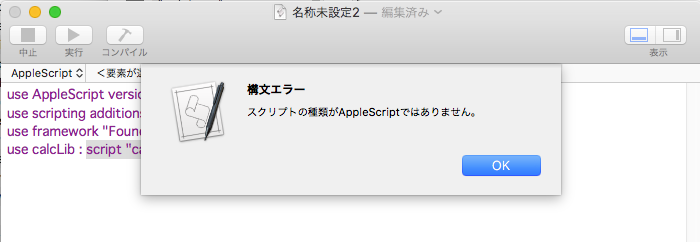
ただ、どのテキストエディタでもそうなのですが、書式情報だけ切り替えて認識できてもほとんど実用性はなく、テキストエディタ上でAppleScriptを書く意味はほとんどありません。「構文確認」が行えないので、構文チェックや短縮表記の展開などが一切行えないためです。

▲mi上でモードを「AppleScript」に指定して編集

▲構文確認した結果をmi上に書き戻したところ。「app」–>「application」、「end」–>「end tell」などの短縮表記を展開している
そこで、AppleScript自体でAppleScriptのテキストを構文確認して文法チェックや短縮表現の展開などを行い、結果をテキストエディタ(ここではmi)に書き戻すようにしてみました。
このぐらいの処理なら、アプリケーションに依存している部分はほどんとないので、CotEditorでもJeditΩでも、BBEditでも問題なく行えます。
| AppleScript名:miの最前面のドキュメントをAppleScriptとみなして構文確認して戻す |
| — Created 2018-04-24 by Takaaki Naganoya — 2018 Piyomaru Software use AppleScript version "2.5" use scripting additions use framework "Foundation" use framework "OSAKit" property OSAScript : a reference to current application’s OSAScript property OSALanguage : a reference to current application’s OSALanguage property OSALanguageInstance : a reference to current application’s OSALanguageInstance set targX to 1024 –View Width set targY to 2048 –View Height tell application "mi" tell front document if mode is not equal to "AppleScript" then return set theSource to content end tell end tell –Compile AppleScript Source set osaCon to current application’s OSAScriptController’s alloc()’s init() set osaView to current application’s OSAScriptView’s alloc()’s initWithFrame:(current application’s NSMakeRect(0, 0, targX, targY)) osaCon’s setScriptView:osaView osaCon’s setLanguage:(OSALanguage’s languageForName:"AppleScript") osaView’s setString:theSource osaCon’s compileScript:(missing value) –Compile(構文確認) set aRes to (osaView’s |string|()) as string tell application "mi" tell front document set content to aRes end tell end tell |
AS構文色分け情報の重複チェック
plistから読み取ったAppleScriptの構文色分け書式データをもとに、各構文要素の指定色に重複がないかどうかチェックするAppleScriptです。
もう少しシンプルに書けそうな気もするのですが、、、
| AppleScript名:AS構文色分け情報の重複チェック |
| — Created 2018-04-22 by Takaaki Naganoya — 2018 Piyomaru Software use AppleScript version "2.4" use scripting additions use framework "Foundation" set aList to {{redValue:145, greenValue:40, blueValue:144, fontName:"Osaka", fontSize:13.0}, {redValue:61, greenValue:12, blueValue:62, fontName:"Osaka", fontSize:13.0}, {redValue:14, greenValue:62, blueValue:251, fontName:"Osaka", fontSize:13.0}, {redValue:120, greenValue:52, blueValue:203, fontName:"Osaka", fontSize:13.0}, {redValue:255, greenValue:0, blueValue:0, fontName:"Osaka", fontSize:13.0}, {redValue:0, greenValue:0, blueValue:0, fontName:"Osaka", fontSize:13.0}, {redValue:145, greenValue:82, blueValue:17, fontName:"Osaka", fontSize:13.0}, {redValue:0, greenValue:0, blueValue:0, fontName:"Osaka", fontSize:13.0}, {redValue:39, greenValue:201, blueValue:201, fontName:"Osaka", fontSize:13.0}, {redValue:15, greenValue:62, blueValue:251, fontName:"Osaka", fontSize:13.0}, {redValue:31, greenValue:182, blueValue:252, fontName:"Osaka", fontSize:13.0}, {redValue:129, greenValue:58, blueValue:217, fontName:"Osaka", fontSize:13.0}, {redValue:93, greenValue:54, blueValue:146, fontName:"Osaka", fontSize:13.0}, {redValue:185, greenValue:12, blueValue:128, fontName:"Osaka", fontSize:13.0}, {redValue:25, greenValue:184, blueValue:126, fontName:"Osaka", fontSize:13.0}, {redValue:156, greenValue:145, blueValue:5, fontName:"Osaka", fontSize:13.0}, {redValue:79, greenValue:0, blueValue:136, fontName:"Osaka", fontSize:13.0}, {redValue:18, greenValue:138, blueValue:139, fontName:"Osaka", fontSize:13.0}} set cRes to chkASLexicalFormatColorConfliction(aList) of me –> false–重複があった on chkASLexicalFormatColorConfliction(aList) set anArray to current application’s NSArray’s arrayWithArray:aList set bList to (anArray’s valueForKeyPath:"redValue.stringValue") as list set cList to (anArray’s valueForKeyPath:"greenValue.stringValue") as list set dList to (anArray’s valueForKeyPath:"blueValue.stringValue") as list set colStrList to {} repeat with i from 1 to (length of bList) set bItem to contents of item i of bList set cItem to contents of item i of cList set dItem to contents of item i of dList set the end of colStrList to bItem & " " & cItem & " " & dItem end repeat set aRes to returnDuplicatesOnly(colStrList) of me if aRes is equal to {} then return true –重複が存在しなかった場合 else return false –重複があった場合 end if end chkASLexicalFormatColorConfliction on returnDuplicatesOnly(aList as list) set aSet to current application’s NSCountedSet’s alloc()’s initWithArray:aList set bList to (aSet’s allObjects()) as list set dupList to {} repeat with i in bList set aRes to (aSet’s countForObject:i) if aRes > 1 then set the end of dupList to (contents of i) end if end repeat return dupList end returnDuplicatesOnly |