use AppleScript version "2.4"
use scripting additions
use framework "Foundation"
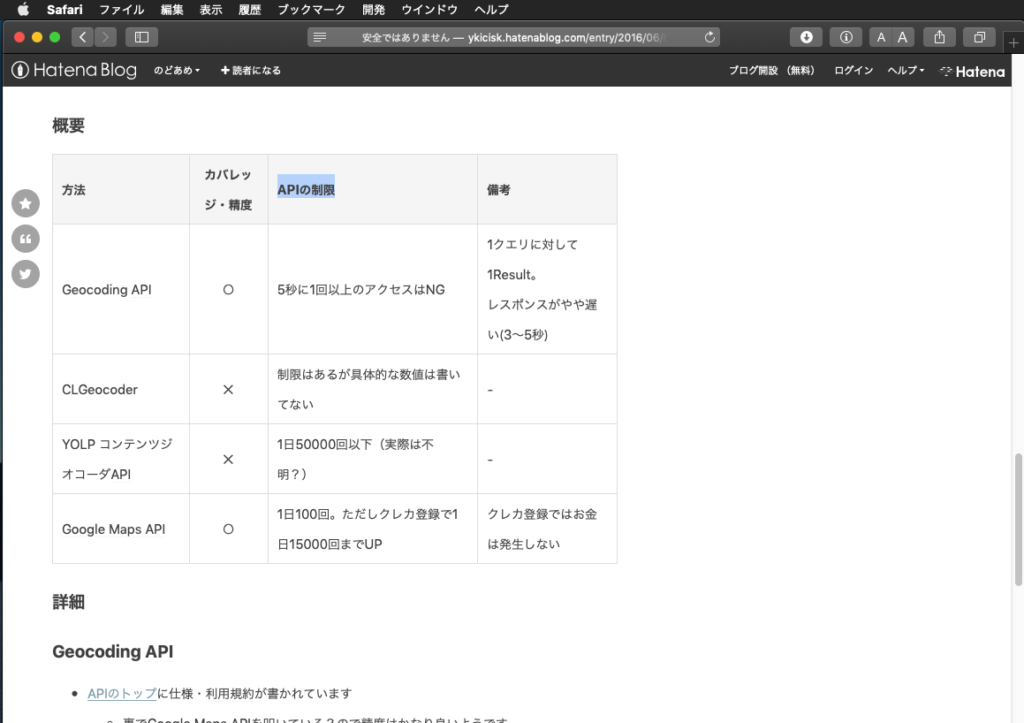
tell application "Safari"
set jsStr to "var elementsArray = document.body.getElementsByTagName(’table’);
aVar = window.getComputedStyle(elementsArray[1]);
JSON.stringify(aVar);"
set aHeight to do JavaScript jsStr in front document
set cRes to parseJSONAsRecord(aHeight) of me
end tell
–> {|95|:"font-style", |50|:"caret-color", |96|:"font-synthesis", |51|:"clear", |97|:"font-variant", webkitMaskPosition:"0% 0%", |52|:"clip", |98|:"font-variant-alternates", webkitHyphens:"manual", |right|:"auto", |53|:"clip-path", |99|:"font-variant-caps", |54|:"clip-rule", backgroundAttachment:"scroll", willChange:"auto", |55|:"color", margin:"0px 0px 20px", marginTop:"0px", |10|:"animation-name", |56|:"color-interpolation", webkitColumnBreakBefore:"auto", baselineShift:"baseline", webkitLineSnap:"none", |11|:"animation-play-state", |57|:"color-interpolation-filters", scrollSnapMargin:"0px", transform:"none", |12|:"animation-timing-function", |58|:"color-rendering", |13|:"background-attachment", |59|:"color-scheme", fontVariantPosition:"normal", gridAutoFlow:"row", |14|:"background-blend-mode", position:"static", |15|:"background-clip", |16|:"background-color", |17|:"background-image", webkitMaskComposite:"source-over", |18|:"background-origin", justifyItems:"normal", |19|:"background-position", colorRendering:"auto", |color|:"rgb(51, 51, 51)", listStyleImage:"none", borderBottom:"0px none rgb(128, 128, 128)", backgroundOrigin:"padding-box", counterIncrement:"none", webkitMaskRepeatY:"", writingMode:"horizontal-tb", borderInlineEndStyle:"none", columnGap:"normal", textDecorationLine:"none", scrollSnapMarginBottom:"0px", strokeColor:"rgba(0, 0, 0, 0)", webkitBoxOrdinalGroup:"1", alignItems:"normal", caretColor:"rgb(51, 51, 51)", webkitMarginBottomCollapse:"collapse", paddingLeft:"0px", fontWeight:"normal", padding:"0px", scrollPaddingTop:"0px", flexGrow:"0", boxSizing:"border-box", webkitBackgroundSize:"auto", marginBottom:"20px", gridTemplateRows:"none", background:"rgba(0, 0, 0, 0) none repeat scroll 0% 0% / auto padding-box border-box", fontDisplay:"", speakAs:"normal", |left|:"auto", webkitBoxDecorationBreak:"slice", scrollSnapAlign:"none none", backgroundPosition:"0% 0%", gridRowStart:"auto", borderBlockStartWidth:"0px", borderTopLeftRadius:"0px", webkitUserDrag:"auto", borderRightColor:"rgb(128, 128, 128)", fontVariantAlternates:"normal", breakInside:"auto", webkitTextZoom:"normal", marker:"", webkitClipPath:"none", strokeLinejoin:"miter", webkitMarquee:"", breakAfter:"auto", webkitMaskPositionX:"0%", whiteSpace:"normal", backgroundColor:"rgba(0, 0, 0, 0)", flexDirection:"row", columns:"auto auto", transformOriginX:"", clip:"auto", emptyCells:"show", transformOrigin:"413.75px 309.4021911621094px", borderLeftColor:"rgb(128, 128, 128)", flex:"0 1 auto", webkitTextStroke:"", clipRule:"nonzero", grid:"none / none / none / row / auto / auto", listStyleType:"disc", maxWidth:"none", borderInlineStartStyle:"none", webkitTextOrientation:"mixed", clipPath:"none", justifySelf:"auto", clear:"none", transformOriginY:"", overflowWrap:"break-word", webkitHyphenateLimitAfter:"auto", tabSize:"8", marginBlockStart:"0px", |120|:"image-rendering", unicodeRange:"", gridColumnEnd:"auto", webkitRubyPosition:"before", |220|:"text-rendering", animationDirection:"normal", webkitMaskOrigin:"border-box", |121|:"isolation", fontStyle:"normal", |320|:"-webkit-text-emphasis-position", |221|:"text-shadow", webkitTextFillColor:"rgb(51, 51, 51)", |122|:"justify-content", borderBottomLeftRadius:"0px", |321|:"-webkit-text-emphasis-style", |80|:"fill-rule", |222|:"text-transform", |123|:"justify-items", |81|:"filter", |322|:"-webkit-text-fill-color", transformOriginZ:"", borderRightWidth:"0px", |82|:"flex-basis", |223|:"text-underline-position", |124|:"justify-self", webkitTextSizeAdjust:"auto", |83|:"flex-direction", |323|:"-webkit-text-orientation", |224|:"top", |84|:"flex-flow", |125|:"kerning", |150|:"opacity", |85|:"flex-grow", |324|:"-webkit-text-security", borderBlockStartStyle:"none", |225|:"touch-action", |40|:"border-top-color", |86|:"flex-shrink", |126|:"left", |250|:"-apple-color-filter", |151|:"order", |41|:"border-top-left-radius", |87|:"flex-wrap", |325|:"-webkit-text-size-adjust", |226|:"transform", border:"0px none rgb(128, 128, 128)", |42|:"border-top-right-radius", |88|:"float", |127|:"letter-spacing", |152|:"orphans", |251|:"-webkit-appearance", |43|:"border-top-style", |89|:"flood-color", |227|:"transform-box", |326|:"-webkit-text-stroke-color", |252|:"-webkit-backdrop-filter", |44|:"border-top-width", |128|:"lighting-color", |153|:"outline-color", |327|:"-webkit-text-stroke-width", borderBlockEndColor:"rgb(128, 128, 128)", |45|:"bottom", |228|:"transform-origin", borderInlineEnd:"0px none rgb(128, 128, 128)", |253|:"-webkit-backface-visibility", |129|:"line-break", |46|:"box-shadow", |154|:"outline-offset", |328|:"-webkit-text-zoom", alignContent:"normal", borderLeftStyle:"none", |47|:"box-sizing", |229|:"transform-style", |254|:"-webkit-background-clip", colorScheme:"auto", shapeOutside:"none", |48|:"buffered-rendering", |155|:"outline-style", |180|:"ry", |329|:"-webkit-transform-style", minBlockSize:"0px", |49|:"caption-side", |255|:"-webkit-background-composite", inlineSize:"827.5px", |280|:"-webkit-font-kerning", |156|:"outline-width", textDecorationColor:"rgb(51, 51, 51)", |181|:"scroll-padding", transitionProperty:"all", webkitBoxDirection:"normal", webkitInitialLetter:"normal", |256|:"-webkit-background-origin", gridColumn:"auto / auto", |281|:"-webkit-font-smoothing", |157|:"overflow-wrap", listStyle:"disc outside none", |182|:"scroll-padding-bottom", webkitMaskBoxImage:"none", floodColor:"rgb(0, 0, 0)", webkitTextEmphasisPosition:"over right", |257|:"-webkit-background-size", scrollSnapMarginRight:"0px", |282|:"-webkit-hyphenate-character", |158|:"overflow-x", webkitTextSecurity:"none", |183|:"scroll-padding-left", columnRule:"0px none rgb(51, 51, 51)", |258|:"-webkit-border-fit", gridColumnStart:"auto", |283|:"-webkit-hyphenate-limit-after", |159|:"overflow-y", touchAction:"auto", |184|:"scroll-padding-right", webkitFontSizeDelta:"", webkitLocale:"ja", |259|:"-webkit-border-horizontal-spacing", |284|:"-webkit-hyphenate-limit-before", colorInterpolation:"sRGB", borderTopColor:"rgb(128, 128, 128)", |185|:"scroll-padding-top", |285|:"-webkit-hyphenate-limit-lines", hangingPunctuation:"none", |186|:"scroll-snap-align", mask:"none", borderRight:"0px none rgb(128, 128, 128)", paddingInlineStart:"0px", webkitBackgroundOrigin:"padding-box", |286|:"-webkit-hyphens", |187|:"scroll-snap-margin", pageBreakAfter:"auto", colorProfile:"", textAnchor:"start", |287|:"-webkit-initial-letter", webkitMaskSize:"auto", |188|:"scroll-snap-margin-bottom", overflowX:"visible", |288|:"-webkit-line-align", strokeLinecap:"butt", |189|:"scroll-snap-margin-left", |289|:"-webkit-line-box-contain", borderBottomColor:"rgb(128, 128, 128)", paddingRight:"0px", fontOpticalSizing:"auto", borderImage:"none", floodOpacity:"1", webkitAspectRatio:"auto", webkitColumnProgression:"normal", alignSelf:"auto", display:"table", borderRadius:"0px", maxInlineSize:"none", minHeight:"0px", strokeMiterlimit:"4", webkitBorderVerticalSpacing:"0px", webkitMaskClip:"border-box", webkitBorderHorizontalSpacing:"0px", objectPosition:"50% 50%", kerning:"0", borderStyle:"none", visibility:"visible", textShadow:"none", borderLeftWidth:"0px", shapeImageThreshold:"0", scrollSnapMarginTop:"0px", markerMid:"none", scrollPadding:"0px", markerEnd:"none", webkitFontKerning:"auto", borderBottomWidth:"0px", float:"none", placeSelf:"auto auto", webkitBackgroundComposite:"source-over", borderTop:"0px none rgb(128, 128, 128)", backgroundRepeat:"repeat", webkitMarqueeDirection:"auto", animationIterationCount:"1", backgroundPositionX:"0%", content:"", transformStyle:"flat", borderInlineEndColor:"rgb(128, 128, 128)", borderBlockStart:"0px none rgb(128, 128, 128)", overflow:"visible", webkitMaskPositionY:"0%", perspective:"none", strokeDashoffset:"0px", outlineColor:"rgb(51, 51, 51)", webkitMarqueeSpeed:"", webkitTextEmphasisStyle:"none", isolation:"auto", borderInlineStartColor:"rgb(128, 128, 128)", textDecorationSkip:"auto", outlineOffset:"0px", objectFit:"fill", textUnderlineOffset:"auto", webkitAppearance:"none", webkitMaskBoxImageWidth:"auto", animationTimingFunction:"ease", borderWidth:"0px", borderSpacing:"0px 0px", captionSide:"top", columnWidth:"auto", rowGap:"normal", webkitMaskBoxImageSource:"none", webkitRtlOrdering:"logical", |70|:"counter-reset", paddingInlineEnd:"0px", |71|:"cursor", |72|:"cx", fontSize:"14.000000953674316px", |73|:"cy", vectorEffect:"none", |74|:"direction", justifyContent:"normal", fillRule:"nonzero", |75|:"display", fontSynthesis:"style weight small-caps", |30|:"border-image-repeat", |76|:"dominant-baseline", |31|:"border-image-slice", |77|:"empty-cells", pageBreakBefore:"auto", |32|:"border-image-source", |78|:"fill", cx:"0px", webkitMaskBoxImageRepeat:"stretch", borderImageSource:"none", |33|:"border-image-width", |79|:"fill-opacity", cy:"0px", outlineStyle:"none", webkitBoxFlex:"0", |34|:"border-left-color", width:"827.5px", webkitMarginBeforeCollapse:"collapse", |35|:"border-left-style", borderRightStyle:"none", |36|:"border-left-width", |0|:"align-content", |37|:"border-right-color", |1|:"align-items", paddingBlockStart:"0px", |size|:"", |2|:"align-self", |38|:"border-right-style", |3|:"alignment-baseline", |4|:"alt", |39|:"border-right-width", webkitFontSmoothing:"auto", |5|:"animation-delay", borderTopWidth:"0px", |6|:"animation-direction", |100|:"font-variant-east-asian", |7|:"animation-duration", |8|:"animation-fill-mode", |200|:"stroke", |9|:"animation-iteration-count", webkitTransformStyle:"flat", |101|:"font-variant-ligatures", counterReset:"none", |300|:"-webkit-mask-box-image", maskType:"luminance", webkitBoxShadow:"none", |201|:"stroke-color", borderBlockEndStyle:"none", |102|:"font-variant-numeric", fontStretch:"normal", textDecorationStyle:"solid", |301|:"-webkit-mask-box-image-outset", cursor:"auto", |202|:"stroke-dasharray", webkitMarqueeStyle:"scroll", |103|:"font-variant-position", animationFillMode:"none", glyphOrientationVertical:"auto", |302|:"-webkit-mask-box-image-repeat", |203|:"stroke-dashoffset", textRendering:"auto", |104|:"font-variation-settings", borderImageRepeat:"stretch", |303|:"-webkit-mask-box-image-slice", |204|:"stroke-linecap", height:"618.8043823242188px", |105|:"font-weight", all:"", |130|:"line-height", |304|:"-webkit-mask-box-image-source", pointerEvents:"auto", textTransform:"none", |205|:"stroke-linejoin", dominantBaseline:"auto", |230|:"transition-delay", |106|:"glyph-orientation-horizontal", filter:"none", |131|:"list-style-image", |305|:"-webkit-mask-box-image-width", |330|:"-webkit-user-drag", |206|:"stroke-miterlimit", paintOrder:"normal", |231|:"transition-duration", |107|:"glyph-orientation-vertical", placeItems:"normal normal", |132|:"list-style-position", |306|:"-webkit-mask-clip", borderInlineStart:"0px none rgb(128, 128, 128)", |331|:"-webkit-user-modify", |207|:"stroke-opacity", textOverflow:"clip", |232|:"transition-property", |108|:"grid-auto-columns", webkitBackdropFilter:"none", |133|:"list-style-type", |307|:"-webkit-mask-composite", webkitMaskRepeat:"repeat", |332|:"-webkit-user-select", |208|:"stroke-width", webkitBoxReflect:"none", |233|:"transition-timing-function", |109|:"grid-auto-flow", |134|:"margin-bottom", |308|:"-webkit-mask-image", |333|:"fullscreen-inset-bottom", |209|:"tab-size", |234|:"unicode-bidi", flexWrap:"nowrap", wordSpacing:"0px", |135|:"margin-left", |309|:"-webkit-mask-origin", |160|:"padding-bottom", |334|:"safe-area-inset-bottom", flexFlow:"row nowrap", |235|:"vector-effect", |260|:"-webkit-border-image", |136|:"margin-right", |161|:"padding-left", |335|:"safe-area-inset-left", transition:"all 0s ease 0s", |236|:"vertical-align", columnFill:"balance", |261|:"-webkit-border-vertical-spacing", |137|:"margin-top", |162|:"padding-right", |336|:"fullscreen-inset-left", maxHeight:"none", |237|:"visibility", alt:"\"\"", |262|:"-webkit-box-align", |138|:"marker-end", marginInlineEnd:"0px", |163|:"padding-top", |337|:"fullscreen-inset-right", webkitMarginTopCollapse:"collapse", |238|:"white-space", gridRowEnd:"auto", |263|:"-webkit-box-decoration-break", |139|:"marker-mid", |164|:"page-break-after", |338|:"fullscreen-auto-hide-duration", fillOpacity:"1", |239|:"widows", |264|:"-webkit-box-direction", overflowY:"visible", |165|:"page-break-before", |339|:"safe-area-inset-right", |190|:"scroll-snap-margin-right", |265|:"-webkit-box-flex", animationDuration:"0s", |290|:"-webkit-line-clamp", |166|:"page-break-inside", marginRight:"0px", |191|:"scroll-snap-margin-top", |266|:"-webkit-box-flex-group", borderInlineStartWidth:"0px", |291|:"-webkit-line-grid", |167|:"paint-order", webkitNbspMode:"normal", |192|:"scroll-snap-type", |267|:"-webkit-box-lines", mixBlendMode:"normal", |292|:"-webkit-line-snap", |168|:"perspective", paddingBlockEnd:"0px", |193|:"shape-image-threshold", src:"", webkitBoxAlign:"stretch", |268|:"-webkit-box-ordinal-group", paddingTop:"0px", |293|:"-webkit-locale", |169|:"perspective-origin", borderBlockEnd:"0px none rgb(128, 128, 128)", |194|:"shape-margin", r:"0px", textAlign:"start", |269|:"-webkit-box-orient", webkitMaskBoxImageOutset:"0px", |294|:"-webkit-margin-after-collapse", webkitTextEmphasis:"", webkitTextStrokeColor:"rgb(51, 51, 51)", |195|:"shape-outside", breakBefore:"auto", wordWrap:"break-word", |295|:"-webkit-margin-before-collapse", minInlineSize:"0px", |196|:"shape-rendering", borderInlineEndWidth:"0px", webkitLineAlign:"none", webkitMaskBoxImageSlice:"0 fill", widows:"auto", perspectiveOrigin:"413.75px 309.4021911621094px", |296|:"-webkit-marquee-direction", x:"0px", y:"0px", |197|:"speak-as", perspectiveOriginX:"", |297|:"-webkit-marquee-increment", |198|:"stop-color", fontFamily:"-apple-system, BlinkMacSystemFont, \"Segoe UI\", Roboto, Oxygen-Sans, Ubuntu, Cantarell, \"Helvetica Neue\", sans-serif", |298|:"-webkit-marquee-repetition", |199|:"stop-opacity", animationPlayState:"running", webkitHyphenateLimitBefore:"auto", |299|:"-webkit-marquee-style", webkitBoxOrient:"horizontal", order:"0", webkitMaskSourceType:"alpha", fontVariantNumeric:"normal", webkitColumnBreakAfter:"auto", webkitColumnBreakInside:"auto", shapeMargin:"0px", webkitMaskImage:"none", top:"auto", backgroundBlendMode:"normal", listStylePosition:"outside", bottom:"auto", gridTemplateColumns:"none", strokeWidth:"0.8695652484893799px", borderTopRightRadius:"0px", direction:"ltr", webkitBackfaceVisibility:"visible", backgroundPositionY:"0%", rx:"0px", webkitHyphenateLimitLines:"no-limit", ry:"0px", lineBreak:"auto", bufferedRendering:"auto", quotes:"", gridRow:"auto / auto", webkitBorderFit:"border", borderBottomRightRadius:"0px", alignmentBaseline:"auto", textIndent:"0px", paddingBottom:"0px", columnRuleColor:"rgb(51, 51, 51)", fontVariantCaps:"normal", backgroundSize:"auto", |60|:"column-count", columnCount:"auto", |61|:"column-fill", webkitBoxLines:"single", webkitBoxFlexGroup:"1", backgroundRepeatX:"", |62|:"column-gap", glyphOrientationHorizontal:"0deg", lineHeight:"20px", |63|:"column-rule-color", borderBlockEndWidth:"0px", opacity:"1", webkitBackgroundClip:"border-box", webkitBoxPack:"start", |64|:"column-rule-style", |65|:"column-rule-width", borderImageWidth:"1", fontVariantLigatures:"normal", |20|:"background-repeat", |66|:"column-span", |21|:"background-size", |67|:"column-width", gridTemplateAreas:"none", tableLayout:"auto", |22|:"baseline-shift", |68|:"content", webkitBorderImage:"none", |23|:"border-bottom-color", |69|:"counter-increment", animationName:"none", letterSpacing:"normal", |24|:"border-bottom-left-radius", |25|:"border-bottom-right-radius", backgroundClip:"border-box", transitionDelay:"0s", |26|:"border-bottom-style", |27|:"border-bottom-width", webkitCursorVisibility:"auto", |28|:"border-collapse", webkitTextDecorationsInEffect:"none", |29|:"border-image-outset", fill:"rgb(0, 0, 0)", webkitHyphenateCharacter:"auto", animation:"", pageBreakInside:"auto", lightingColor:"rgb(255, 255, 255)", webkitLineClamp:"none", perspectiveOriginY:"", textDecorationThickness:"auto", marginInlineStart:"0px", borderTopStyle:"none", placeContent:"normal normal", backgroundRepeatY:"", textUnderlinePosition:"auto", wordBreak:"normal", columnRuleStyle:"none", webkitUserModify:"read-only", columnSpan:"none", strokeOpacity:"1", webkitMarqueeRepetition:"infinite", webkitMarginCollapse:"", flexBasis:"auto", colorInterpolationFilters:"linearRGB", gap:"normal normal", webkitMask:"", gridArea:"auto / auto / auto / auto", gridTemplate:"none / none / none", resize:"none", borderColor:"rgb(128, 128, 128)", zIndex:"auto", webkitTextCombine:"none", webkitTextStrokeWidth:"0px", borderBottomStyle:"none", fontVariant:"normal", scrollSnapType:"none", textDecoration:"none", webkitTextEmphasisColor:"rgb(51, 51, 51)", orphans:"auto", scrollPaddingRight:"0px", borderImageOutset:"0px", webkitTextDecoration:"none solid rgb(51, 51, 51)", |110|:"grid-auto-rows", marginLeft:"0px", transitionTimingFunction:"ease", |210|:"table-layout", stroke:"none", stopOpacity:"1", |111|:"grid-column-end", |310|:"-webkit-mask-position", stopColor:"rgb(0, 0, 0)", webkitPrintColorAdjust:"economy", |211|:"text-align", unicodeBidi:"normal", |112|:"grid-column-start", |311|:"-webkit-mask-repeat", page:"", |212|:"text-anchor", |113|:"grid-row-end", |312|:"-webkit-mask-size", fontFeatureSettings:"normal", |213|:"text-decoration", |114|:"grid-row-start", webkitMarqueeIncrement:"6px", webkitUserSelect:"text", |313|:"-webkit-mask-source-type", gridAutoRows:"auto", |214|:"text-decoration-color", |115|:"grid-template-areas", |140|:"marker-start", |314|:"-webkit-nbsp-mode", scrollPaddingBottom:"0px", |215|:"text-decoration-line", |240|:"width", |116|:"grid-template-columns", |141|:"mask", |315|:"-webkit-print-color-adjust", borderBlockStartColor:"rgb(128, 128, 128)", |340|:"fullscreen-inset-top", |216|:"text-decoration-skip", fontVariantEastAsian:"normal", |241|:"will-change", |117|:"grid-template-rows", fontVariationSettings:"normal", |142|:"mask-type", |316|:"-webkit-rtl-ordering", marginBlockEnd:"20px", |341|:"safe-area-inset-top", |217|:"text-decoration-style", minWidth:"0px", |242|:"word-break", |118|:"hanging-punctuation", zoom:"1", |143|:"max-height", |317|:"-webkit-text-combine", |218|:"text-indent", gridAutoColumns:"auto", |243|:"word-spacing", |119|:"height", verticalAlign:"baseline", |144|:"max-width", |318|:"-webkit-text-decorations-in-effect", imageRendering:"auto", maxBlockSize:"none", |219|:"text-overflow", outlineWidth:"0px", |244|:"word-wrap", shapeRendering:"auto", webkitLineGrid:"none", |145|:"min-height", |319|:"-webkit-text-emphasis-color", |170|:"place-content", enableBackground:"", |245|:"writing-mode", |270|:"-webkit-box-pack", |146|:"min-width", animationDelay:"0s", |171|:"place-items", boxShadow:"none", scrollSnapMarginLeft:"0px", webkitBorderRadius:"", |246|:"x", |271|:"-webkit-box-reflect", |147|:"mix-blend-mode", |172|:"place-self", |247|:"y", blockSize:"618.8043823242188px", |272|:"-webkit-box-shadow", |148|:"object-fit", columnRuleWidth:"0px", |173|:"pointer-events", backgroundImage:"none", |248|:"z-index", |273|:"-webkit-clip-path", |149|:"object-position", transitionDuration:"0s", |174|:"position", |249|:"zoom", |274|:"-webkit-column-axis", webkitColumnAxis:"auto", |175|:"r", borderImageSlice:"100%", |275|:"-webkit-column-break-after", borderCollapse:"collapse", |176|:"resize", |276|:"-webkit-column-break-before", webkitLineBoxContain:"block inline replaced", |177|:"right", |277|:"-webkit-column-break-inside", |178|:"row-gap", borderLeft:"0px none rgb(128, 128, 128)", |font|:"normal normal normal normal 14.000000953674316px/20px -apple-system, BlinkMacSystemFont, \"Segoe UI\", Roboto, Oxygen-Sans, Ubuntu, Cantarell, \"Helvetica Neue\", sans-serif", webkitMarginAfterCollapse:"collapse", |278|:"-webkit-column-progression", |outline|:"rgb(51, 51, 51) none 0px", scrollPaddingLeft:"0px", |90|:"flood-opacity", |179|:"rx", markerStart:"none", strokeDasharray:"none", |91|:"font-family", |279|:"-webkit-cursor-visibility", flexShrink:"1", webkitMaskRepeatX:"", |92|:"font-optical-sizing", transformBox:"border-box", |93|:"font-size", |94|:"font-stretch"}
on parseJSONAsRecord(jsRes)
set jsonString to current application’s NSString’s stringWithString:jsRes
set jsonData to jsonString’s dataUsingEncoding:(current application’s NSUTF8StringEncoding)
set aJsonDict to current application’s NSJSONSerialization’s JSONObjectWithData:jsonData options:0 |error|:(missing value)
return aJsonDict as record
end parseJSONAsRecord
|